Visual gallery

A wall of shipped craft, told as a story.

Screens, flows, and concepts from real product work at Lightspeed and NuORDER - organized by the arc of the work, from early exploration to live Local Inventory Ads. Click any image to enlarge.

Project
Type
01Strategy & exploration

Strategy, flows, and early product exploration

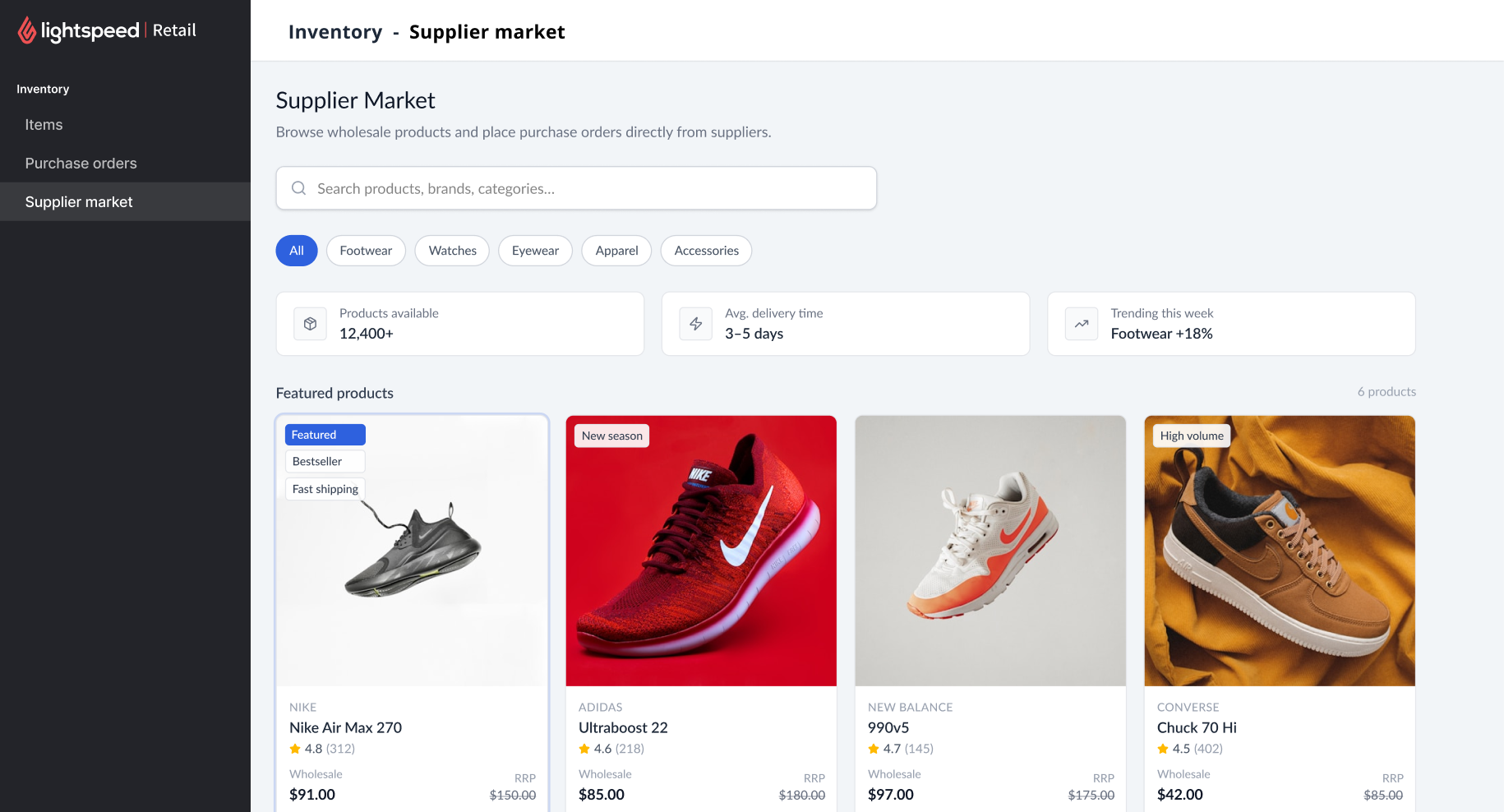
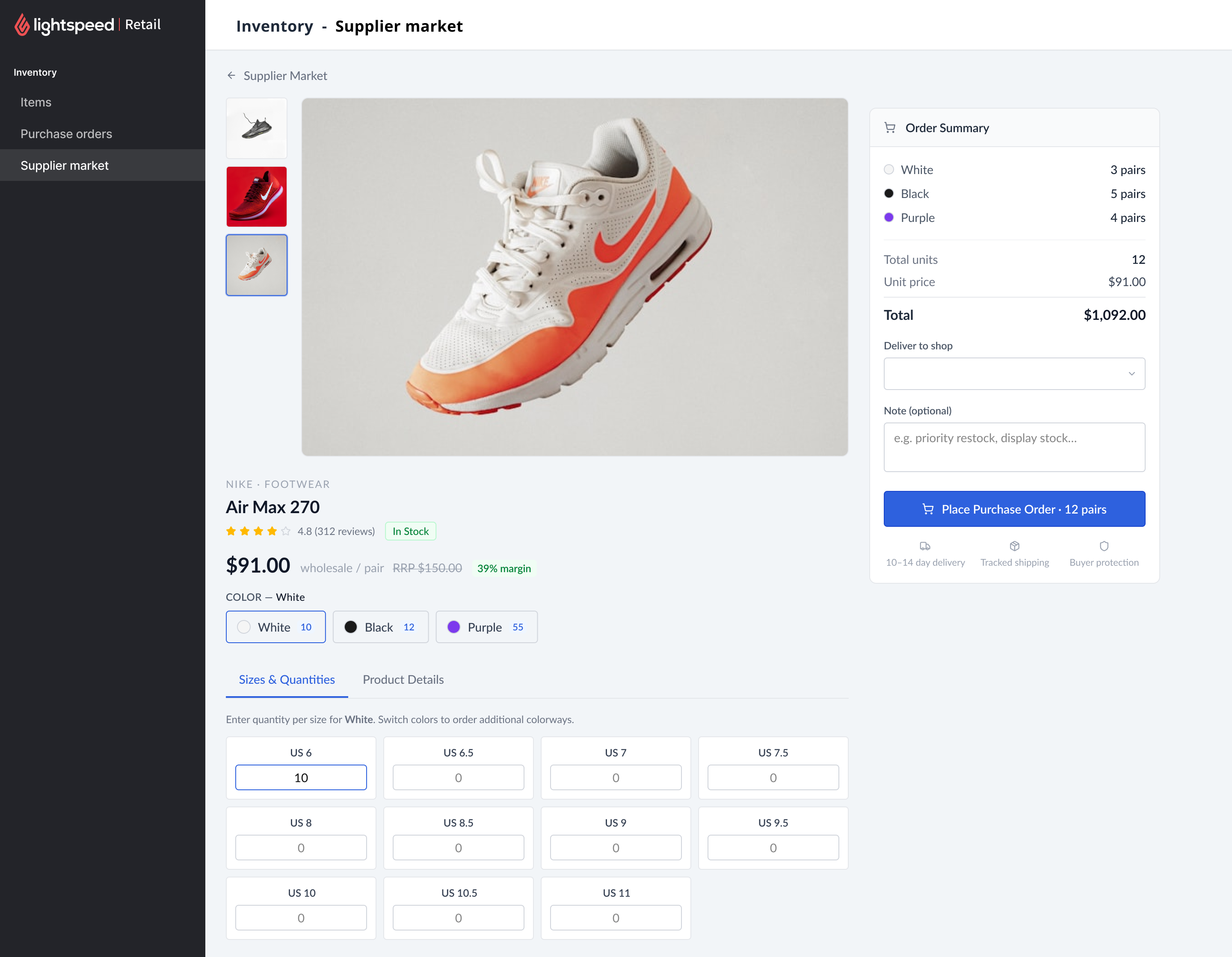
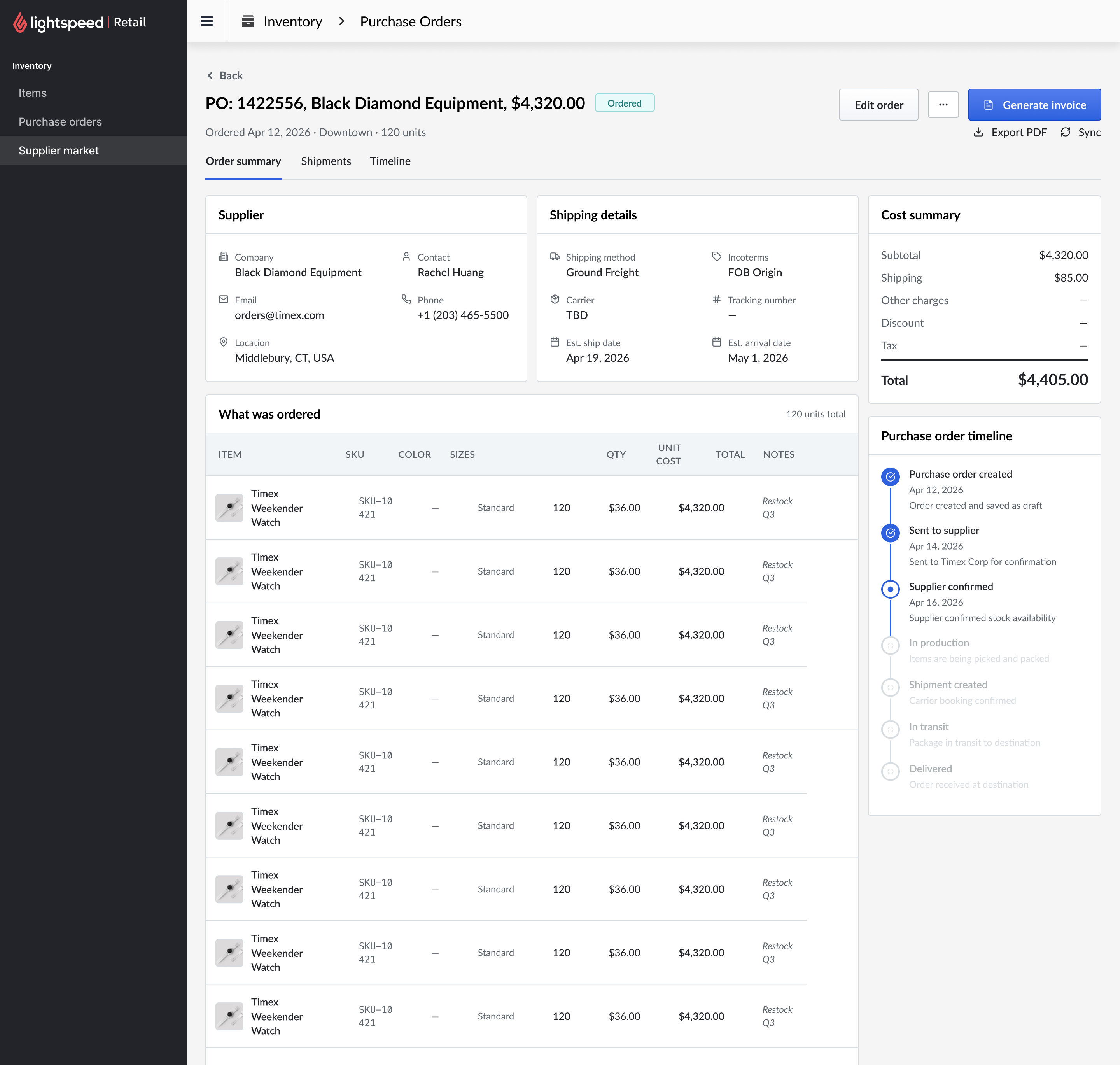
Early exploration of the supplier marketplace, product detail pages, order flows, and purchase order workflows.

Early thinking and structure. Wireframes, not final UI
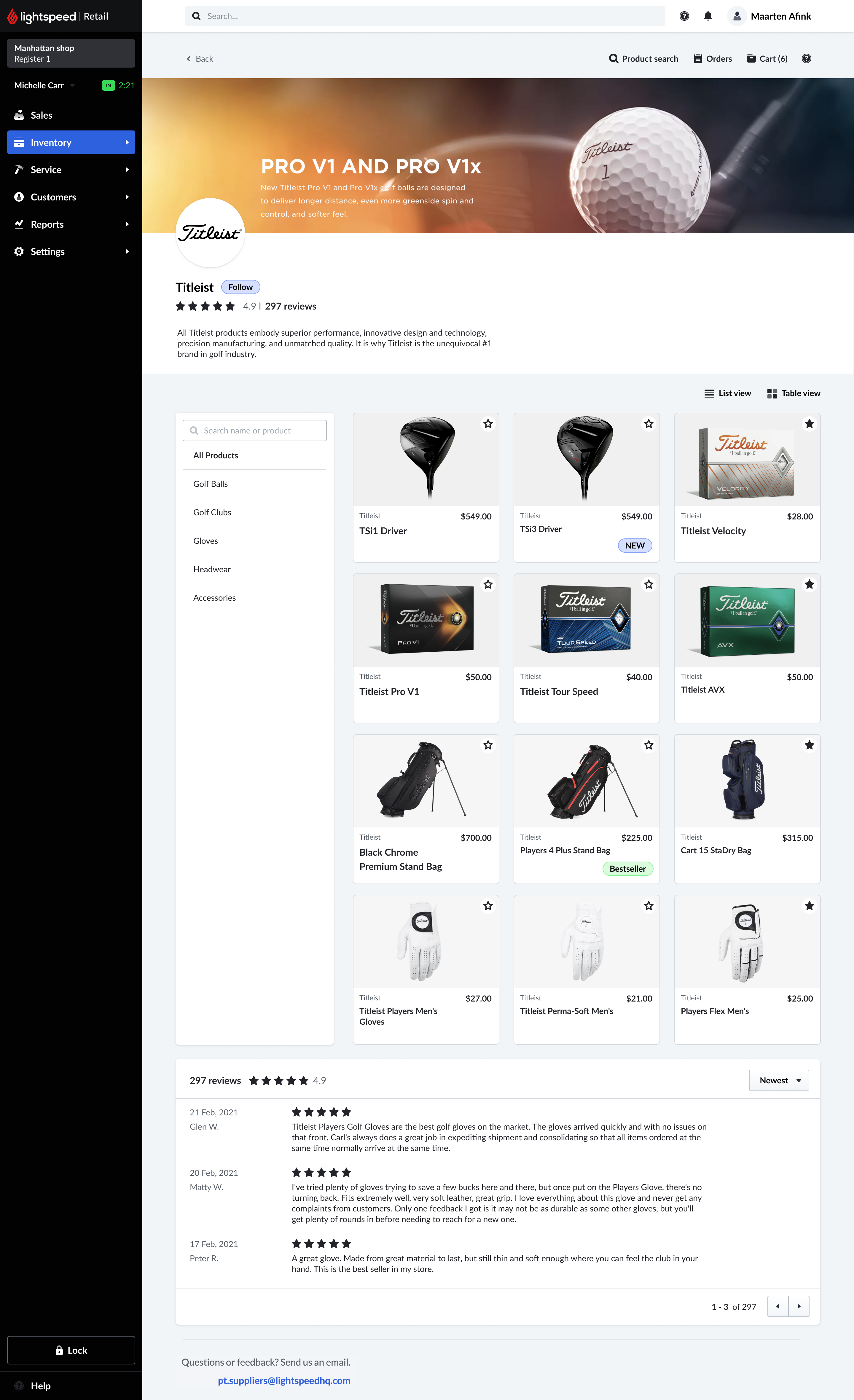
Supplier details page
Supplier page - catalog, terms & coverage.
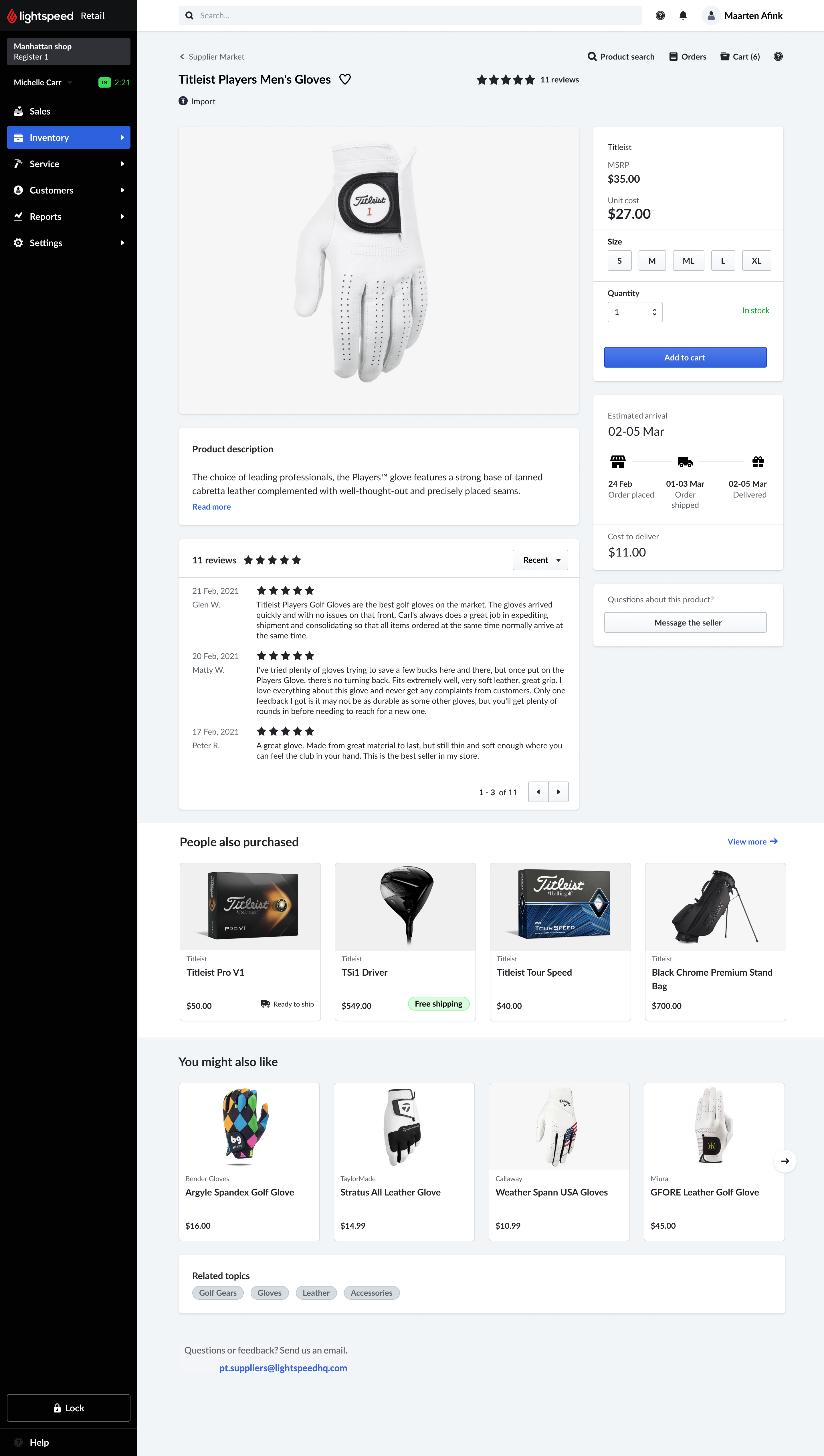
Product details page
Product page - sizes, quantities & UPC data.
Orders page
Orders - track POs through to delivery.
Supplier Back Office · the supplier side
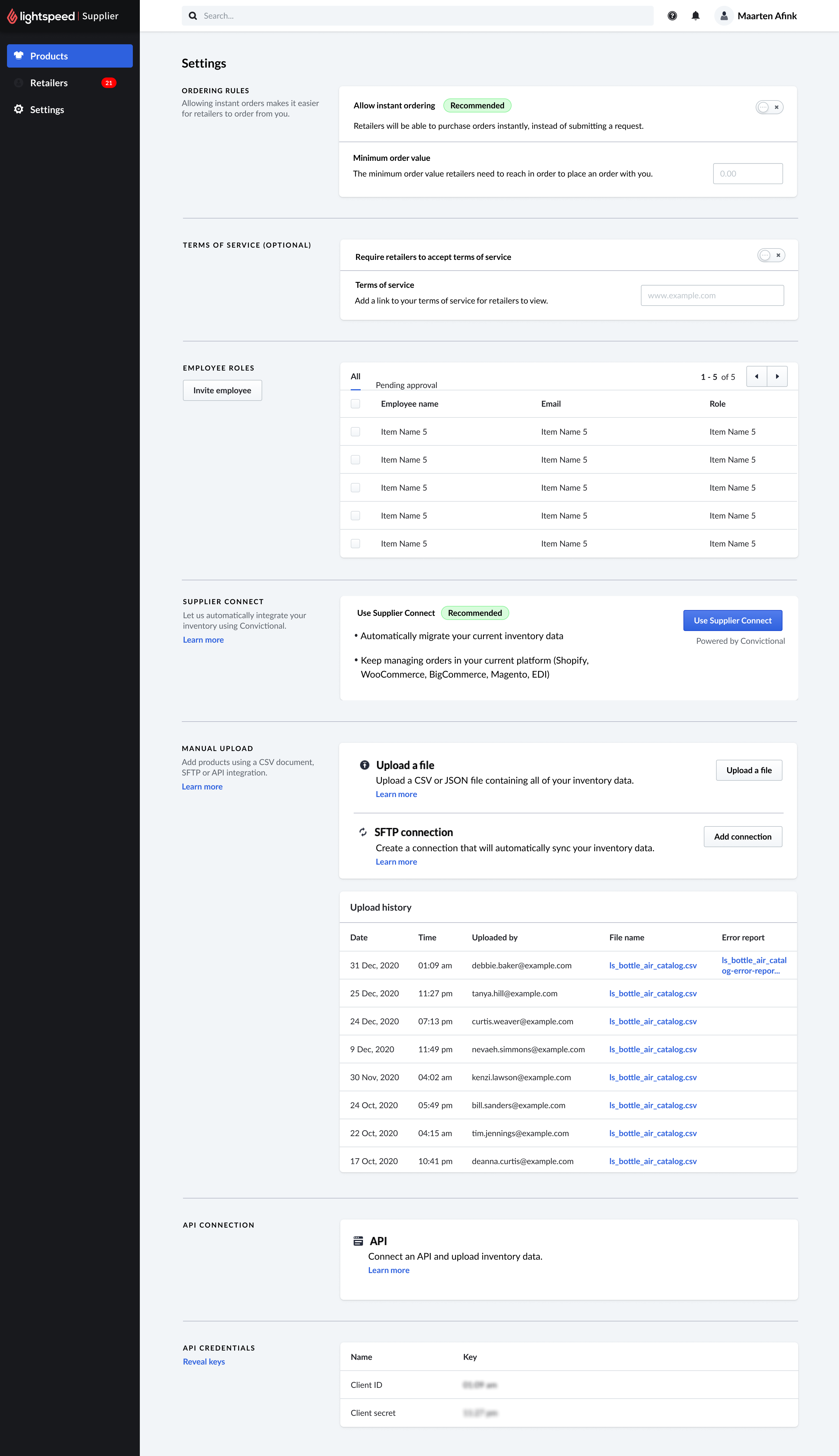
Supplier Back Office settings page with Supplier Connect, manual integration, SFTP, file upload history, and API connection
Settings - every connection method on one surface.
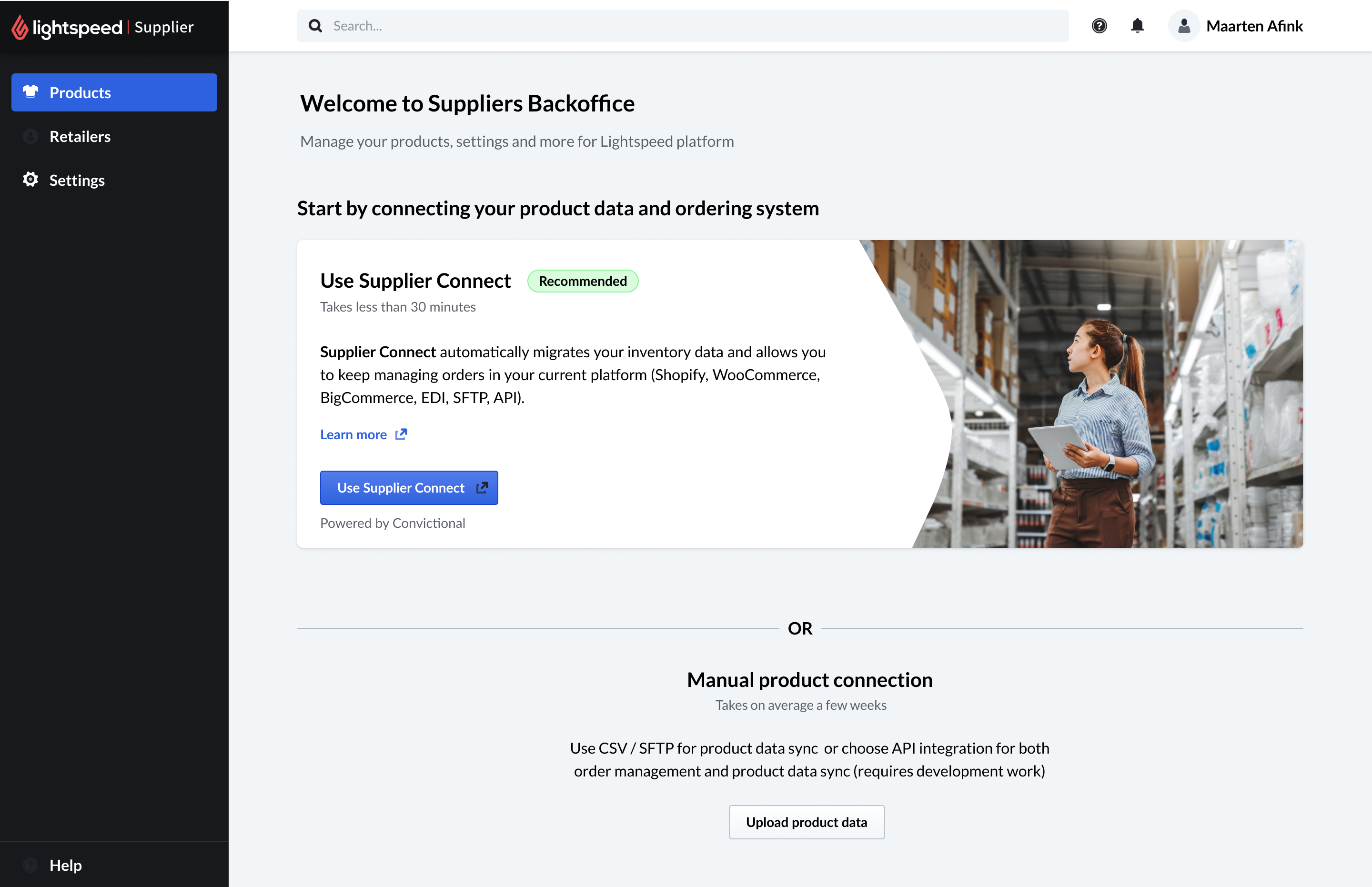
Welcome to Suppliers Backoffice connect screen offering Supplier Connect or manual product connection
First-run connect - managed path or manual, framed by effort.
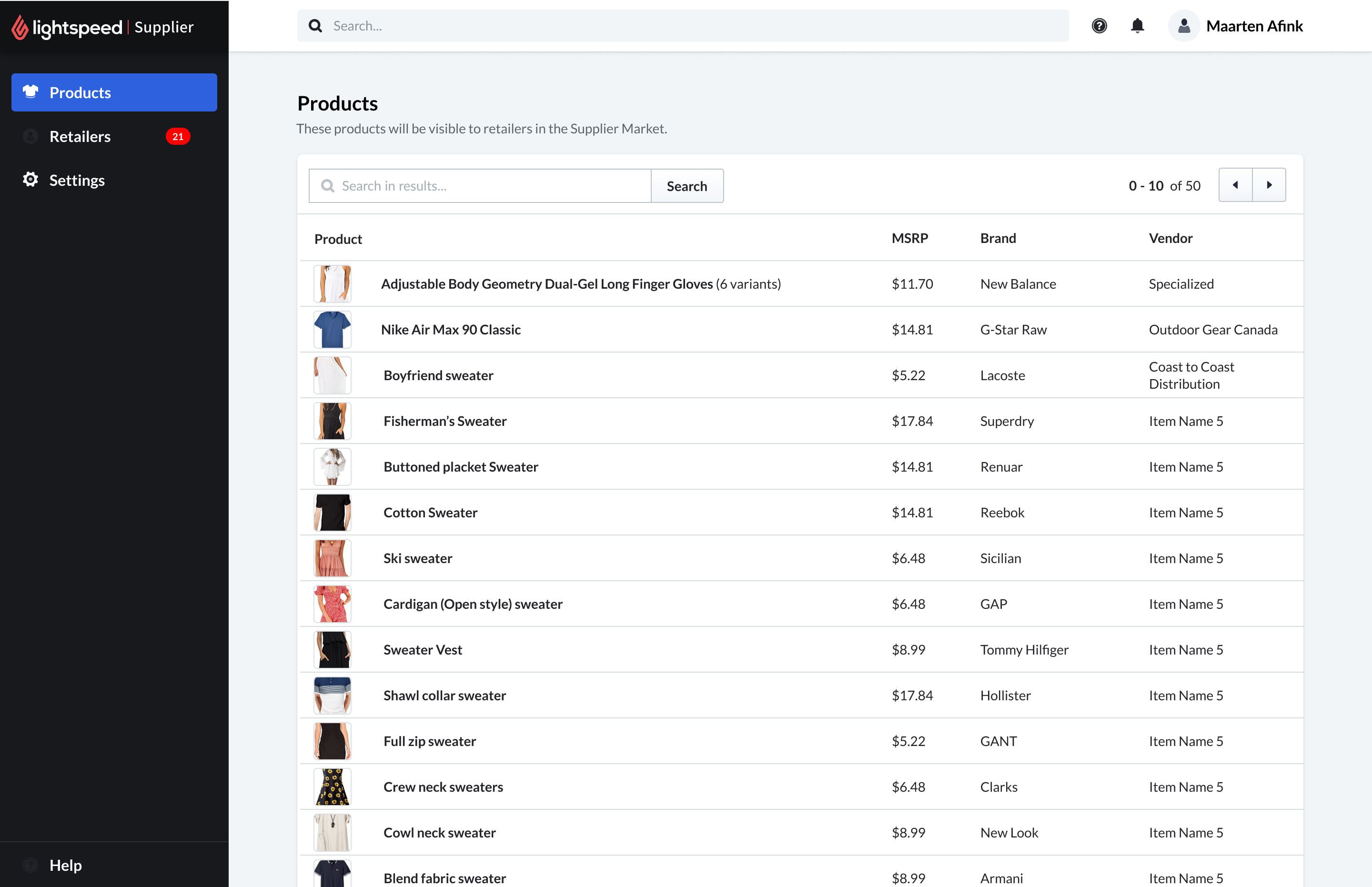
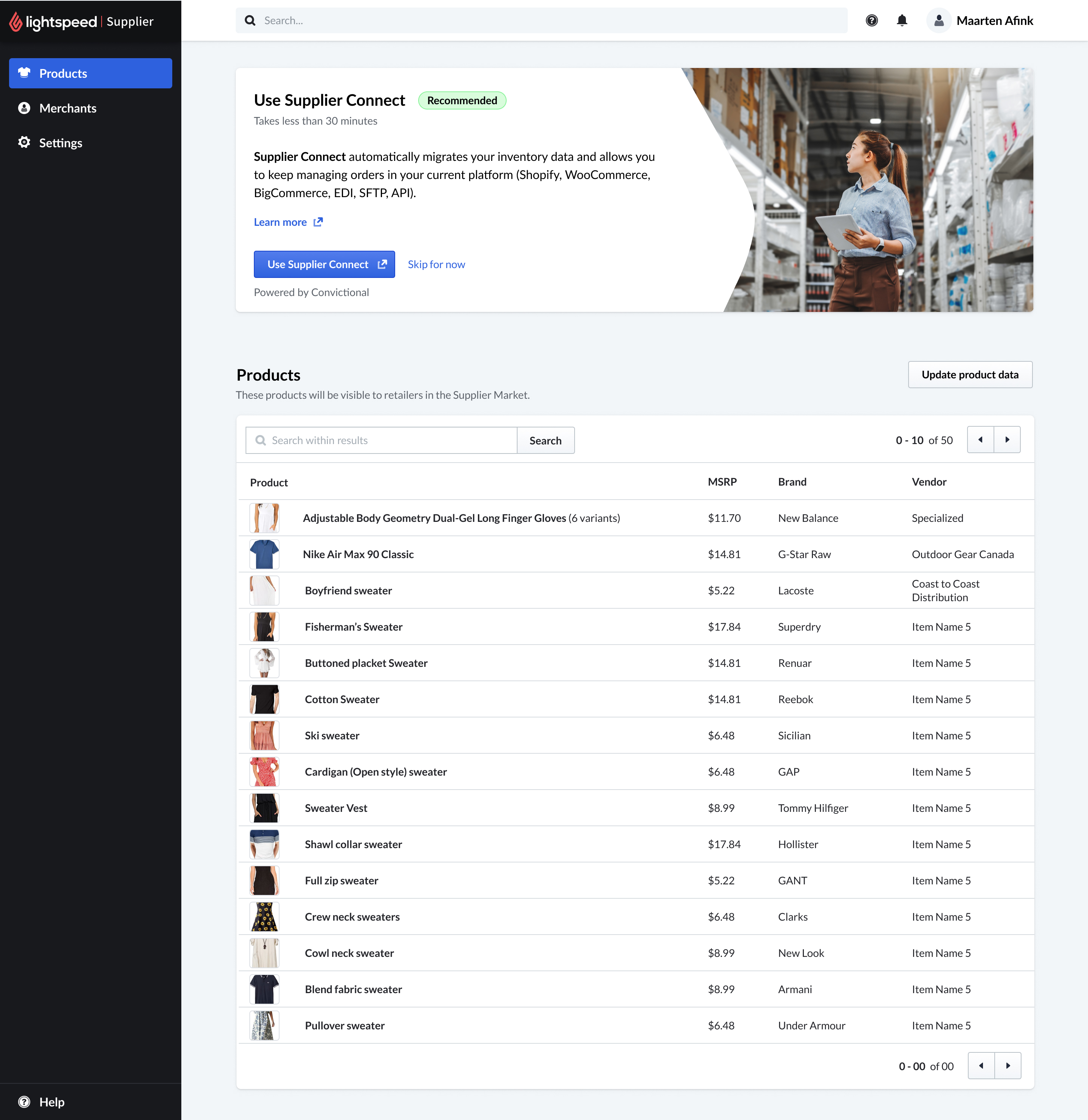
Supplier Back Office products list with MSRP, brand, and vendor columns
Products - the imported catalog, market-ready.
Products view with the Supplier Connect banner and update product data action
Re-sync in context - connect prompts beside the catalog.
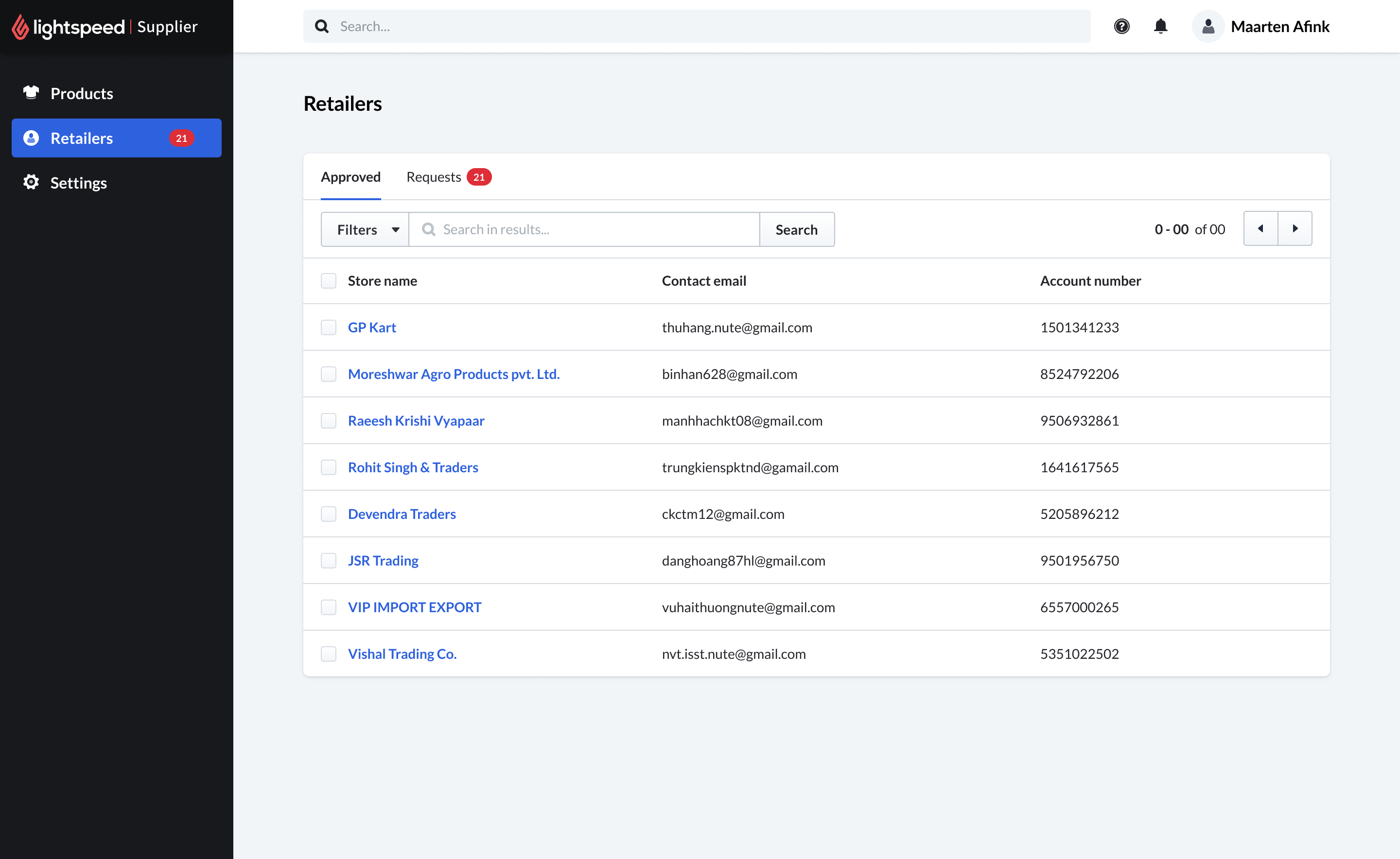
Retailers list with Approved and Requests tabs, Requests showing 21 pending
Connection requests - approve who can order.
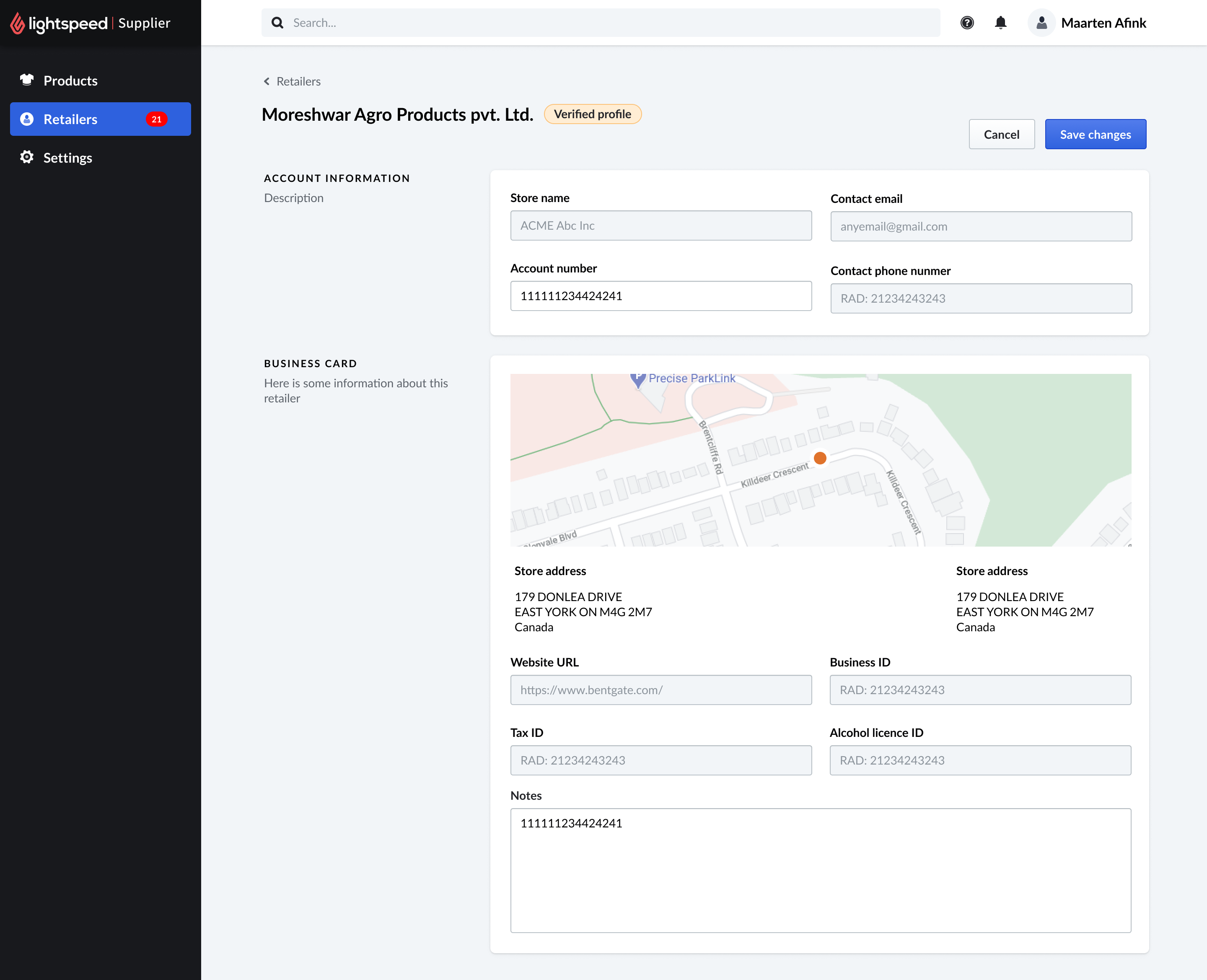
Retailer detail page with verified profile badge, account information, and a business card with map and identifiers
Retailer profile - the context a supplier needs to approve.
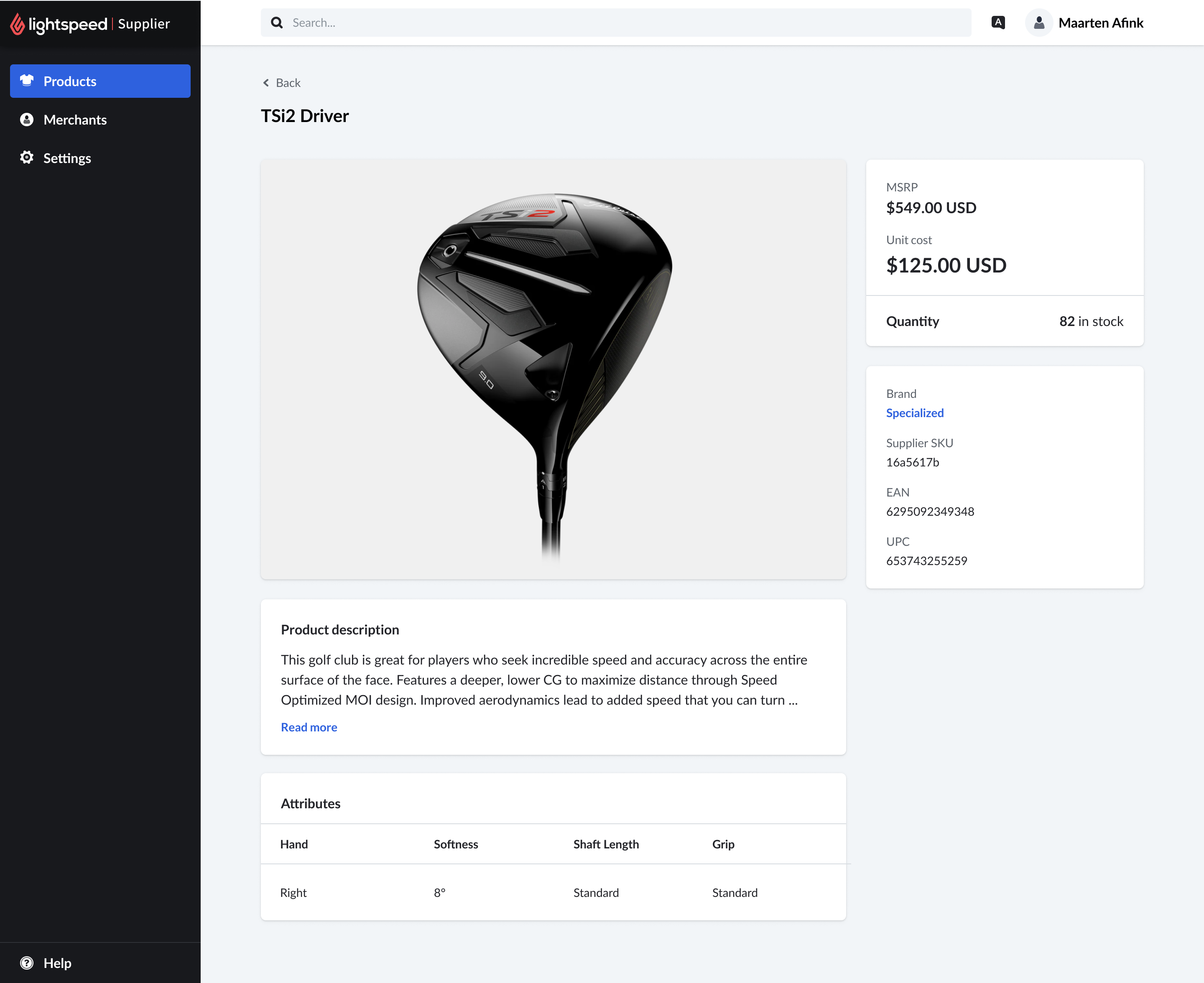
Product detail preview for the TSi2 Driver with imagery, MSRP, unit cost, stock, brand, identifiers, and attributes
Marketplace preview - proof the import worked.
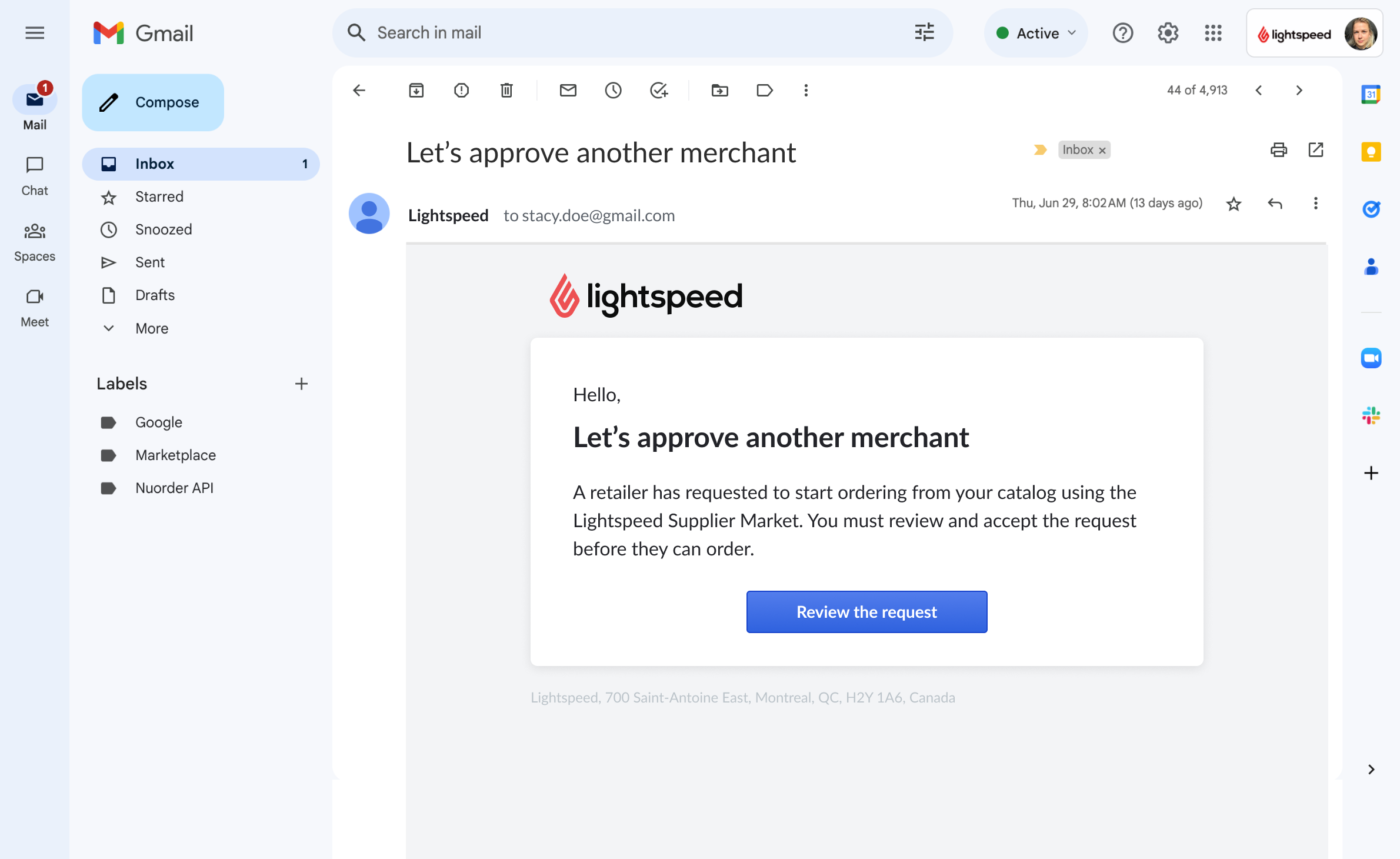
Email notification reading Let's approve another merchant, prompting the supplier to review and accept a retailer's request
The loop closes - approval reaches suppliers by email.
Cart & checkout · the retailer side
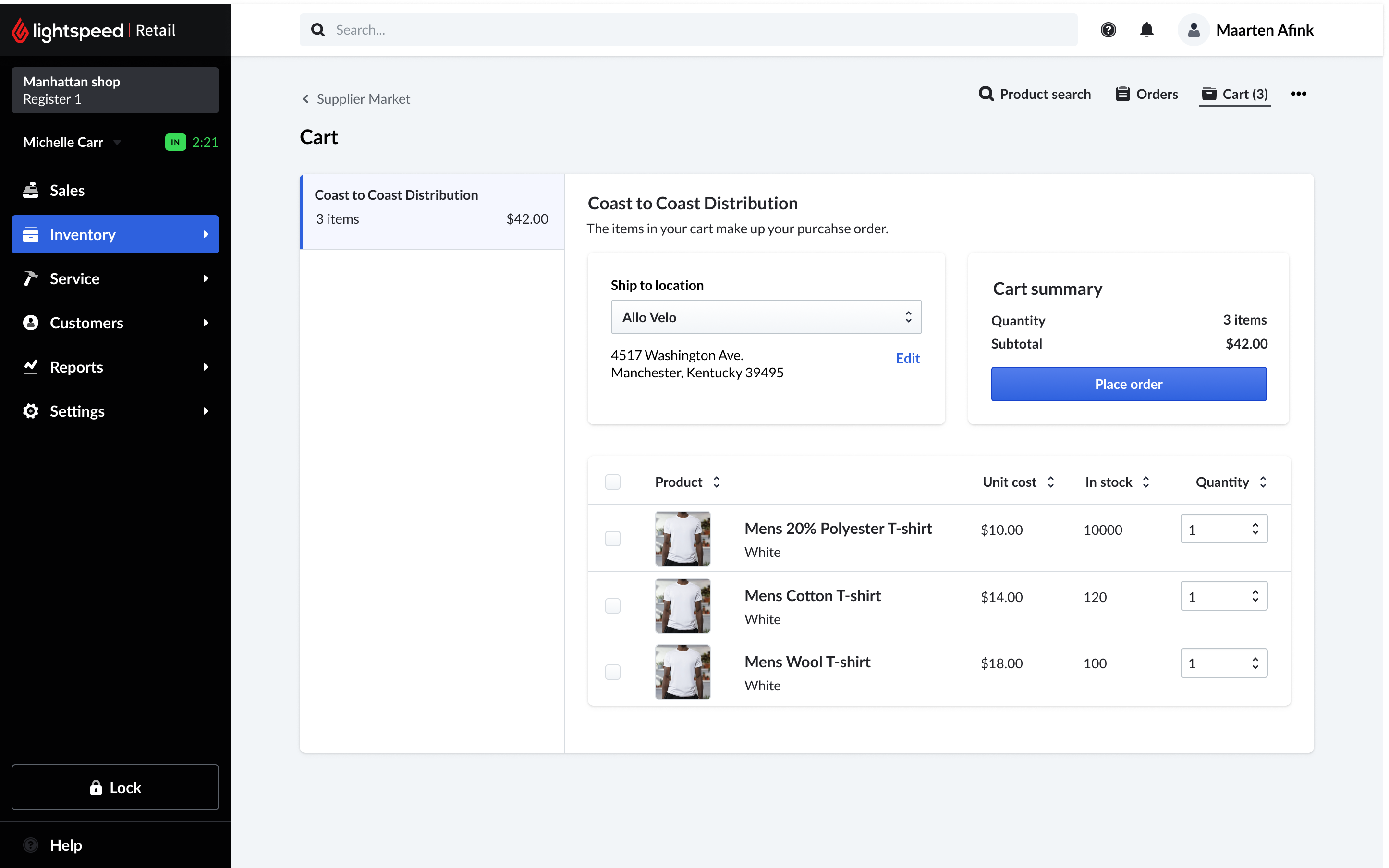
Supplier Market cart inside Lightspeed Retail showing a Coast to Coast Distribution order with ship-to location, cart summary, and a line-item table of t-shirts with unit cost, in stock, and quantity
Cart - items grouped by supplier into a purchase order, ready to place.
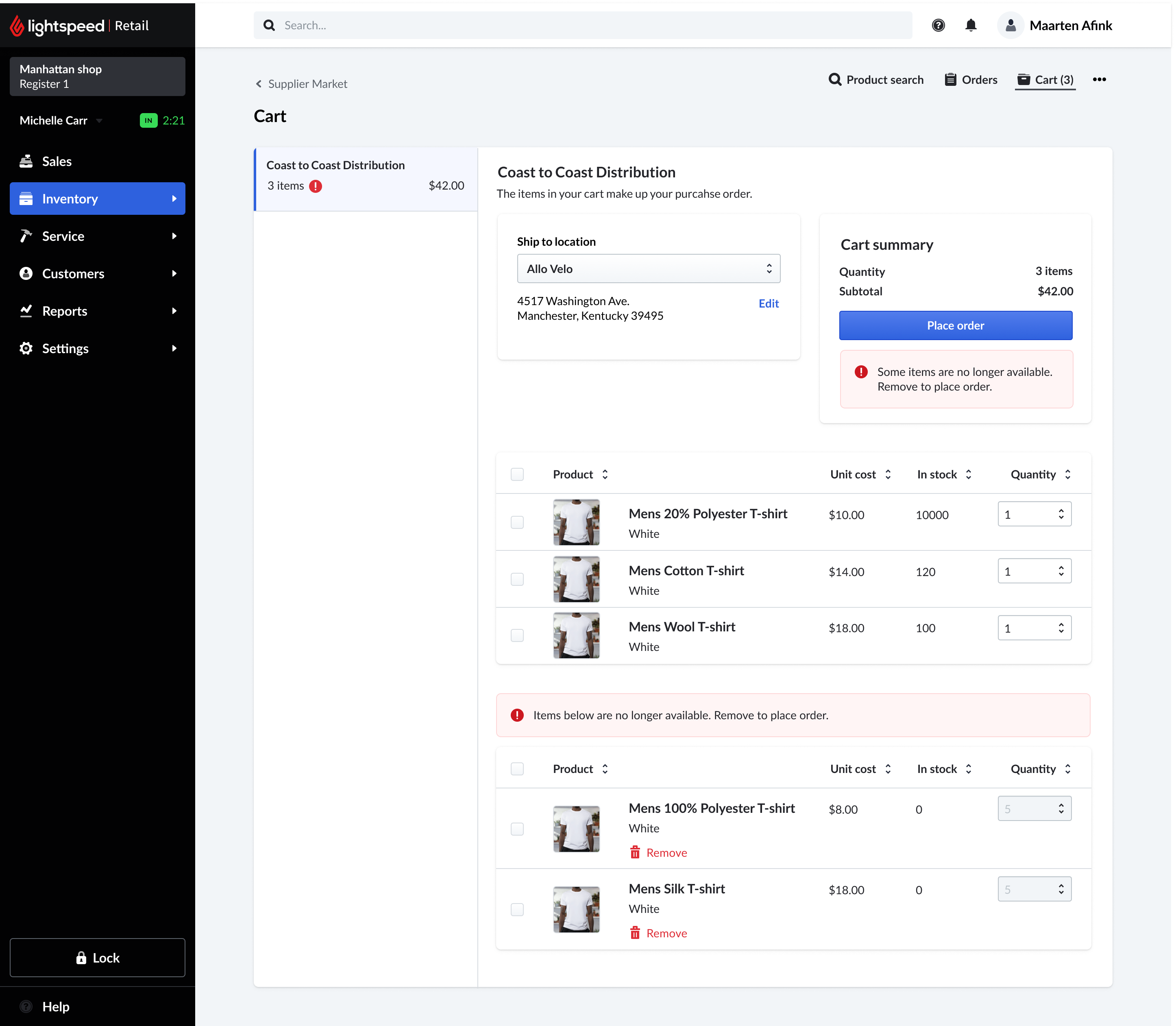
Supplier Market cart showing available items above and a separated out-of-stock section below with a red alert reading items are no longer available, remove to place order
Out of stock - unavailable items are split out and block checkout until removed.
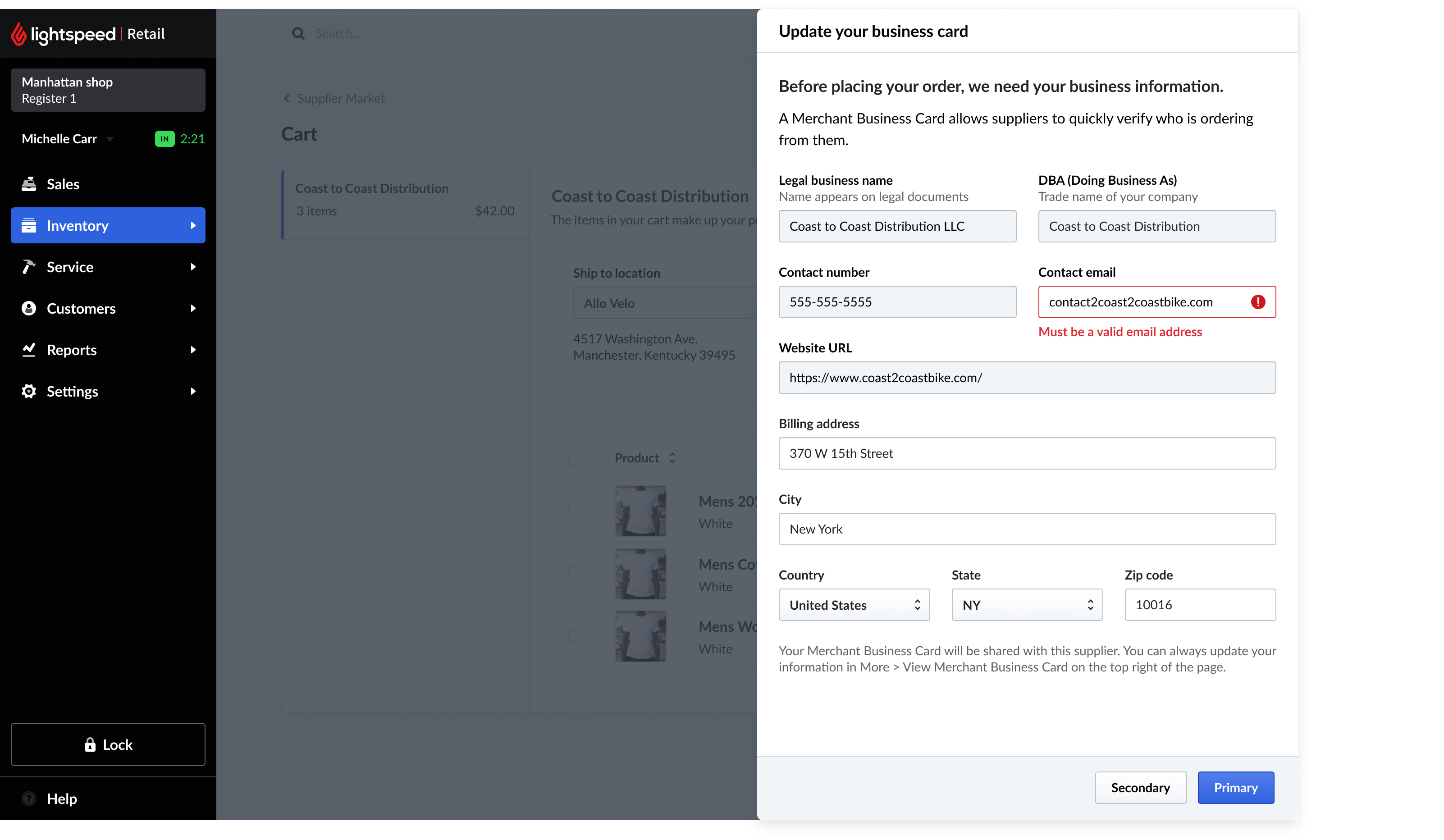
Update your business card panel over the cart, collecting legal business name, DBA, contact details, and billing address, with an inline error reading Must be a valid email address
Merchant Business Card - verify the buyer before ordering, with inline validation.
Low-fidelity exploration
Low-fi Supplier Market
Low-fiSupplier Market layout.
Low-fi product detail
Low-fiProduct detail & ordering.
Low-fi purchase order details
Low-fiPurchase order details.
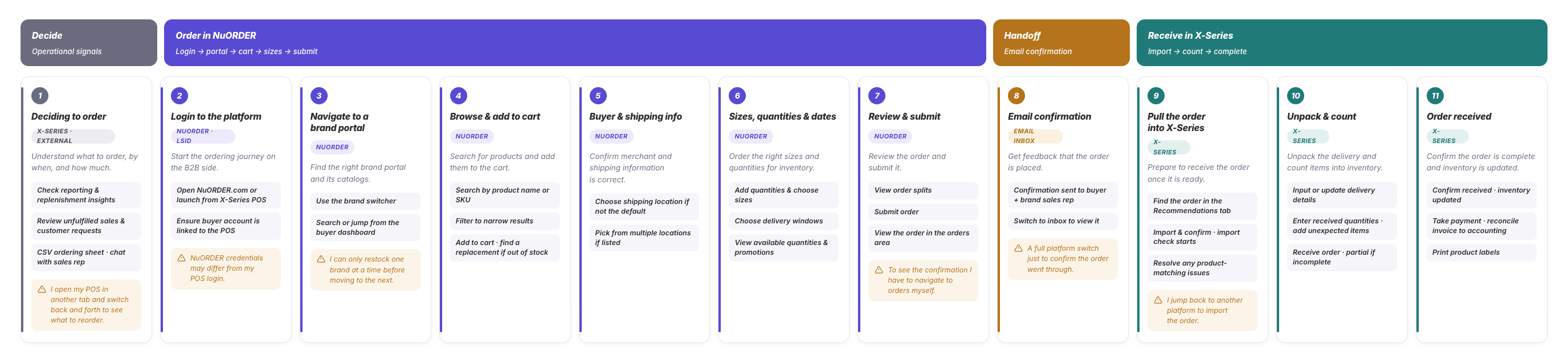
End-to-end journey · B2B Network
Merchant replenishment journey map spanning eleven stages across NuORDER wholesale, an email handoff, and the Lightspeed X-Series POS
Merchant replenishment journey - eleven stages across two platforms, mapped before the integration. Open the full journey →
02POS sync workflow

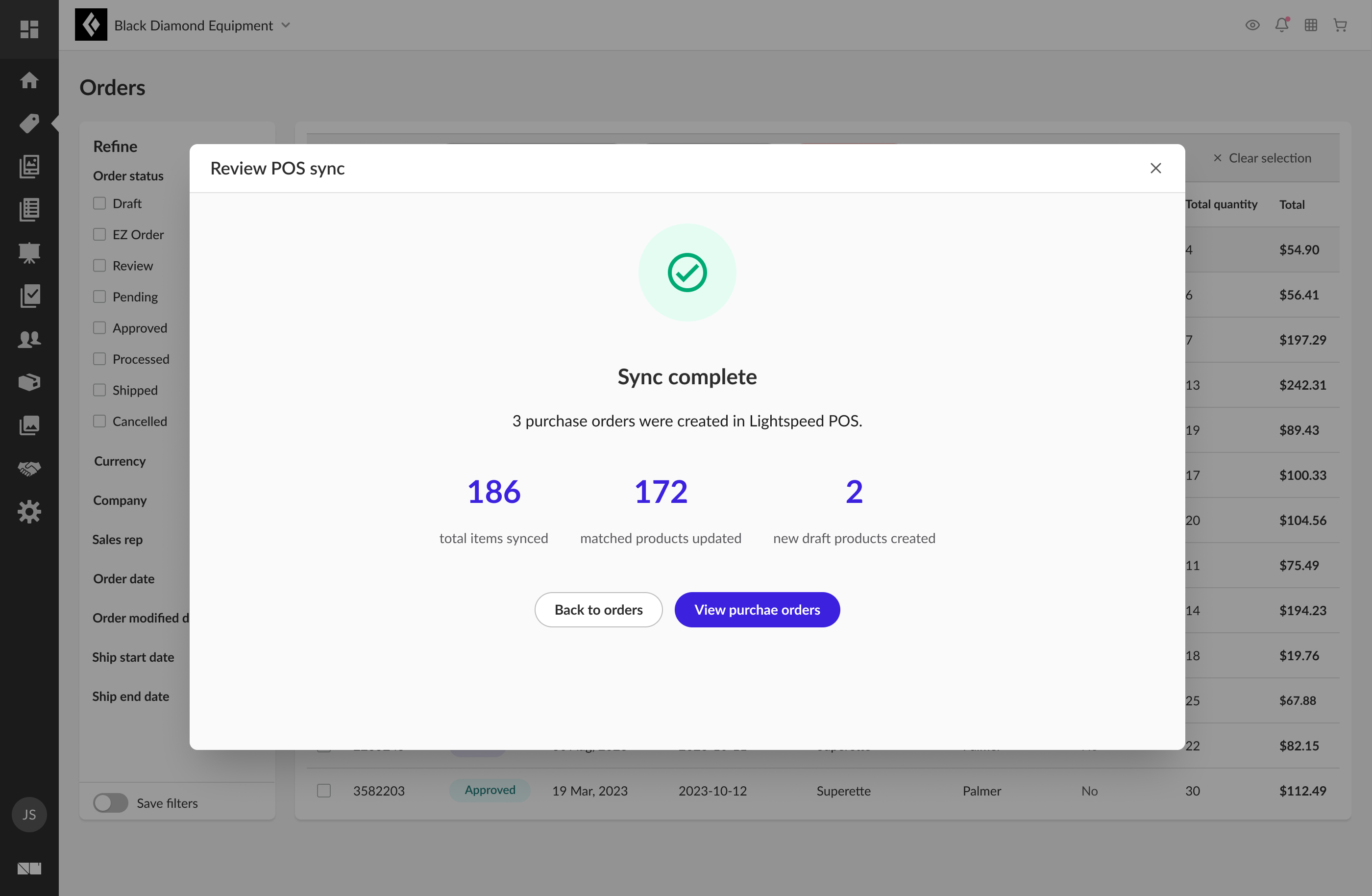
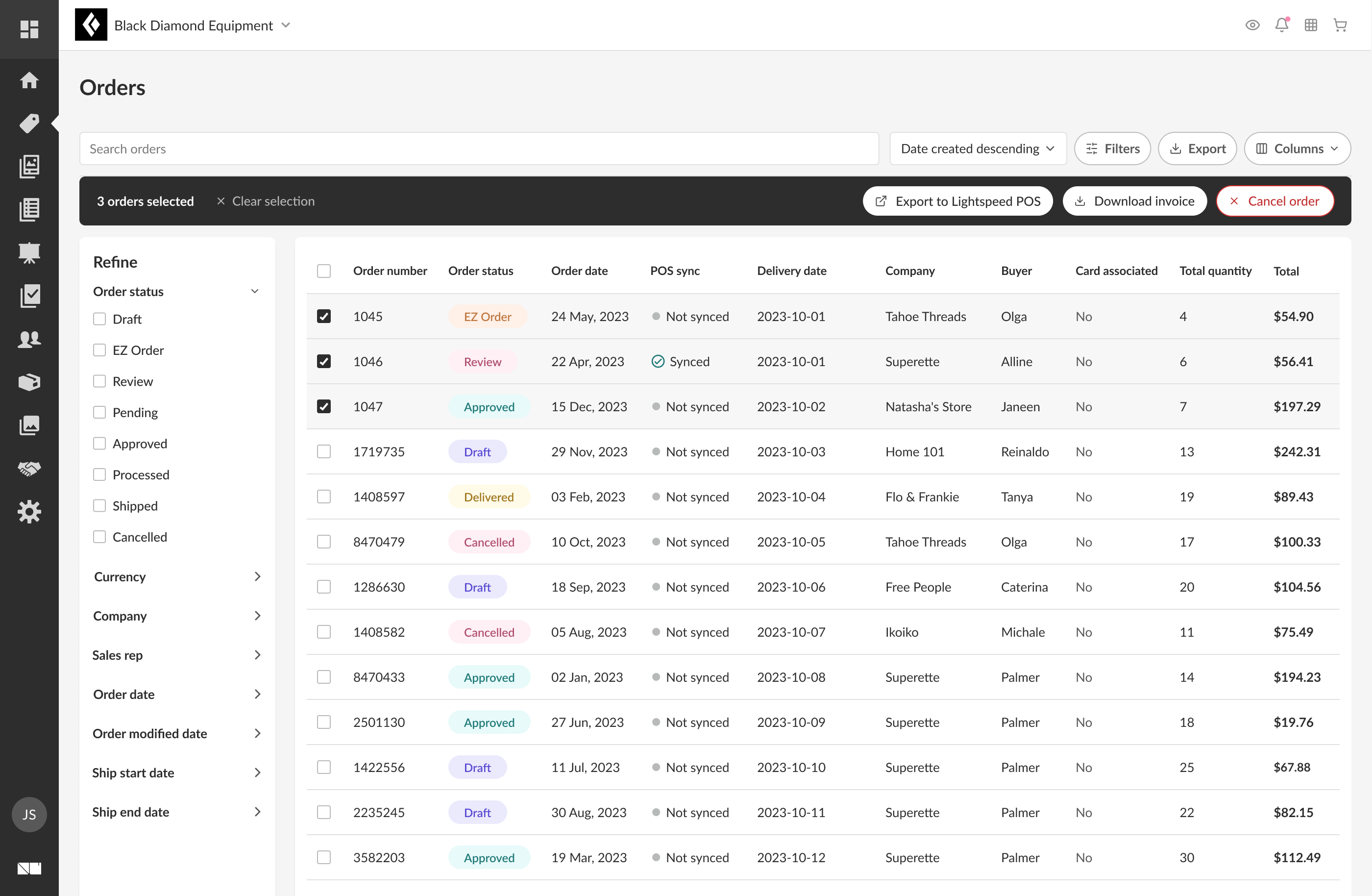
Order export and POS sync workflow

Designing a scalable workflow for exporting orders, reviewing matched products, syncing with POS, and communicating progress and completion.
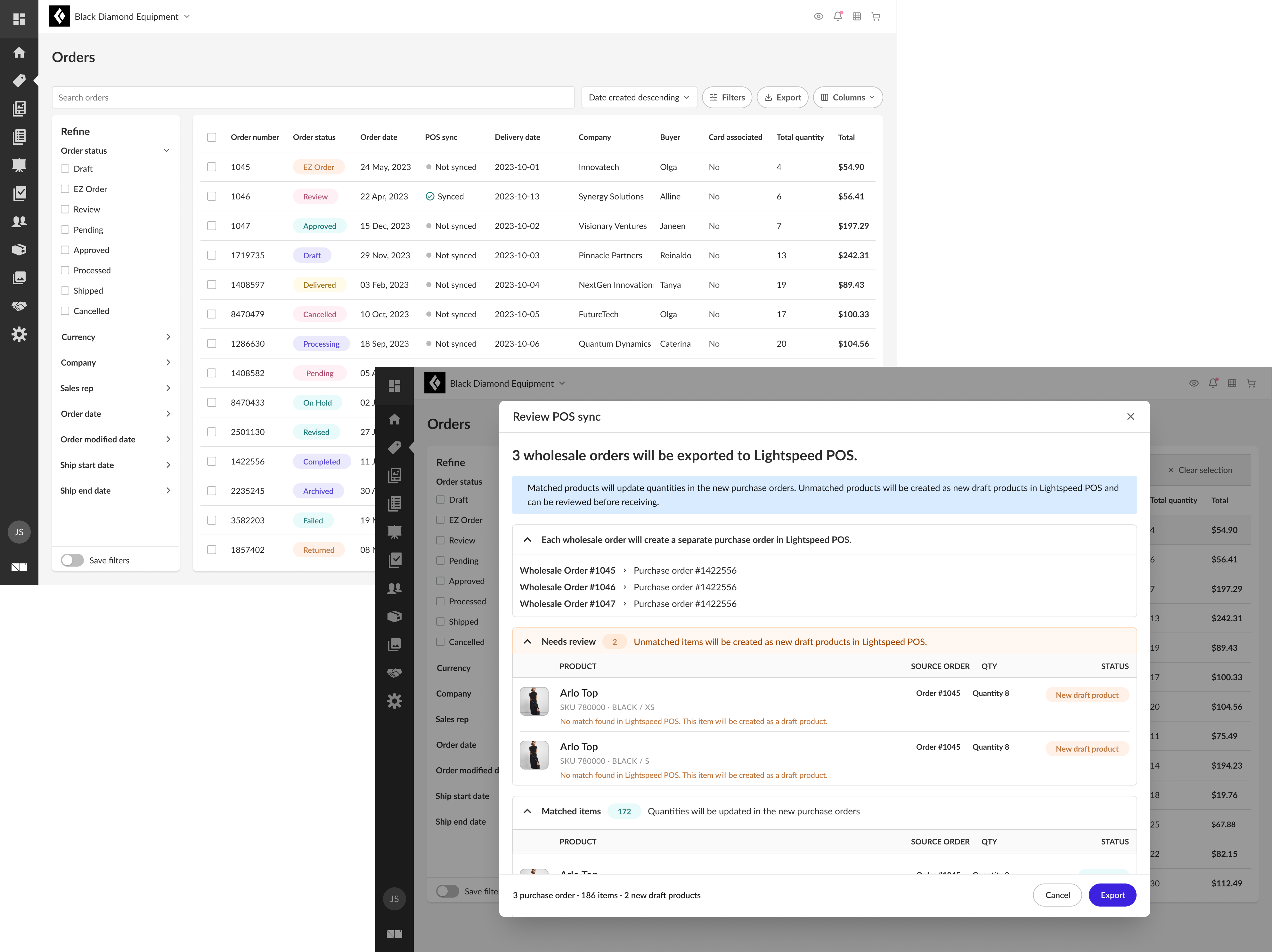
POS sync hero
Bridging two systems - wholesale orders flow from NuORDER into the Lightspeed point of sale.
Motion reel · 0:58
The sync, in motion - a short reel following one wholesale order as it exports from NuORDER, lands flagged in the Lightspeed POS, and opens to its full detail. Press play ↑
The flow, step by step
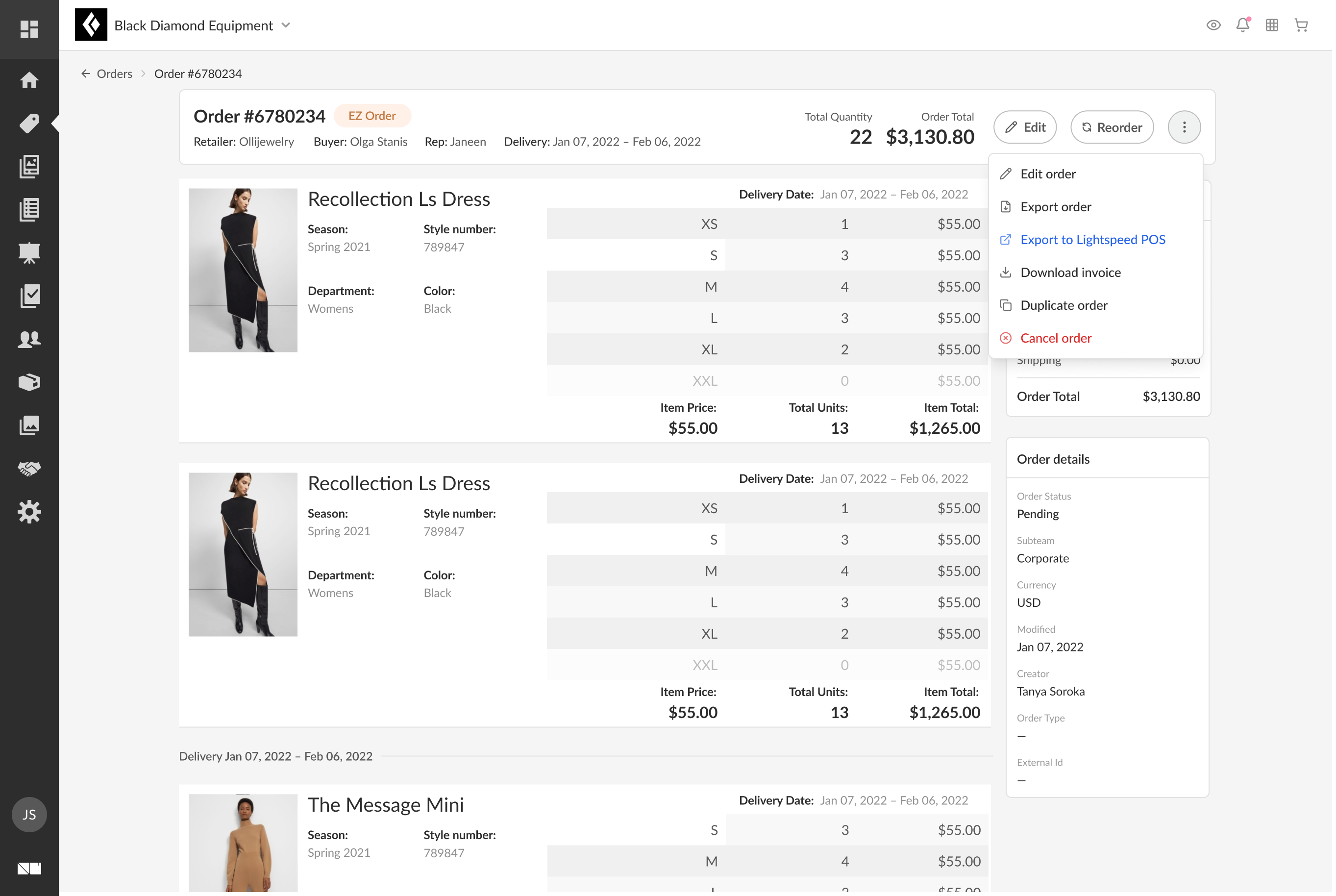
Selecting orders for export
1Selecting orders for export.
Reviewing order details before sync
2Reviewing order details before sync.
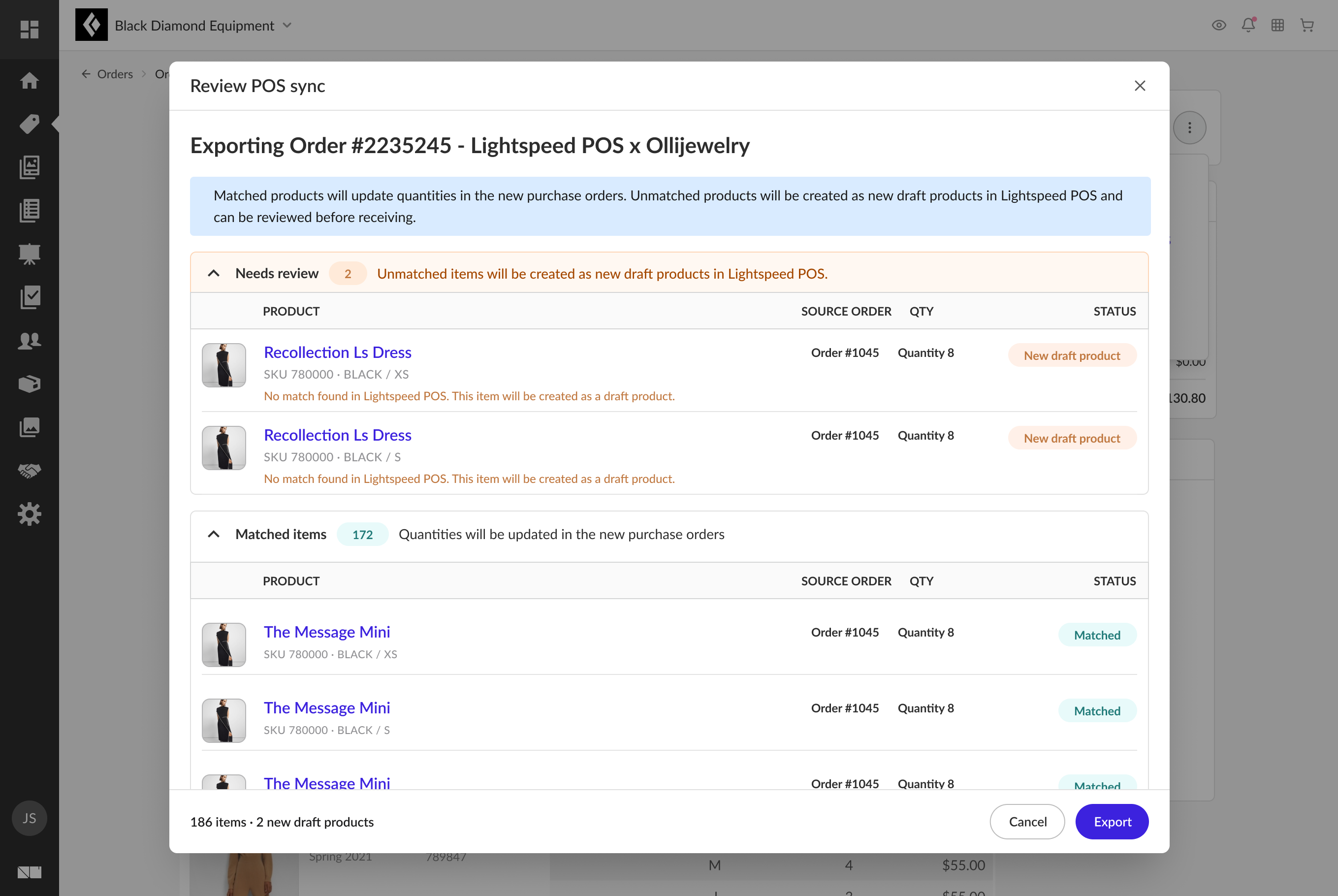
Single-order sync review
3Single-order sync review.
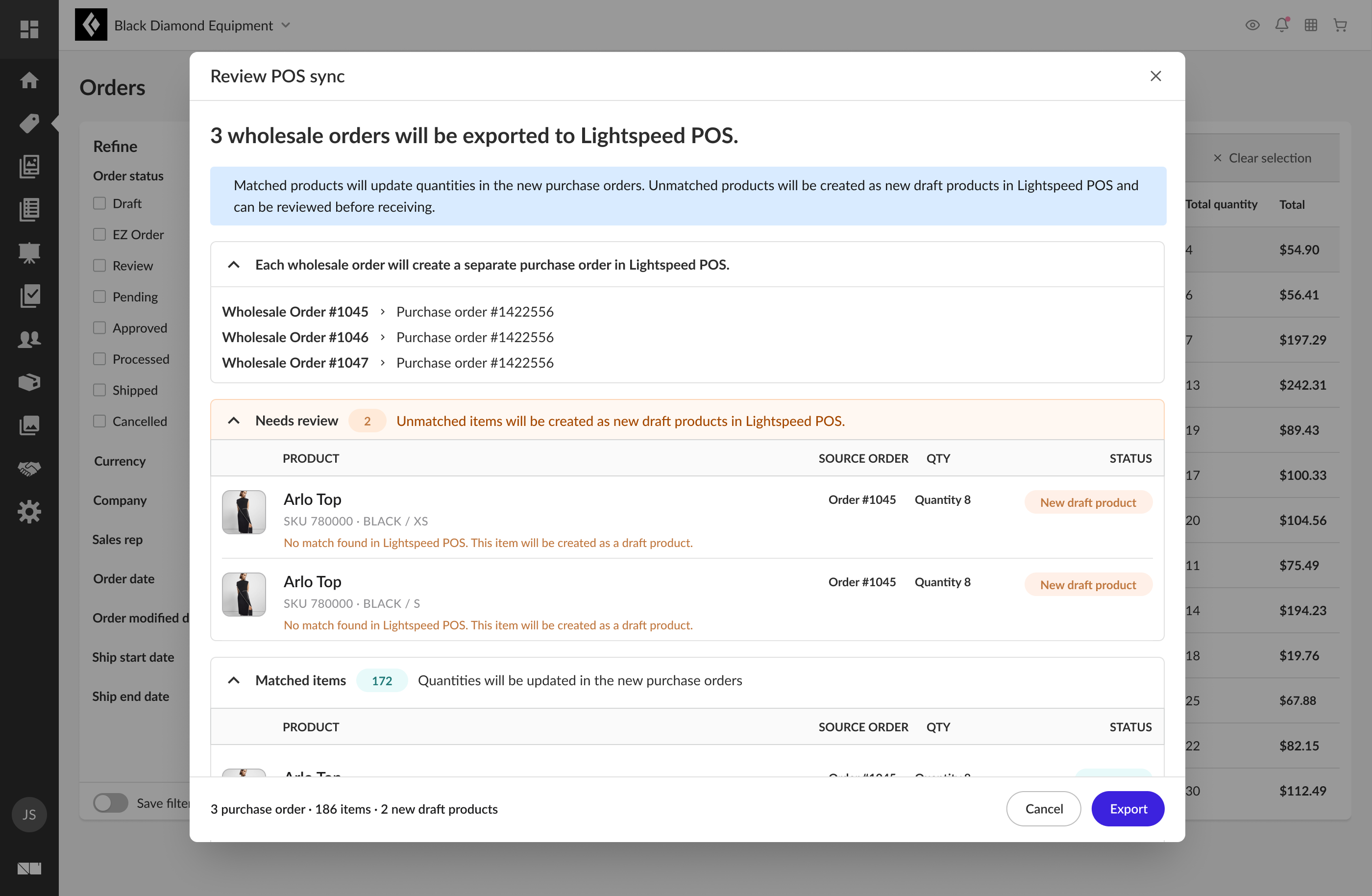
Multi-order sync review
4Multi-order sync review.
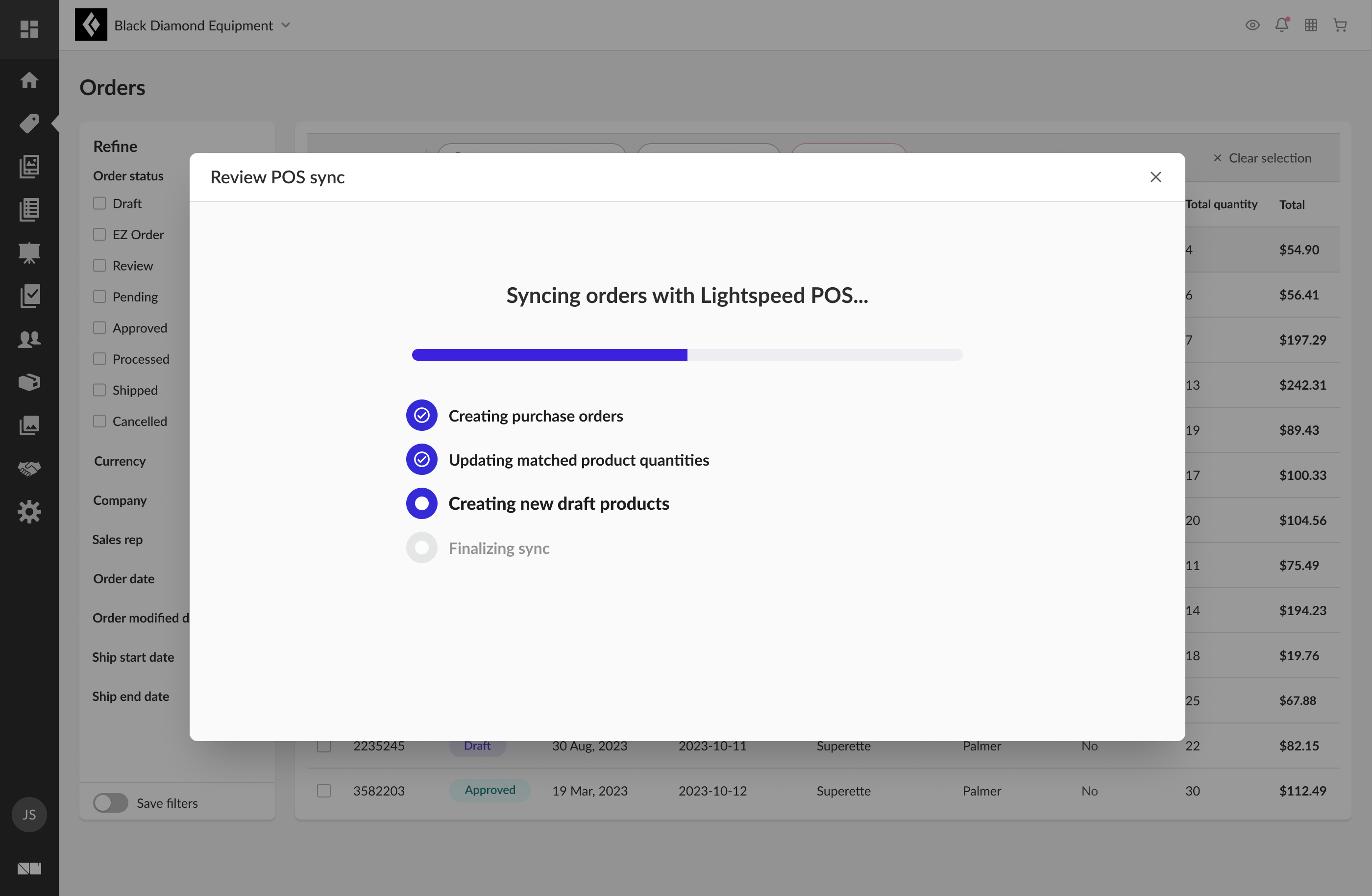
Sync progress feedback
5Sync progress feedback.
Successful sync confirmation
6Successful sync confirmation.
03In the POS

Purchase order management

Purchase order screens designed to help users understand order status, timeline, and operational progress.
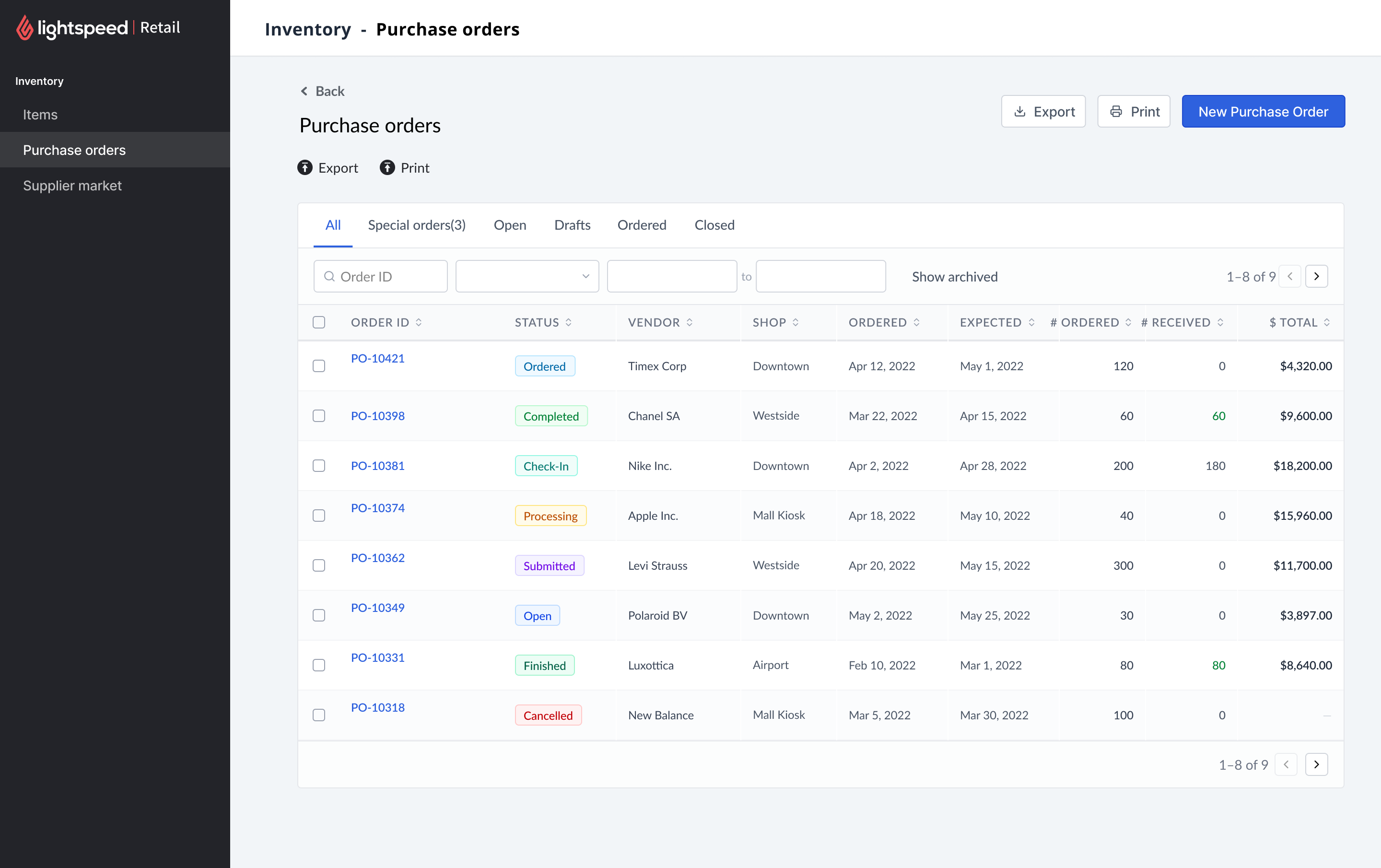
Lightspeed Retail purchase orders list with status, vendor, shop, ordered and expected dates, and ordered-versus-received counts across multiple POs
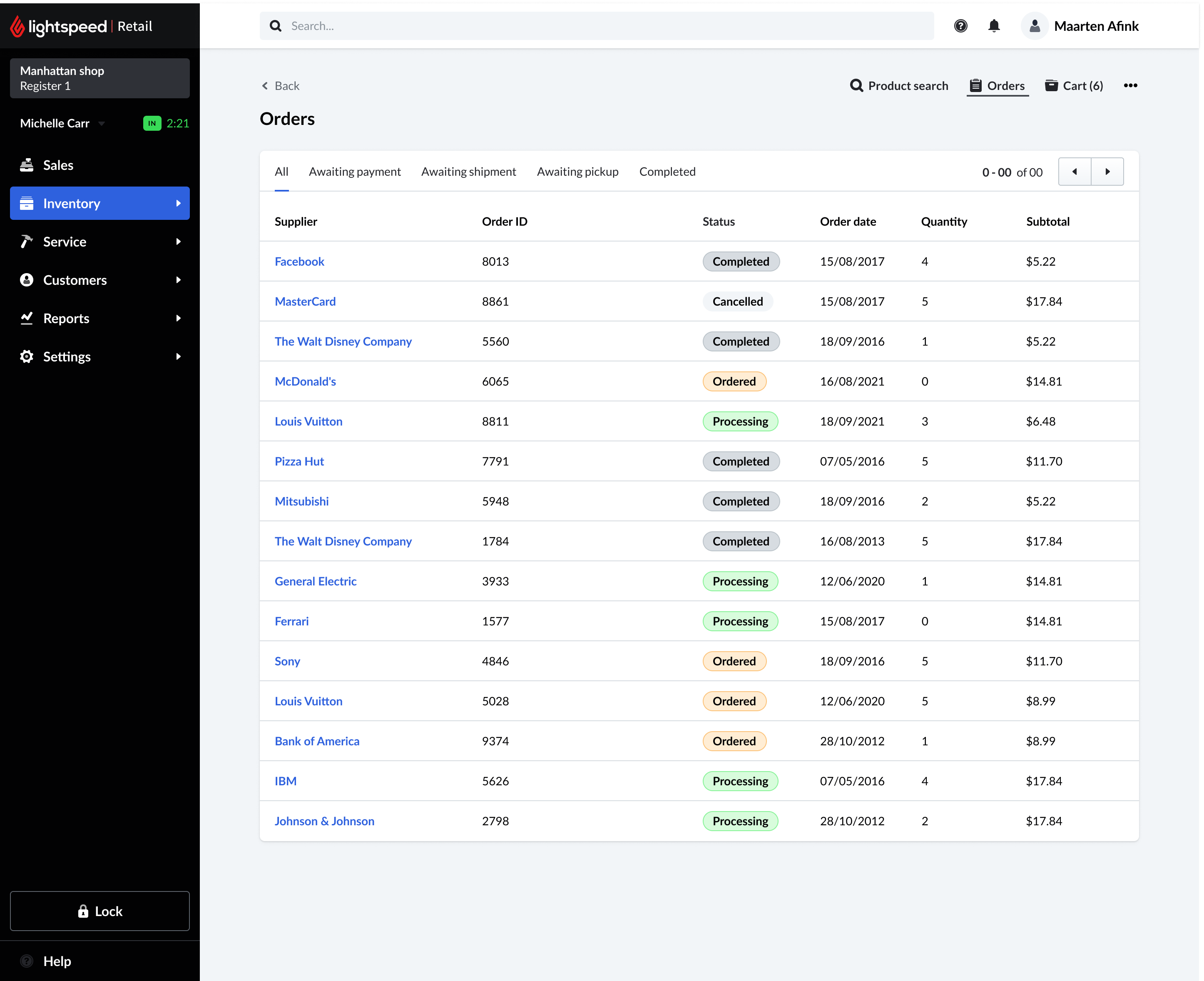
Orders list - every PO across shops, filterable by status.
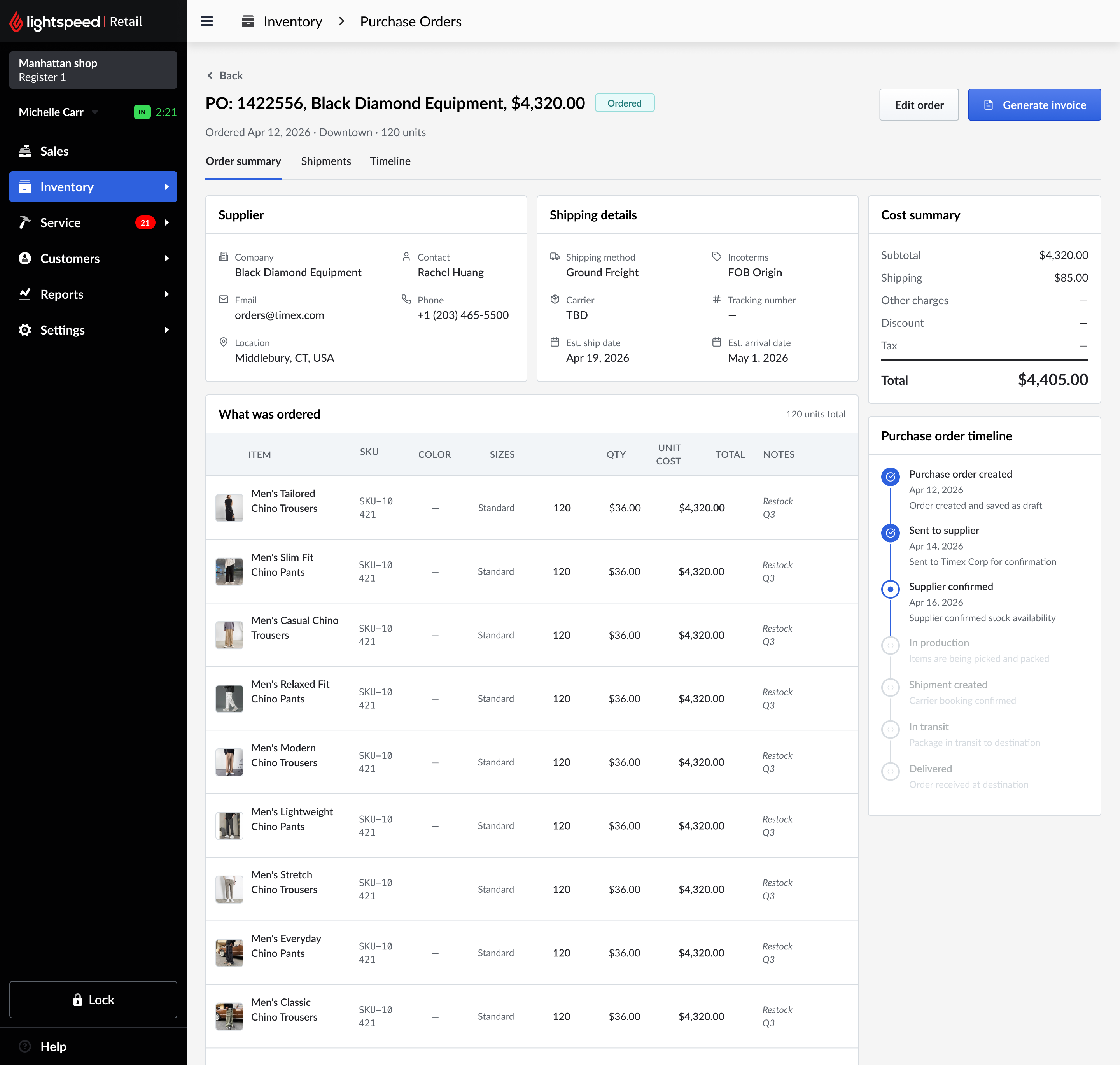
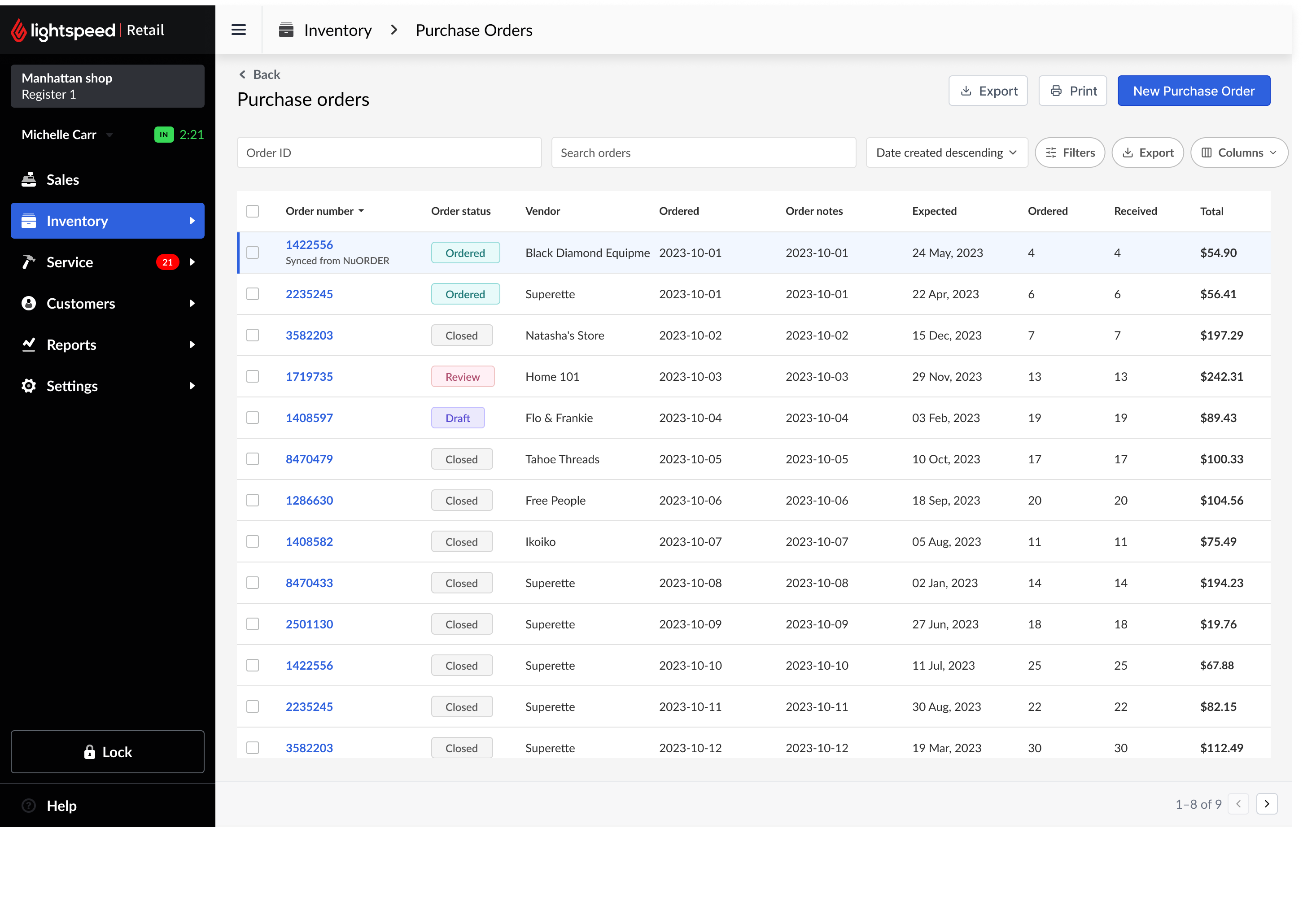
Purchase orders in Lightspeed POS
Purchase orders - status and totals at a glance, the synced order tagged on arrival.
Purchase order detail with status timeline
Detail view - supplier, shipping, and a live status timeline.
04NuORDER Assortments

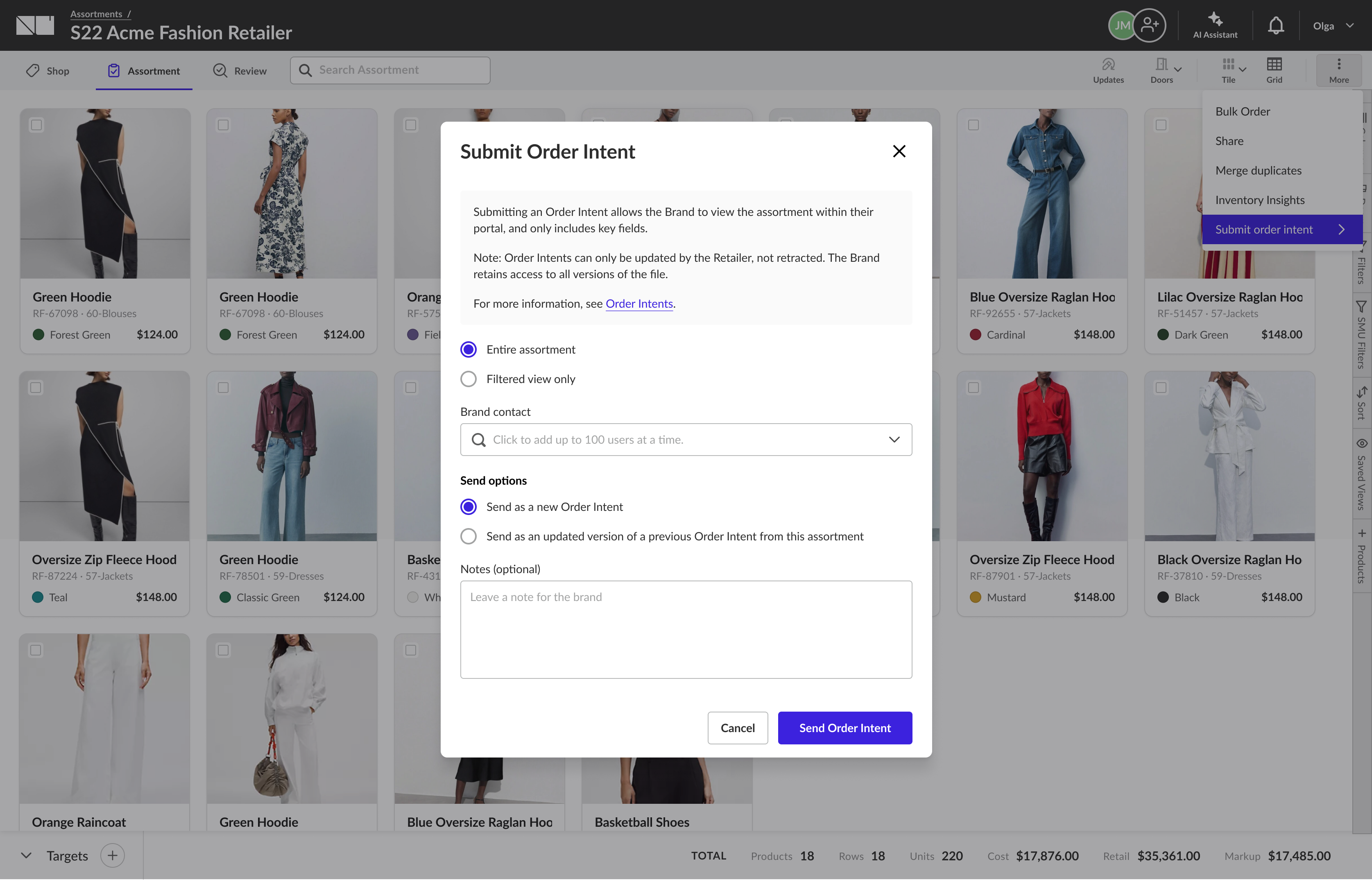
A two-way channel: order intents & brand proposals

Designing how retailers share order intent from assortments - and how brands send assortment proposals back the other way, built on the same versioned, catalog-linked infrastructure.
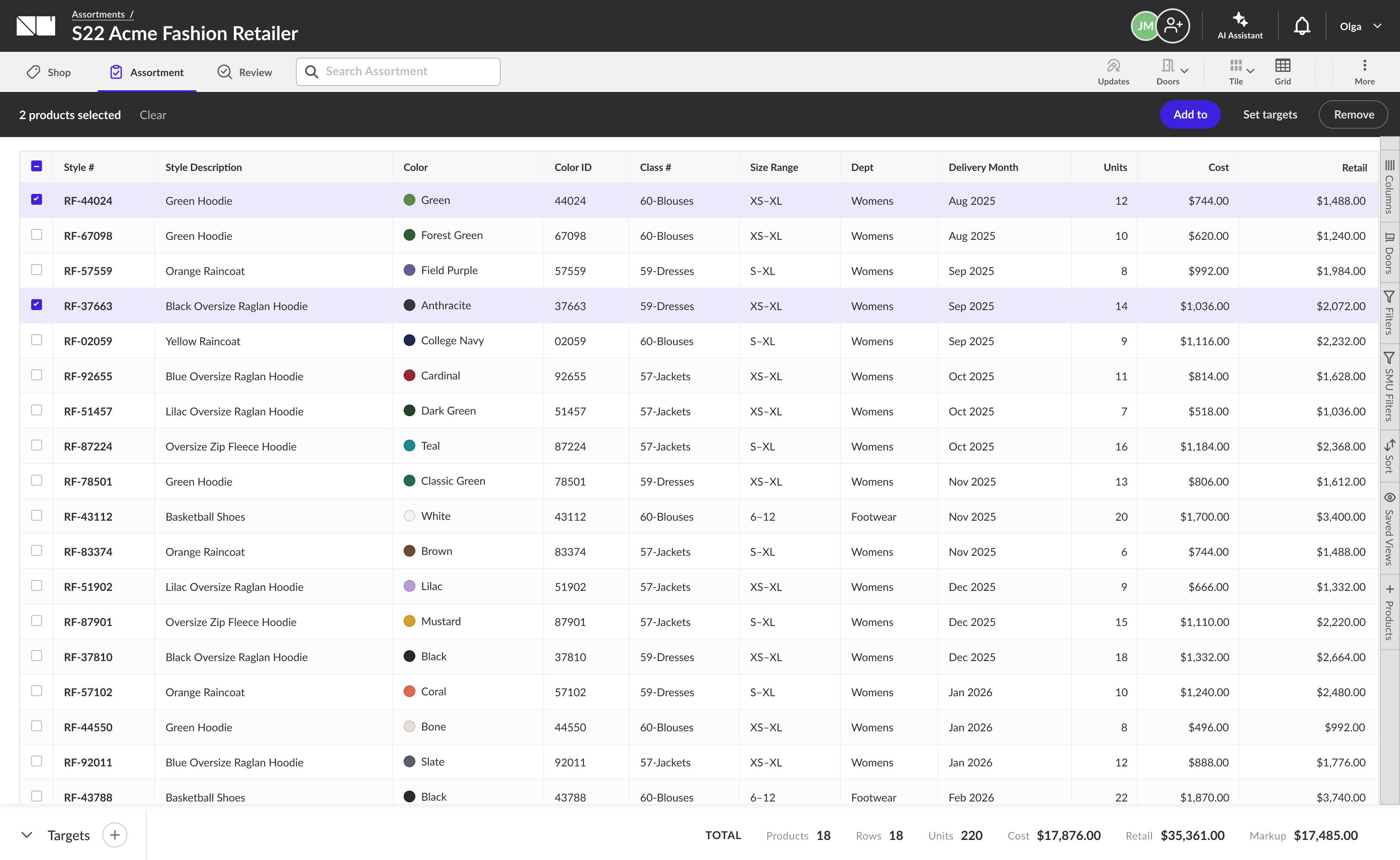
Two ways to see the assortment
NuORDER Assortments grid view: a dense data table with one row per product
Grid view - the dense, data-first default. Every product a row.
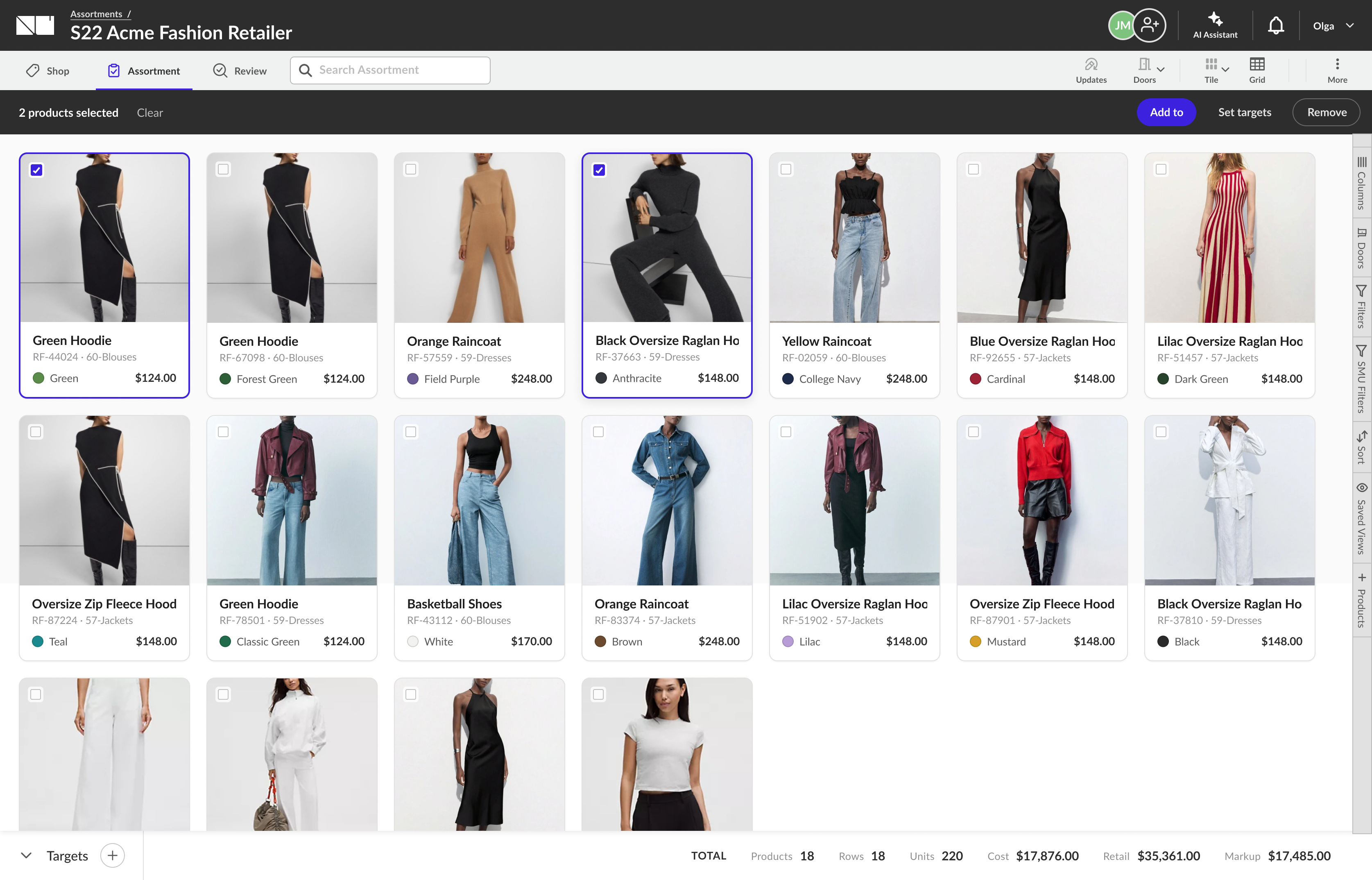
NuORDER Assortments tile view: large product cards with imagery, colorway, price and SKU
Tile view - the same assortment, made visual. Drag-reorder and selection stay in sync with the grid.
Retailer submits order intent
1Retailer submits order intent.
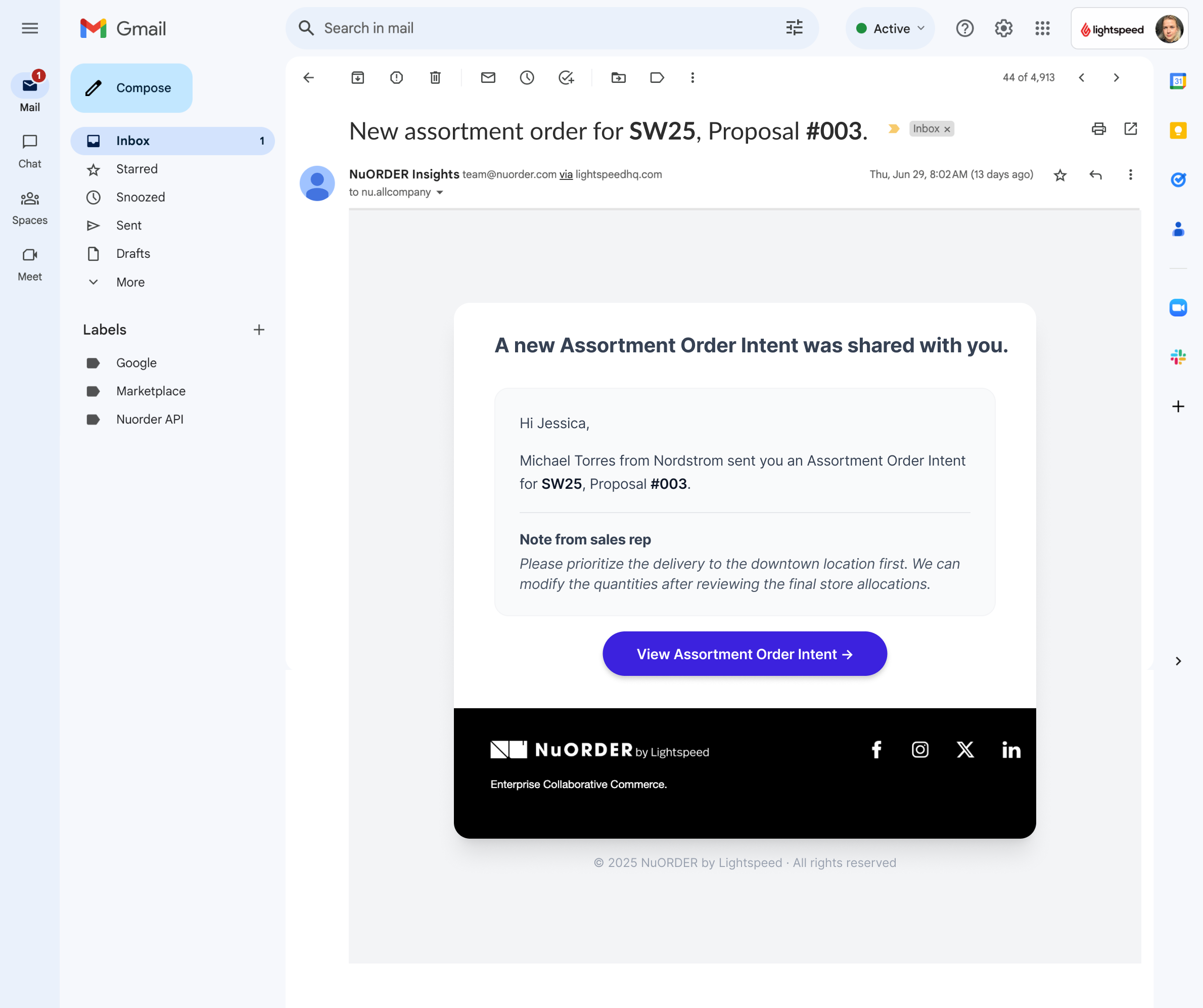
Email notification to brand user
2Email notification to the brand user.
In-app notification for new intent
3In-app notification for new intent.
The brand's Orders workspace
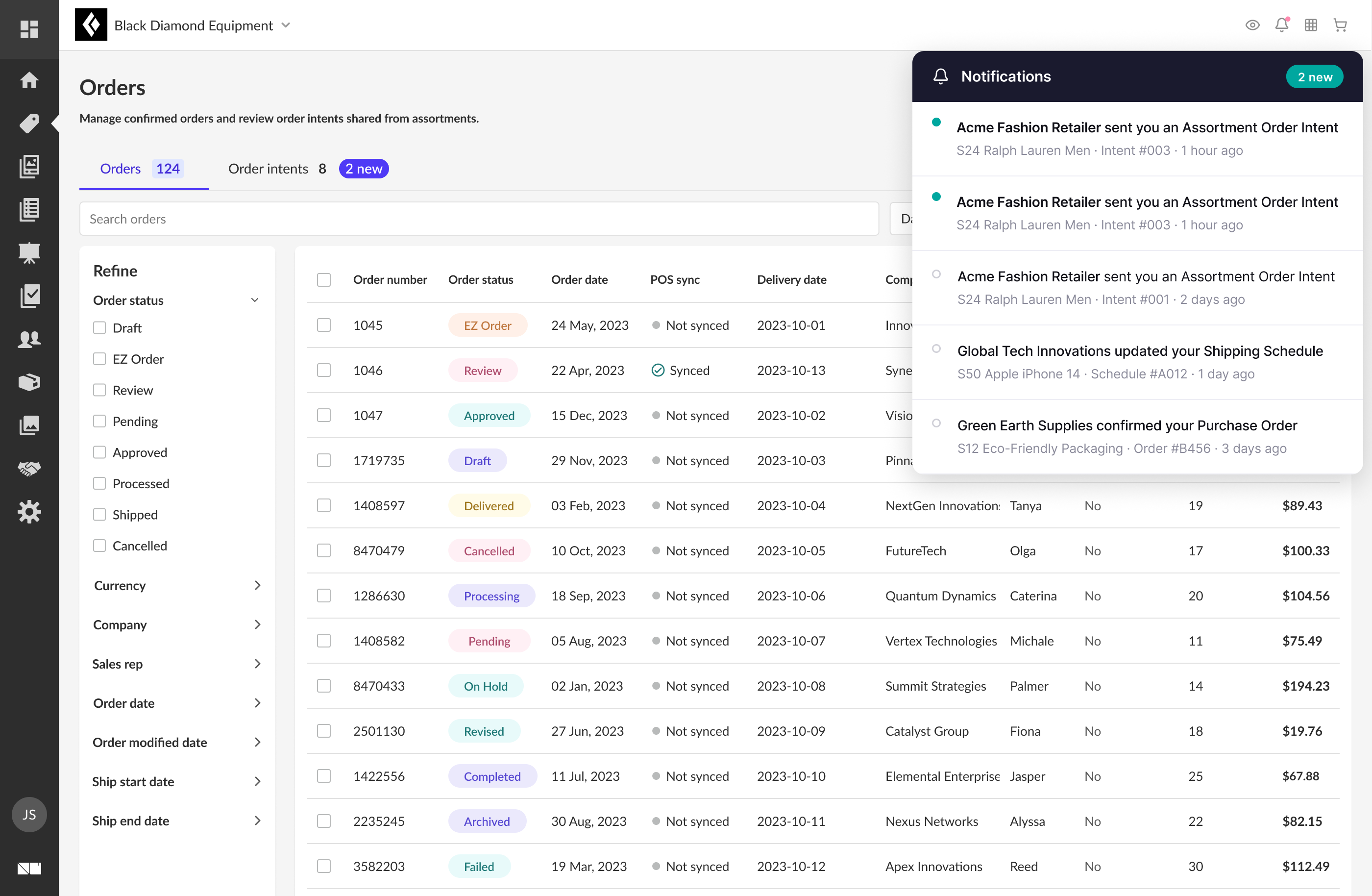
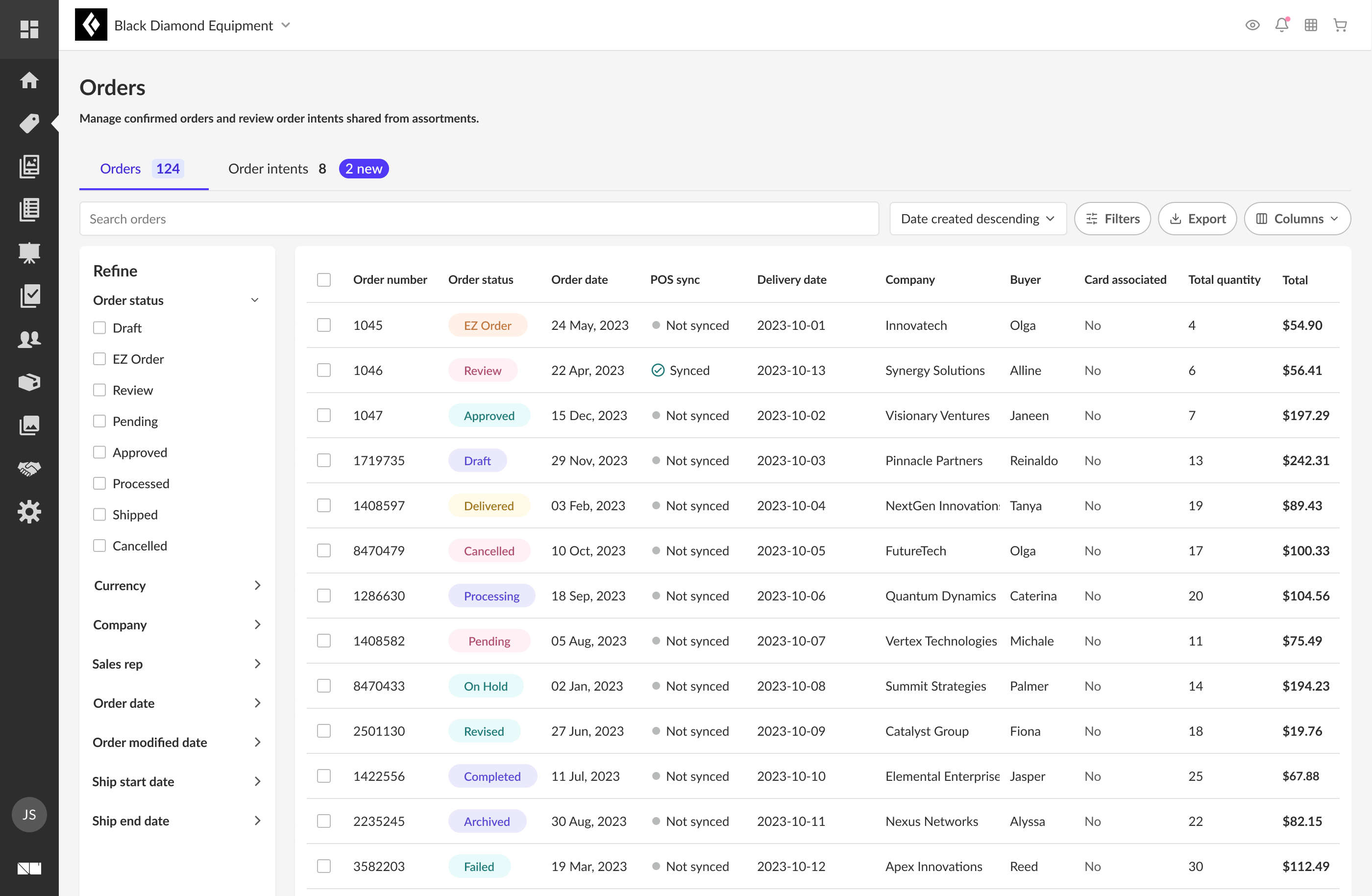
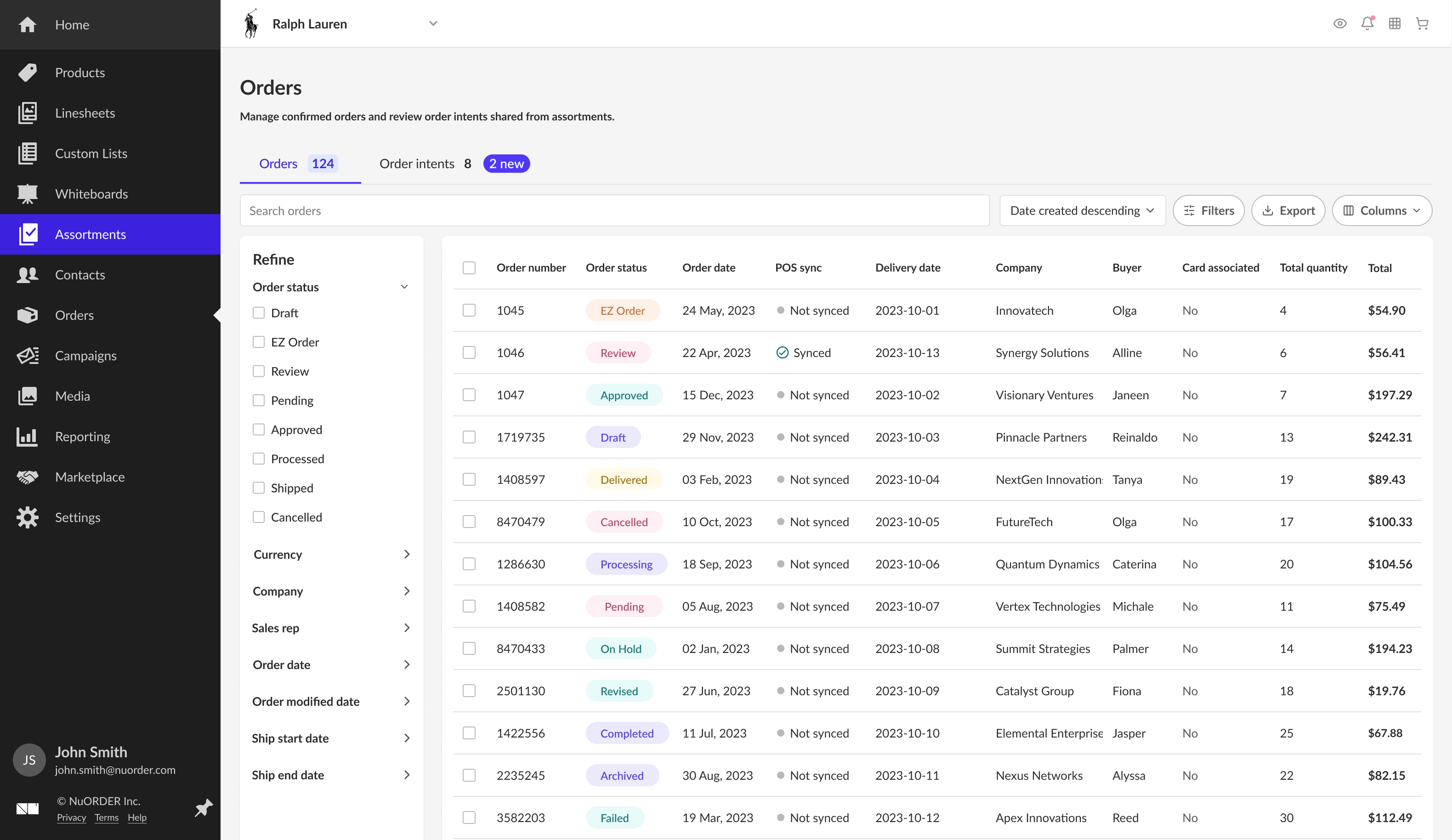
Brand Orders workspace listing confirmed orders, with an Order intents tab
4The Orders workspace. Confirmed orders, with shared intents one tab away.
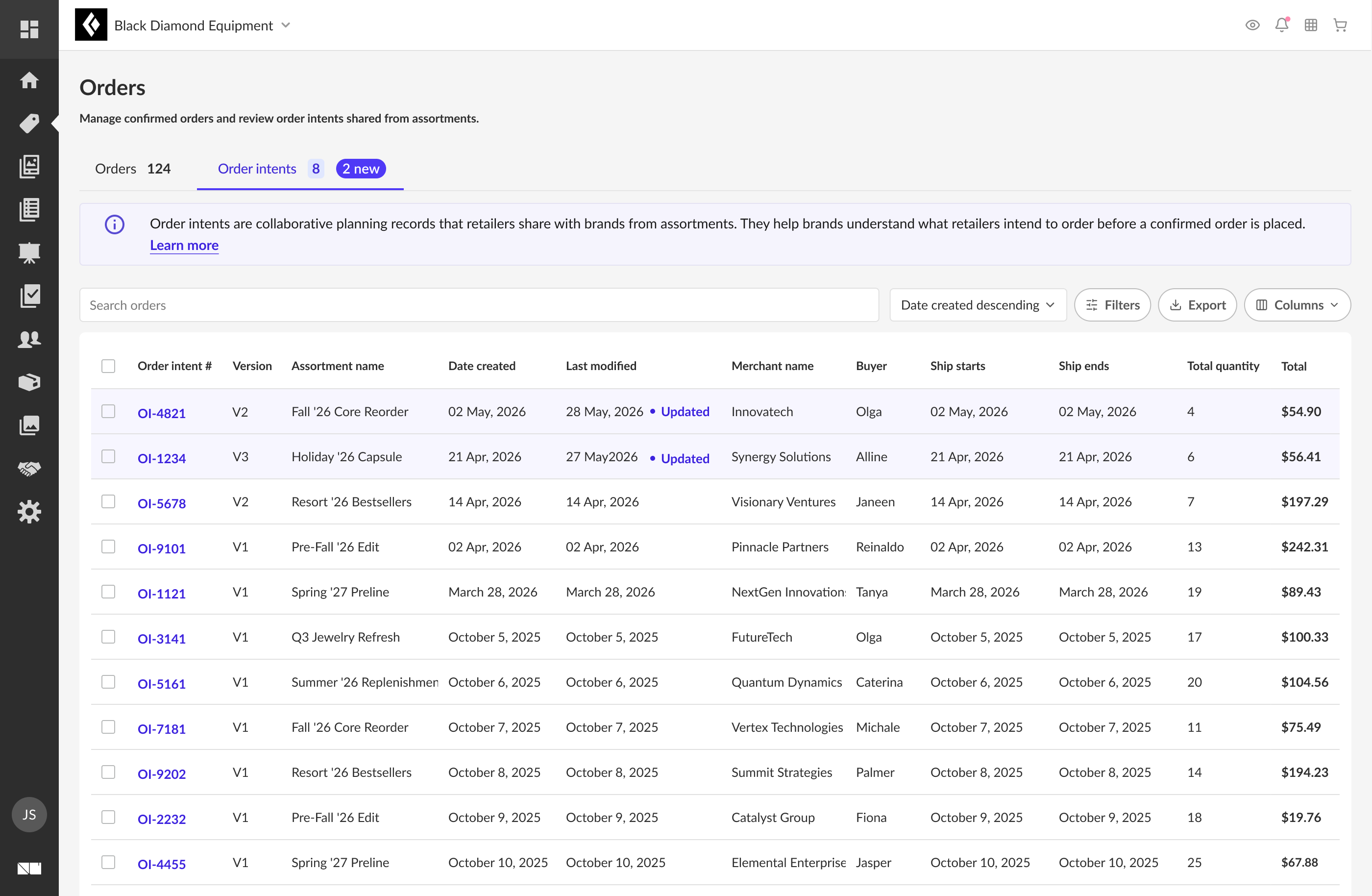
Order intents tab listing versioned intents shared from assortments
5The Order intents tab. Versioned intents shared from retail assortments, flagged when new or updated.
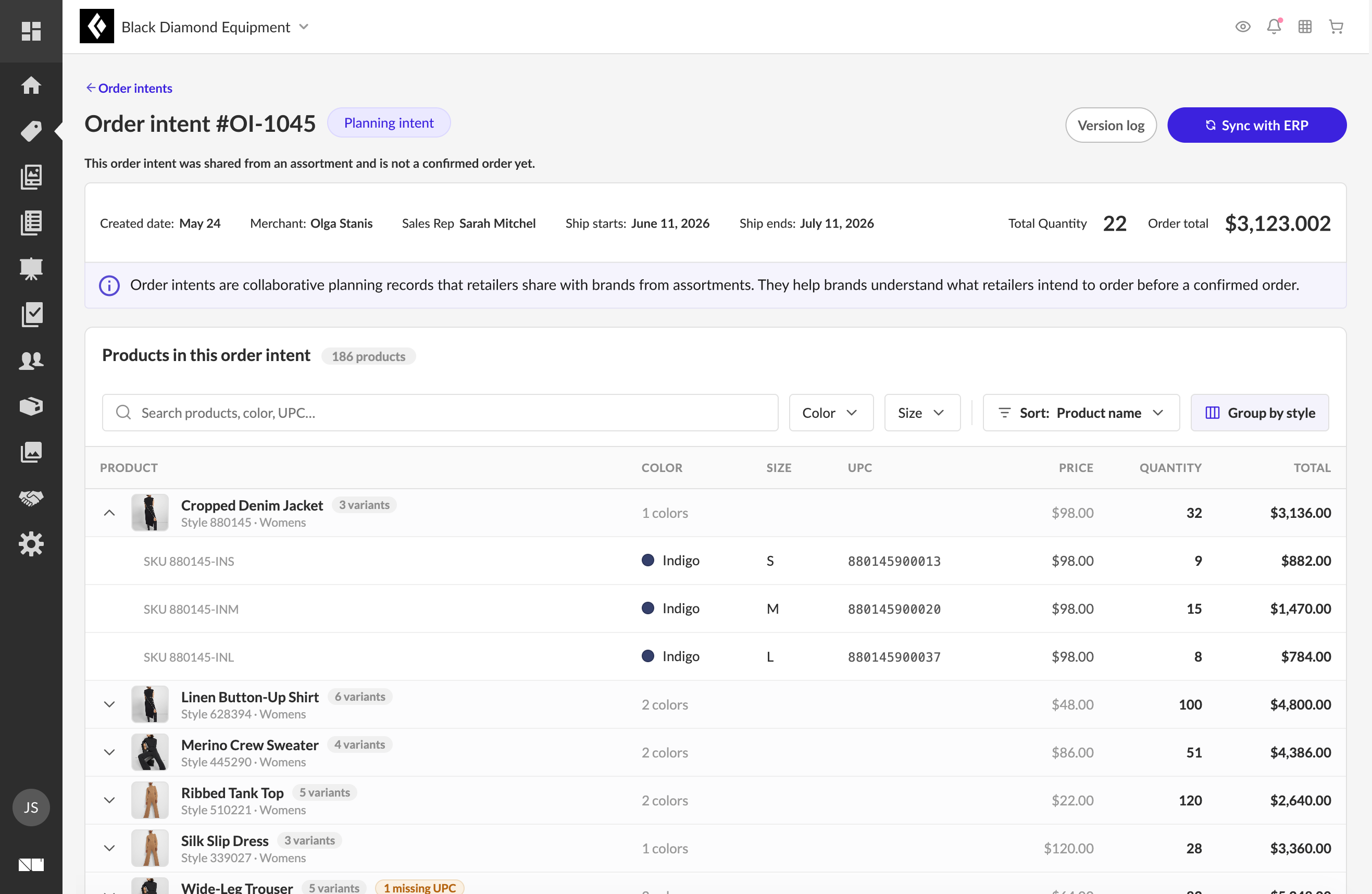
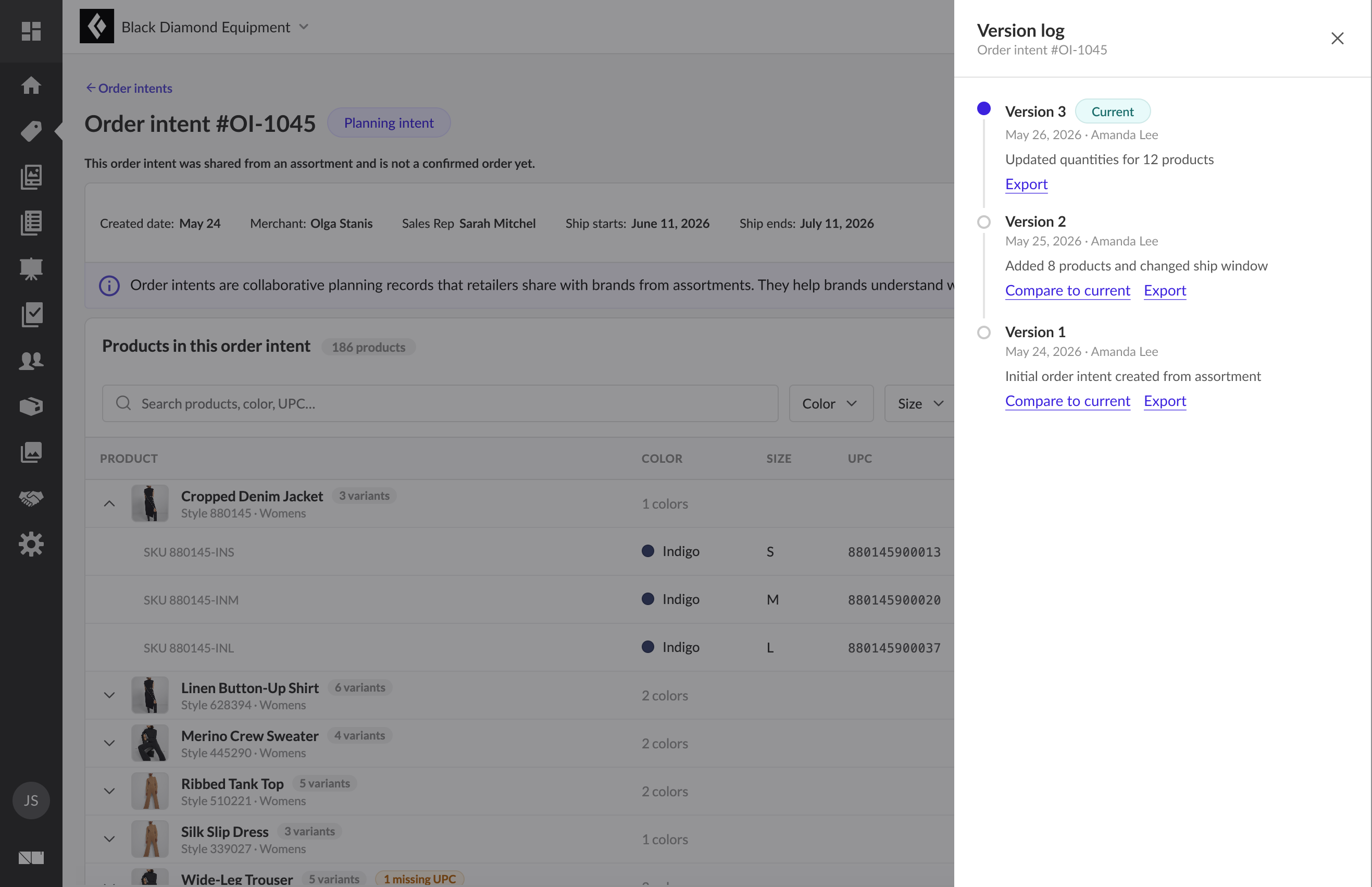
Order intent preview and product details
6Order intent preview and product details.
Tracking changes through version history
7Tracking changes through version history.
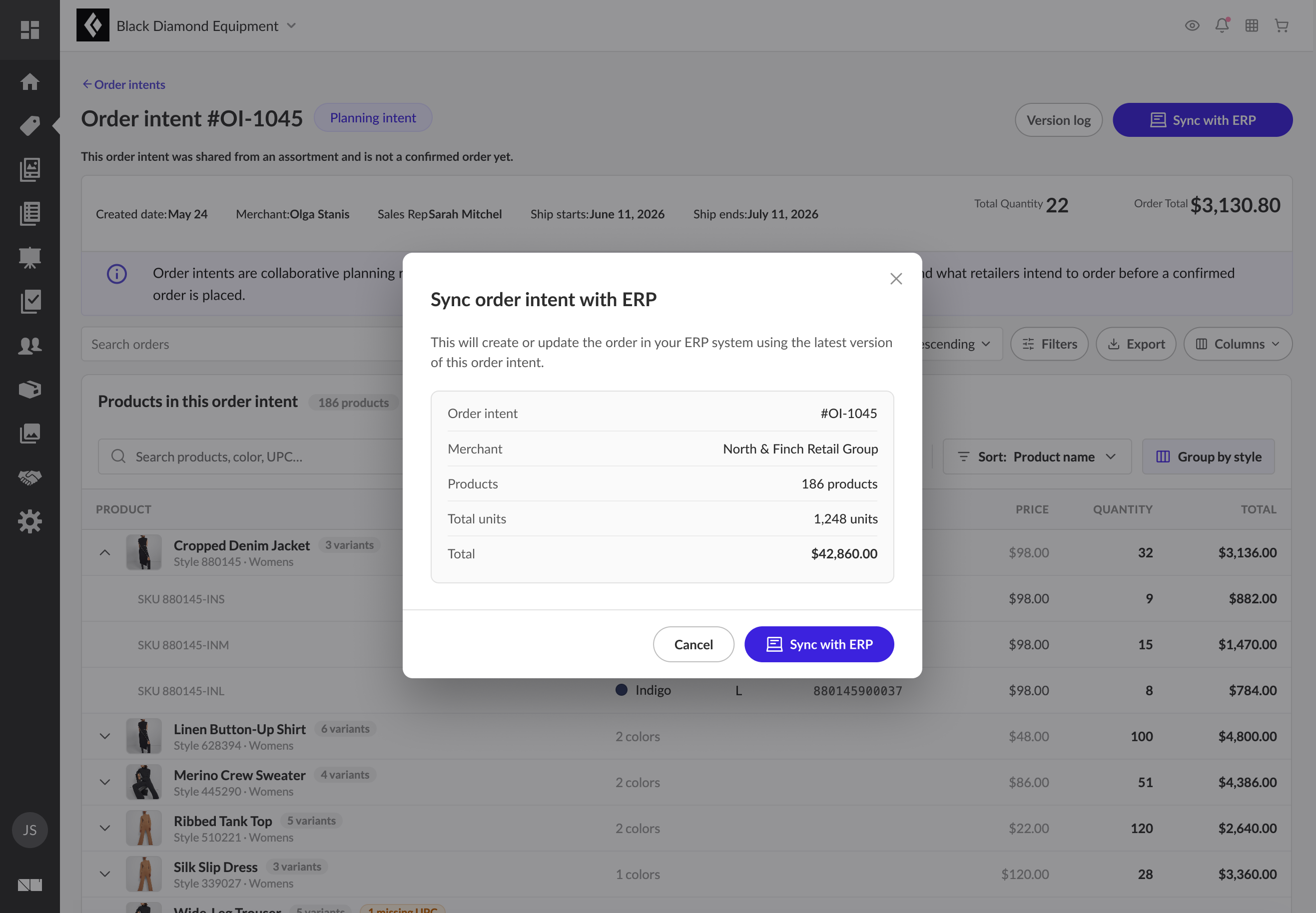
Sync order intent with ERP modal summarizing the intent before creating or updating the order in the brand's ERP system
8Sync with ERP. Push the latest version into the brand's order system.
Brand → Retailer · Assortment Proposals - the other direction

The reverse of order intent: brands like Ralph Lauren draft a seasonal proposal from their own product data and send it to a retail partner, who reviews a read-only preview and accepts it into planning.
Brand side · Create & send a proposal
Ralph Lauren Orders page with an Order intents tab flagged 2 new, the brand's entry point into Assortments
1From Orders. The brand starts in the workflow it already lives in.
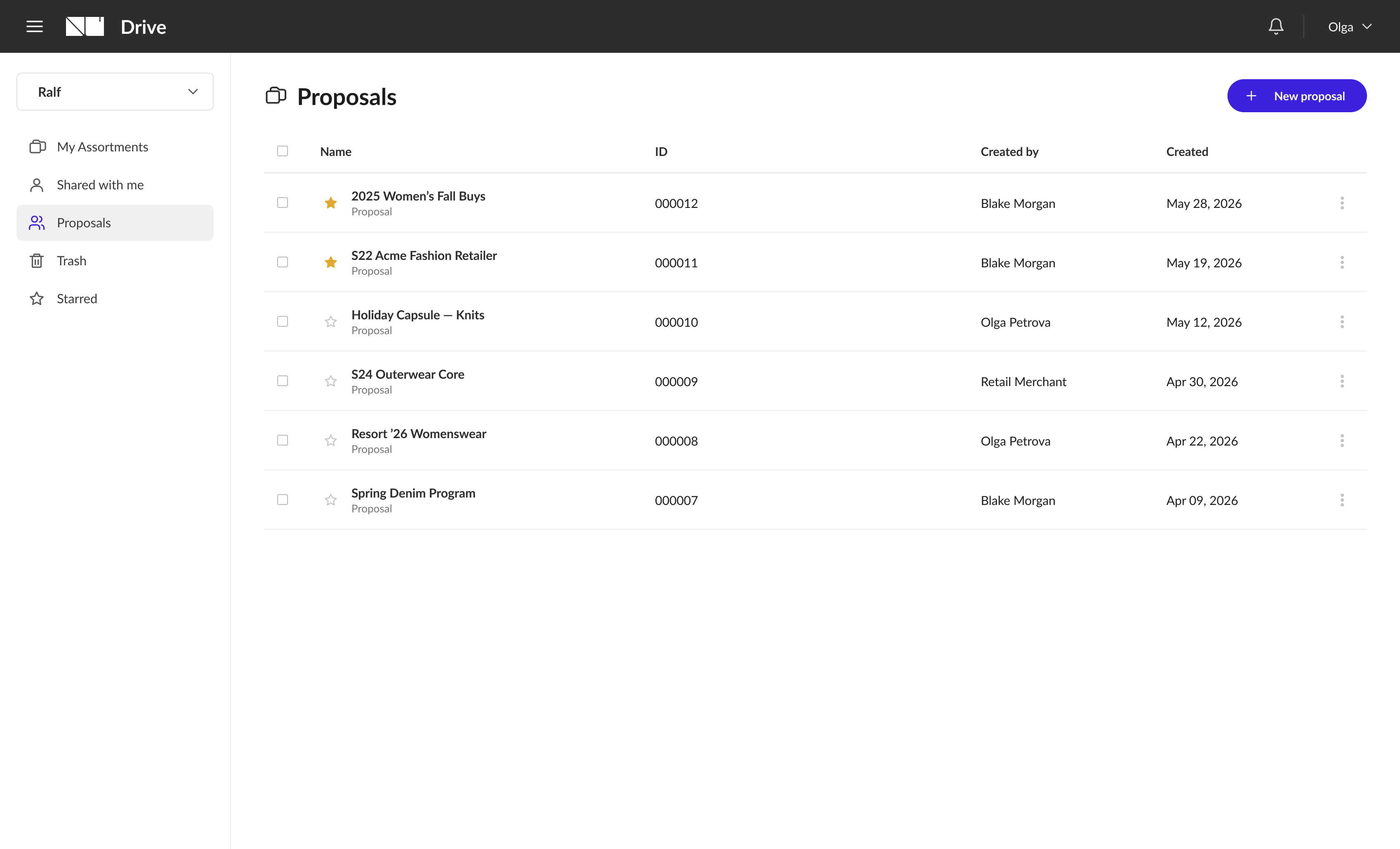
NuORDER Assortments Proposals list of saved seasonal proposals with name, ID, creator and date
2Proposals home. The brand's seasonal proposals, one place.
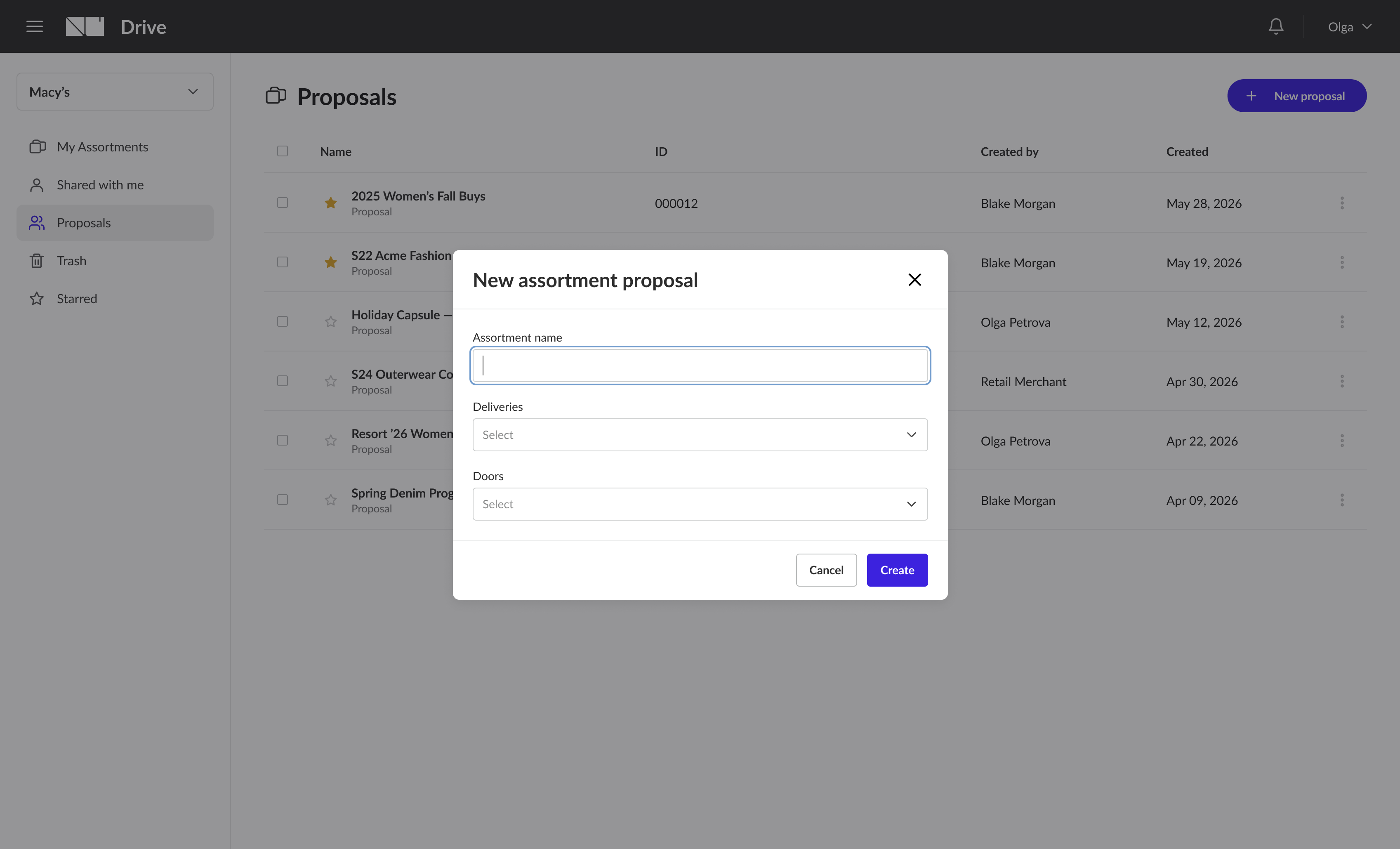
New assortment proposal modal with fields for name, deliveries and doors
3New proposal. Name it, pick deliveries and doors.
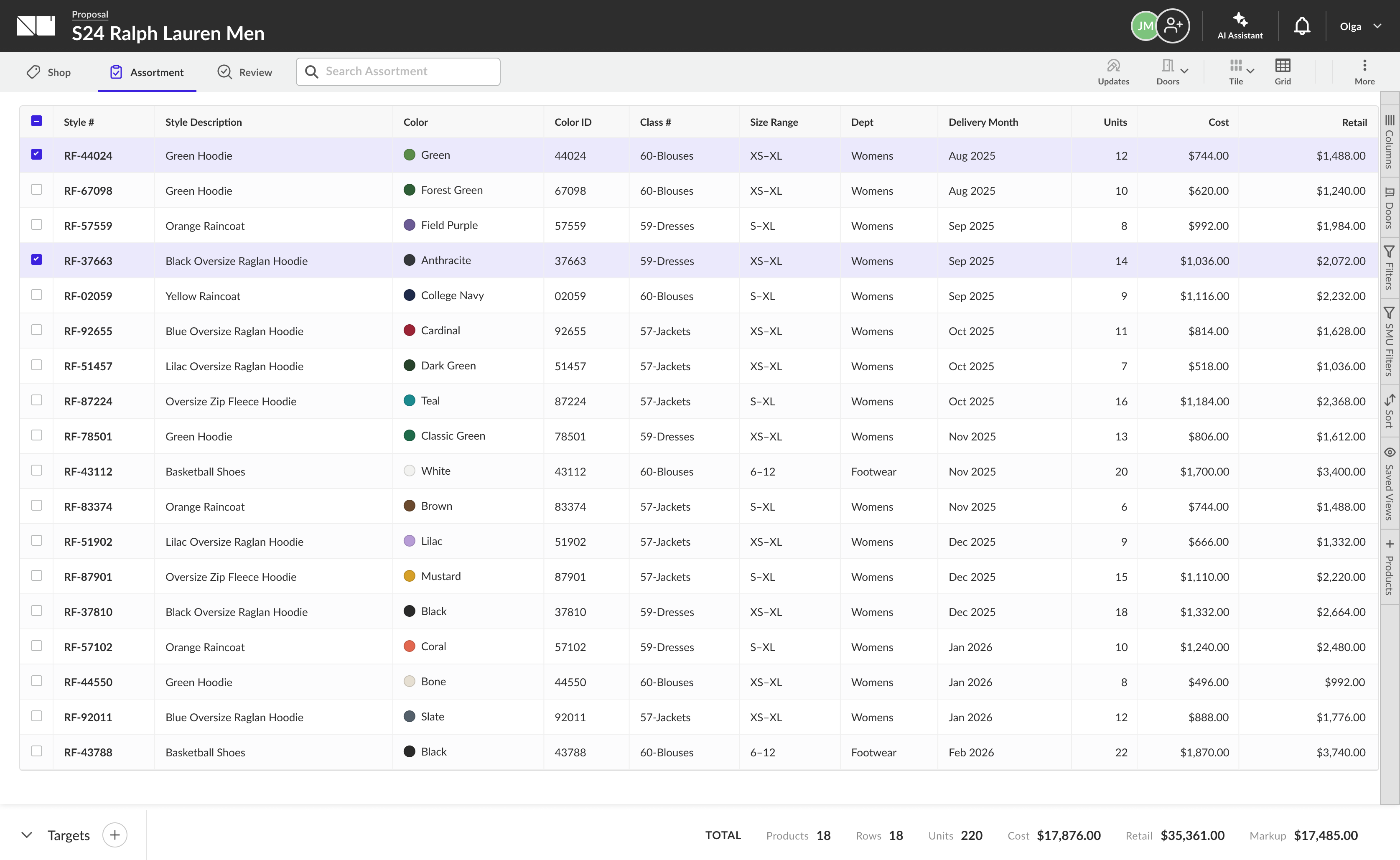
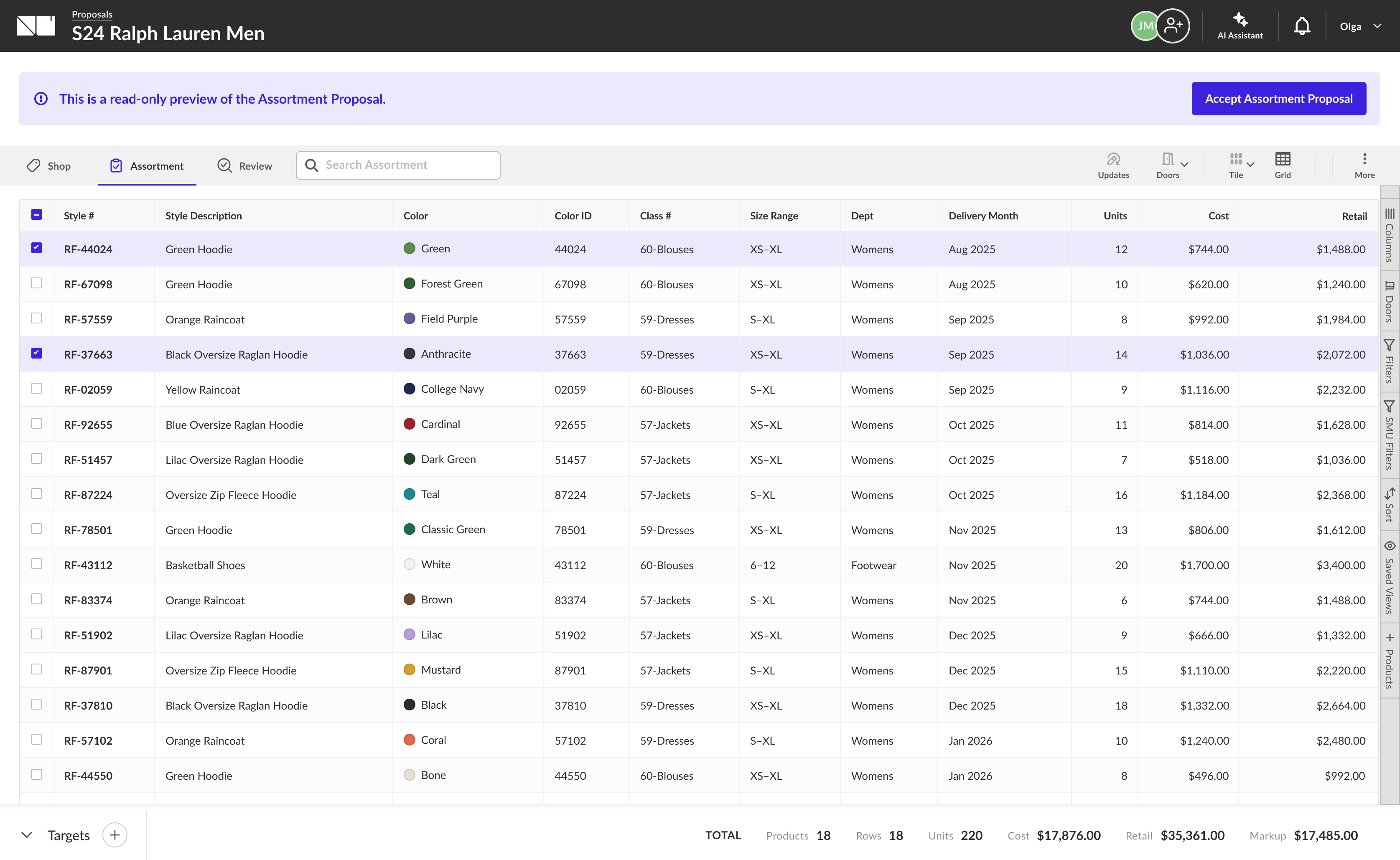
S24 Ralph Lauren Men proposal in the Assortments grid: styles with color, class, size range, delivery month, units, cost and retail
4Built from brand product data. Styles, colorways, delivery months, quantities.
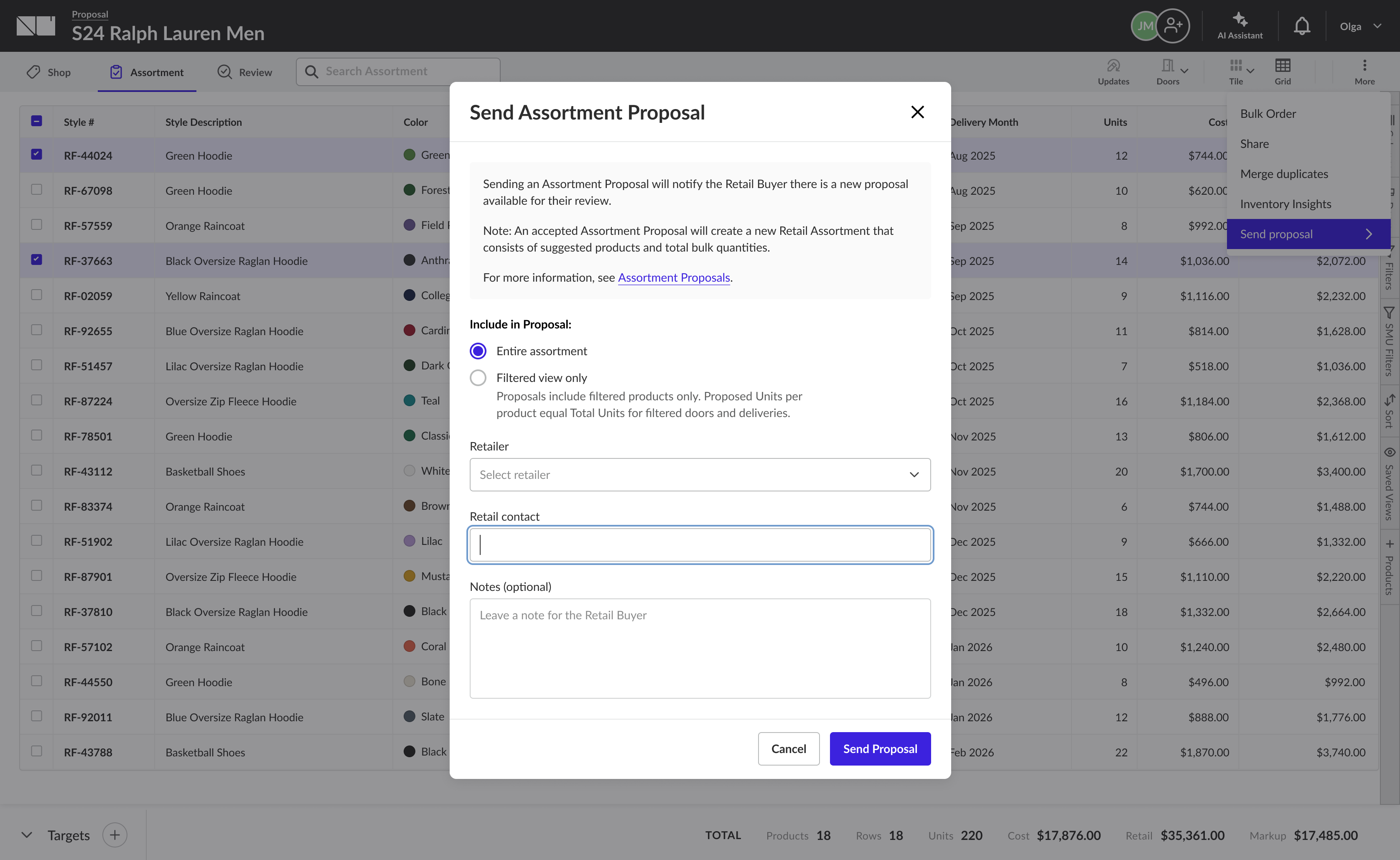
Send Assortment Proposal modal with scope options, a retailer selector and a retail contact field
5Send to a retail partner. Choose scope, retailer, and contact.
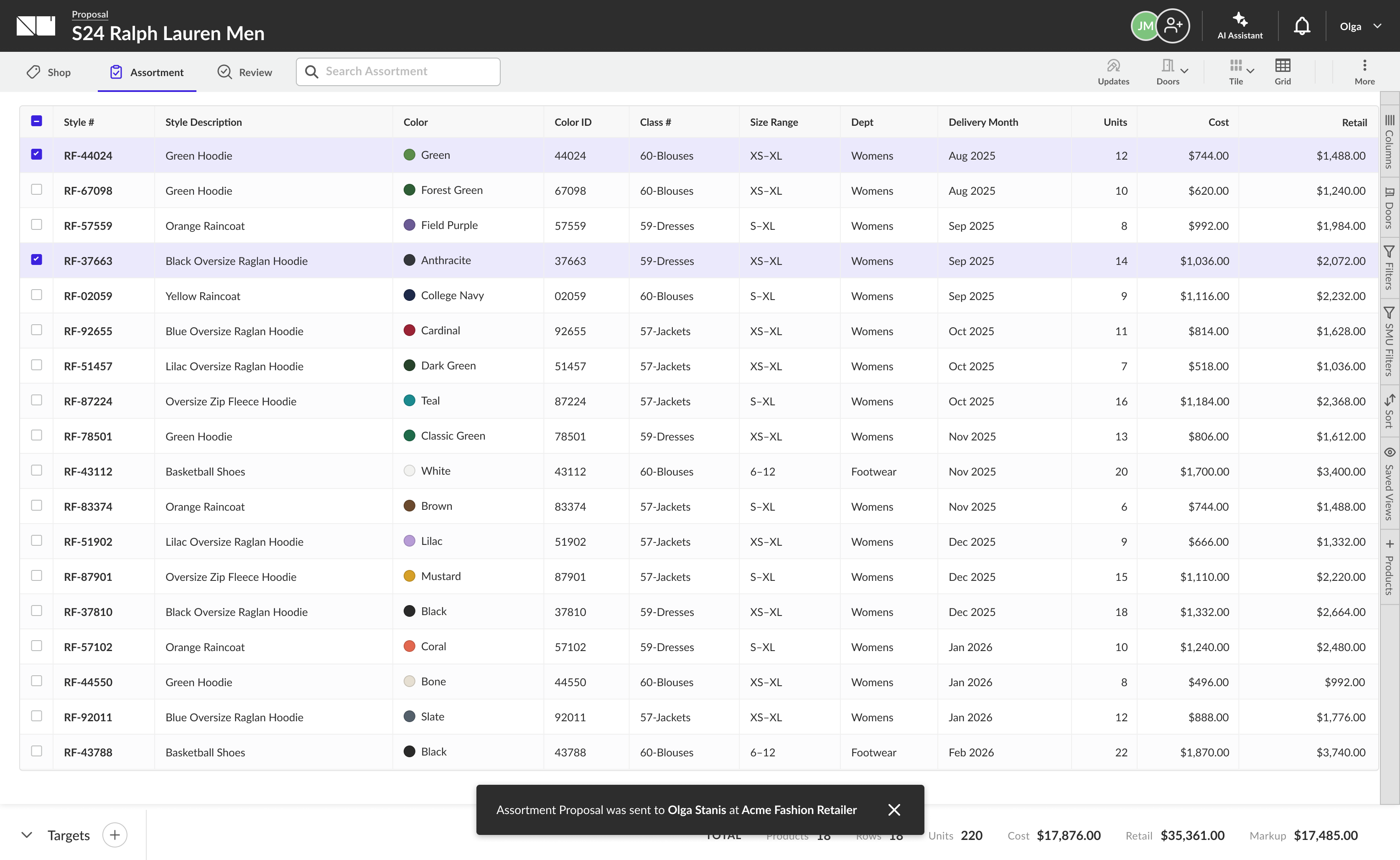
Proposal grid with a confirmation toast that the Assortment Proposal was sent to the retail buyer
6Sent. Handed to the buyer, who's notified to review.
Retailer side · Receive & accept
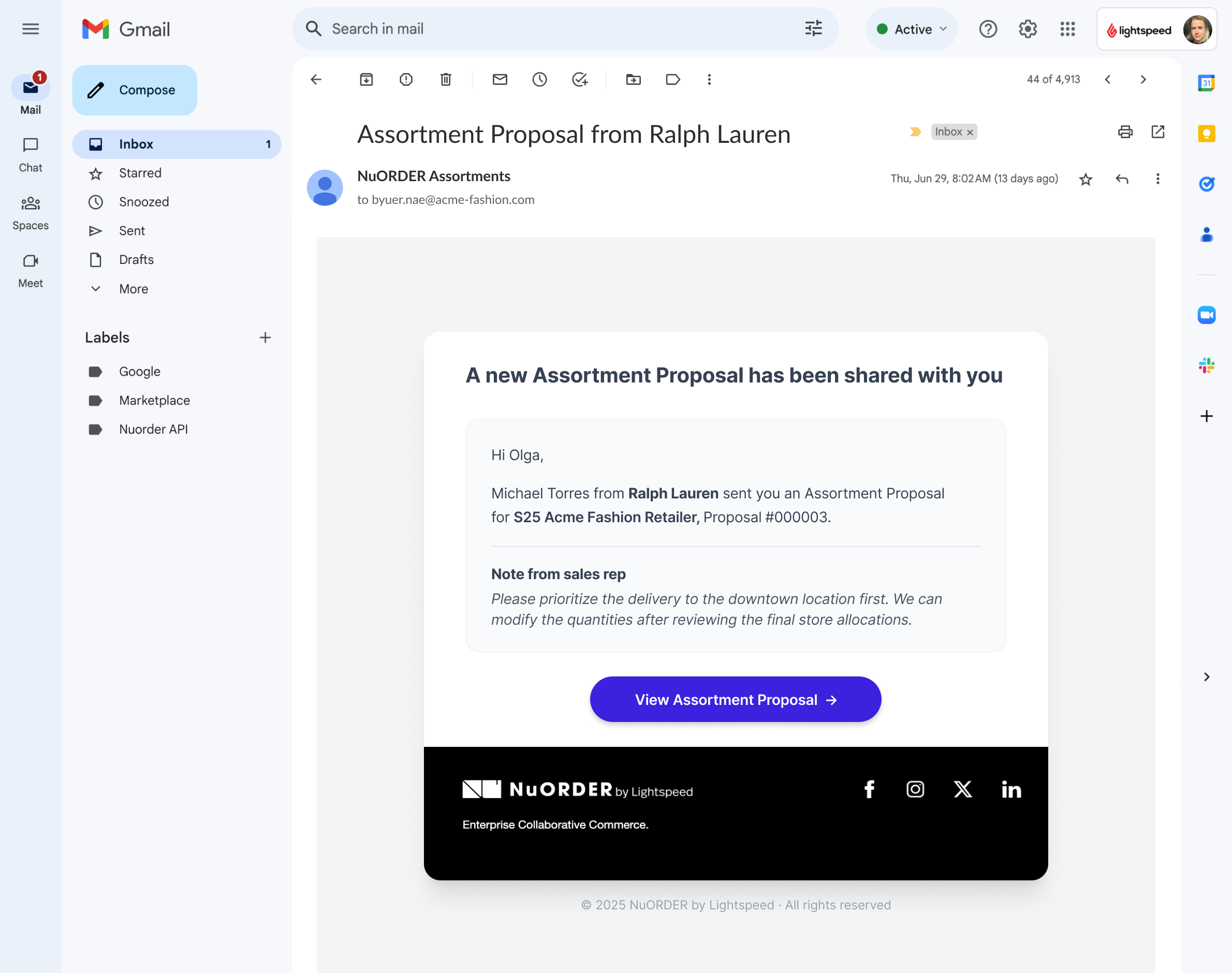
Email reading Assortment Proposal from Ralph Lauren with a note from the sales rep and a View Assortment button
1Email. A brand has shared an Assortment Proposal.
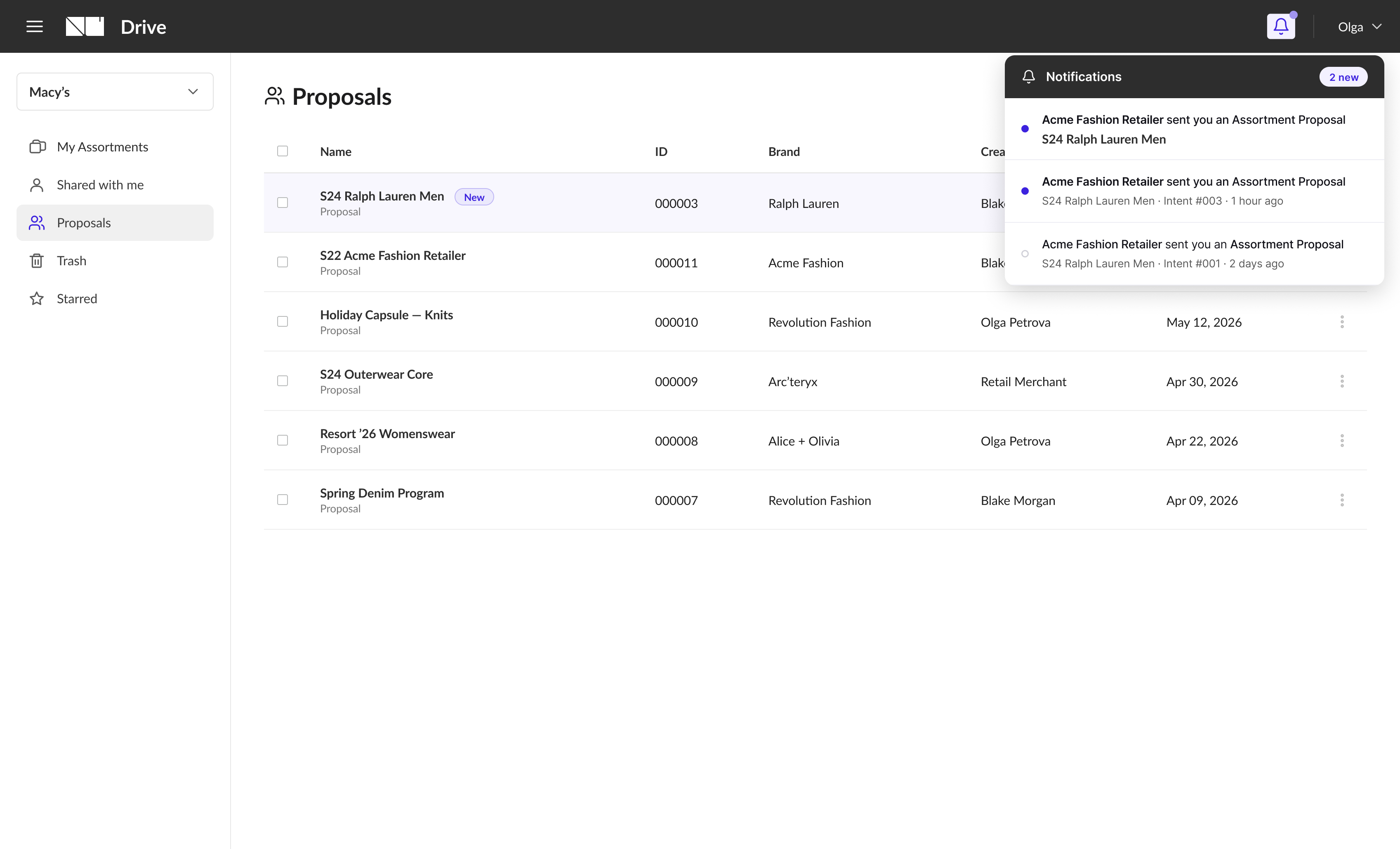
NuORDER Drive Proposals list with a notification that a brand sent an Assortment Proposal
2In-app. The proposal lands in NuORDER Drive.
S24 Ralph Lauren Men proposal shown to the retailer as a read-only preview with an Accept Assortment action
3Read-only preview. A safe review moment before accepting.
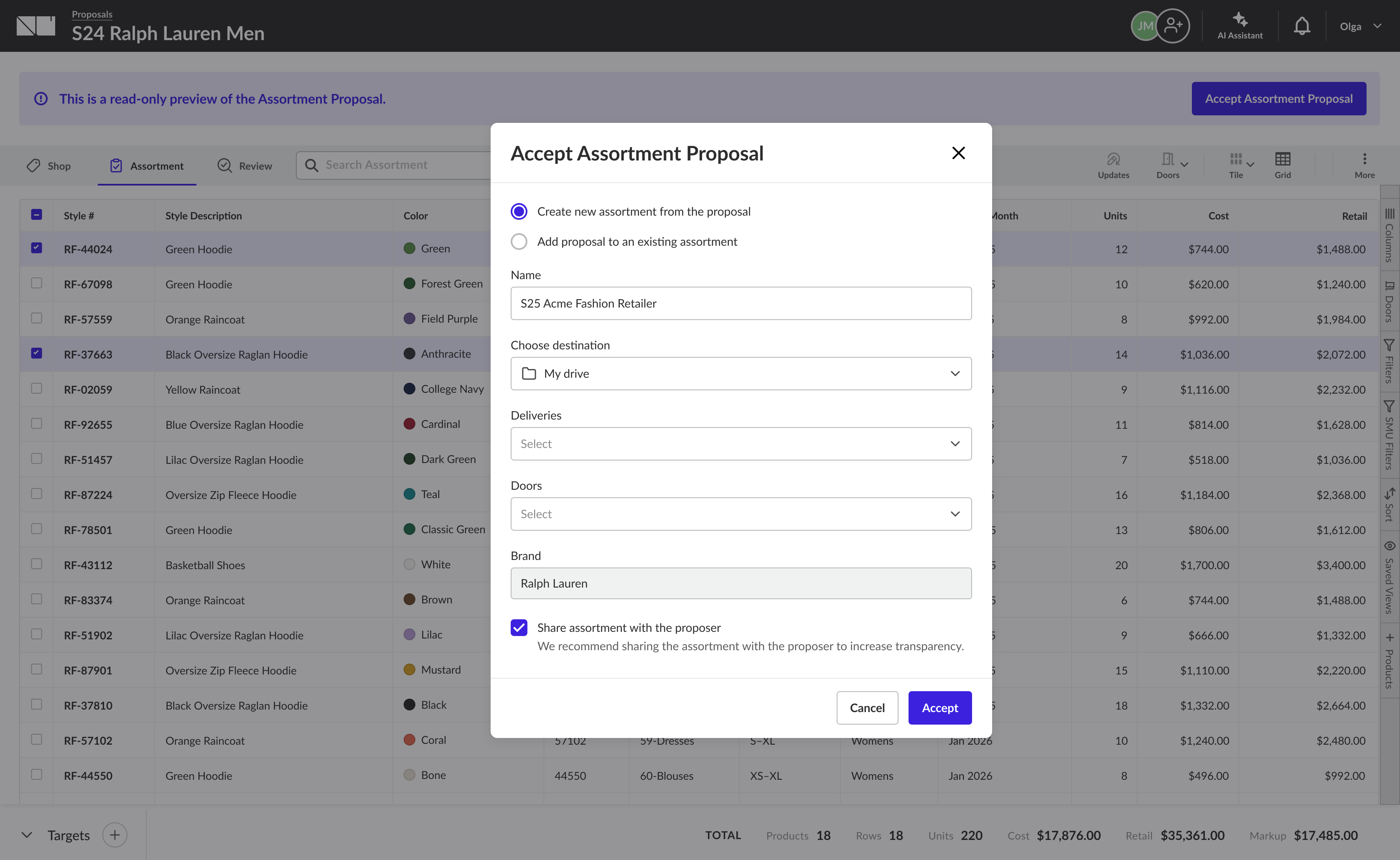
Accept Assortment Proposal modal with options to create a new assortment or add it to an existing one
4Accept. Create a new assortment or merge into an existing one.
05NuORDER · AI

Assortment, Assisted - an AI workflow inside Assortments

One connected AI workflow inside NuORDER Assortments: an analysis assistant that reads the buy, and a creation wizard that drafts a data-backed assortment from scratch and hands straight back to the assistant.

Phase one shipped · phase two in research
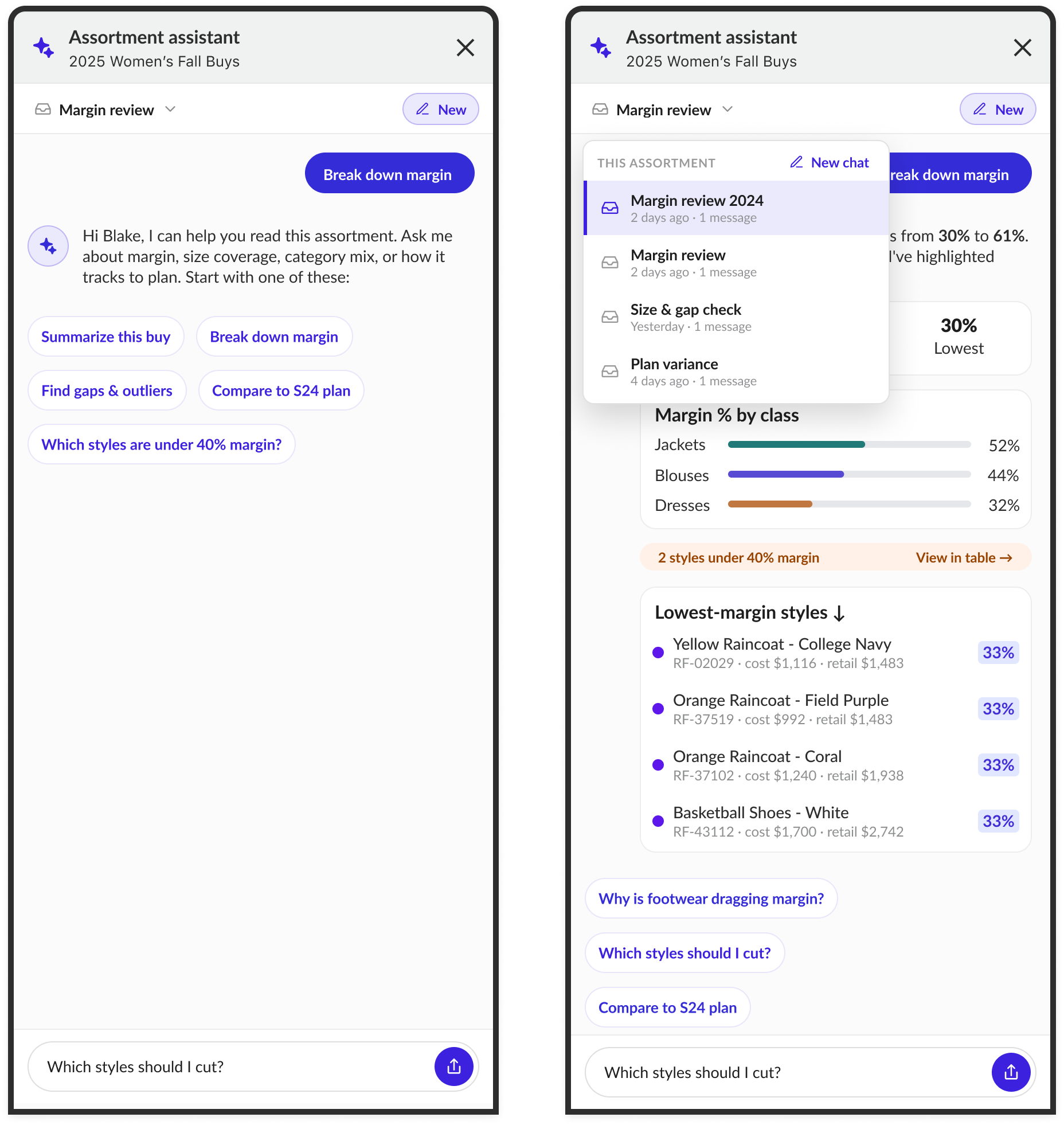
Phase 1 · The analysis assistant
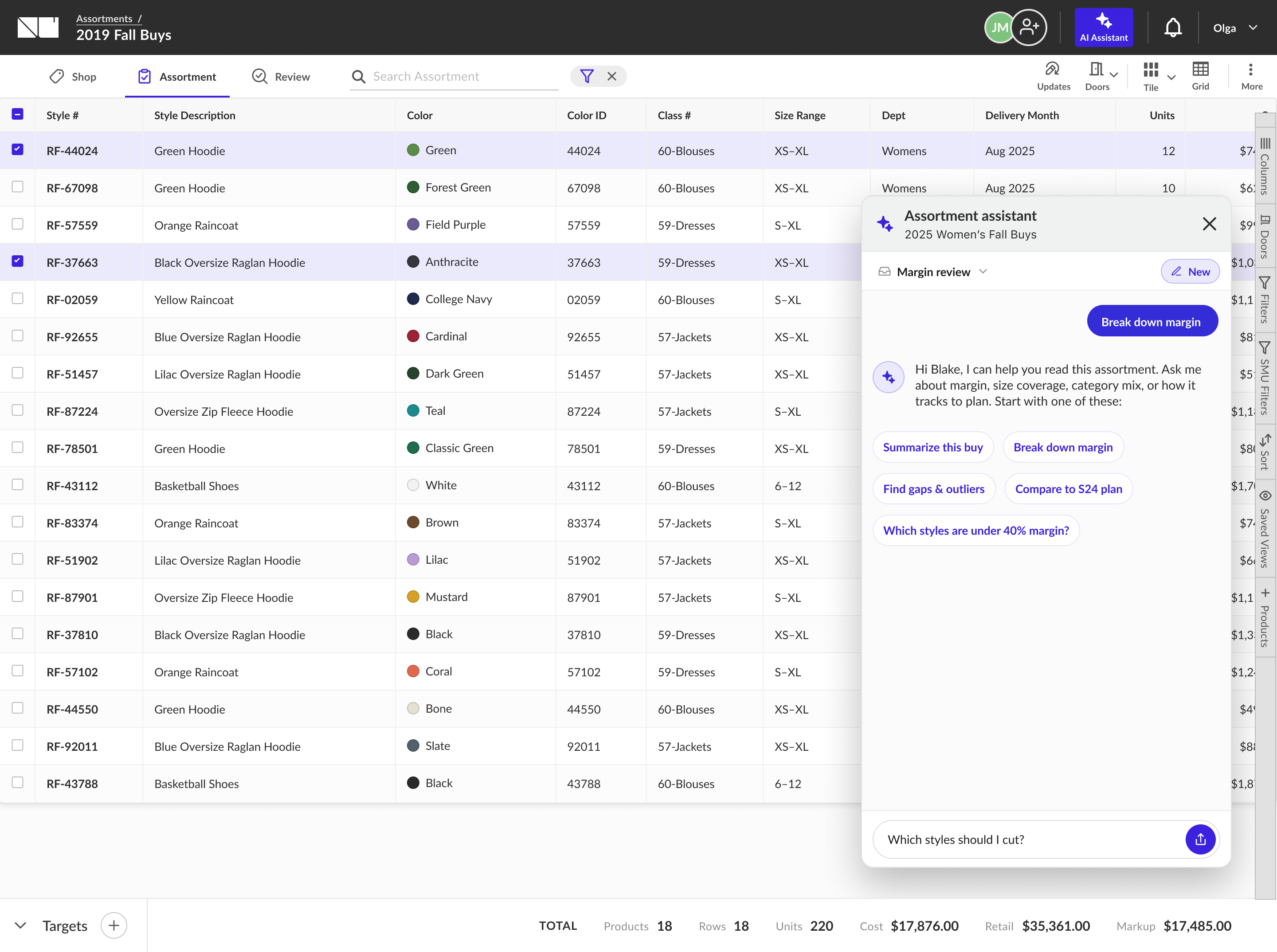
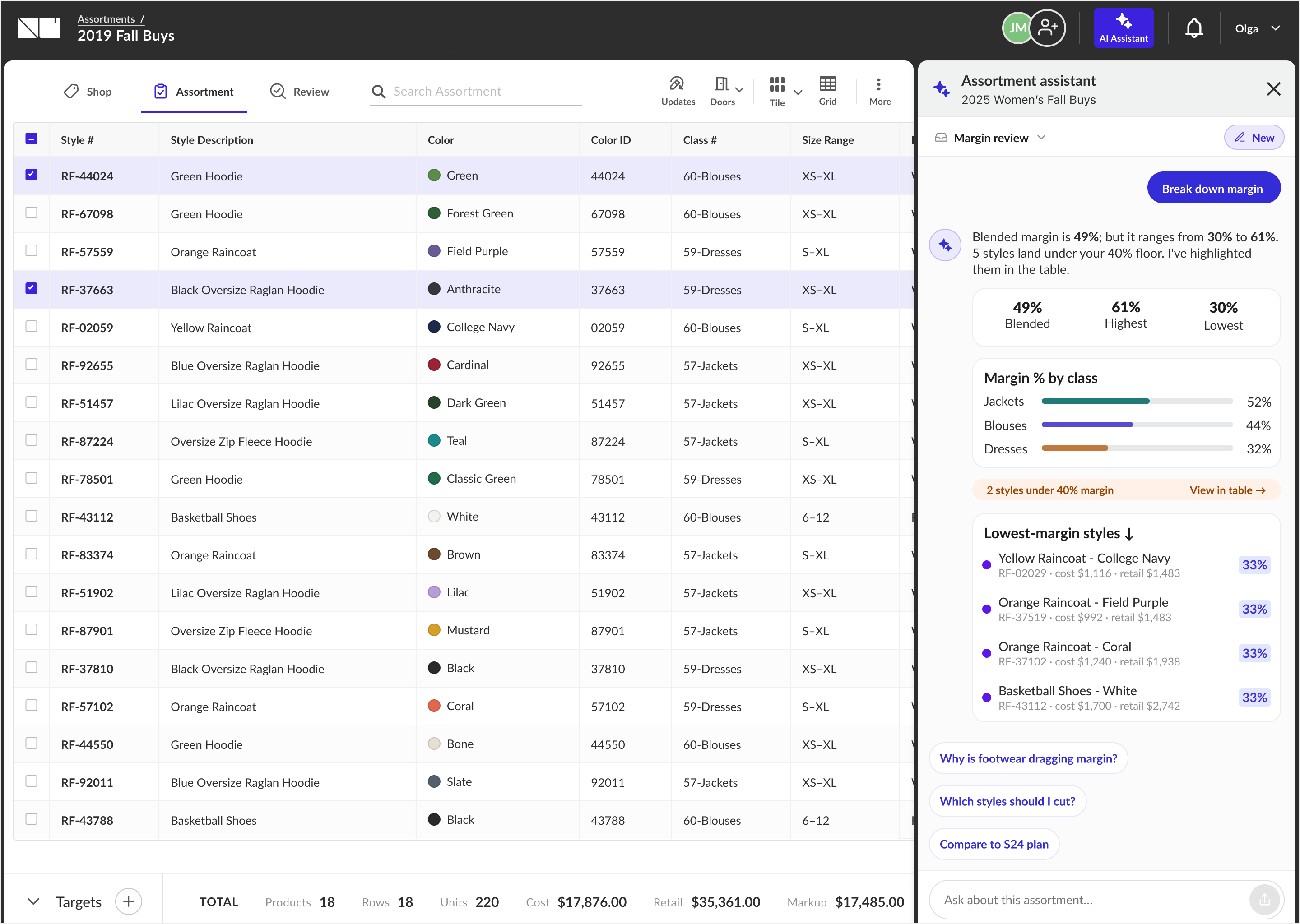
NuORDER Assortments grid with the Assortment assistant panel open, answering a margin breakdown grounded in live data
Assistant in context - analysis embedded in any assortment, grounded in the buyer’s live data.
Assistant default and answered states side by side
Default & answered - suggested questions, then scannable findings.
Assistant as a floating window anchored bottom-right over the grid
Floating window - layered over the grid.
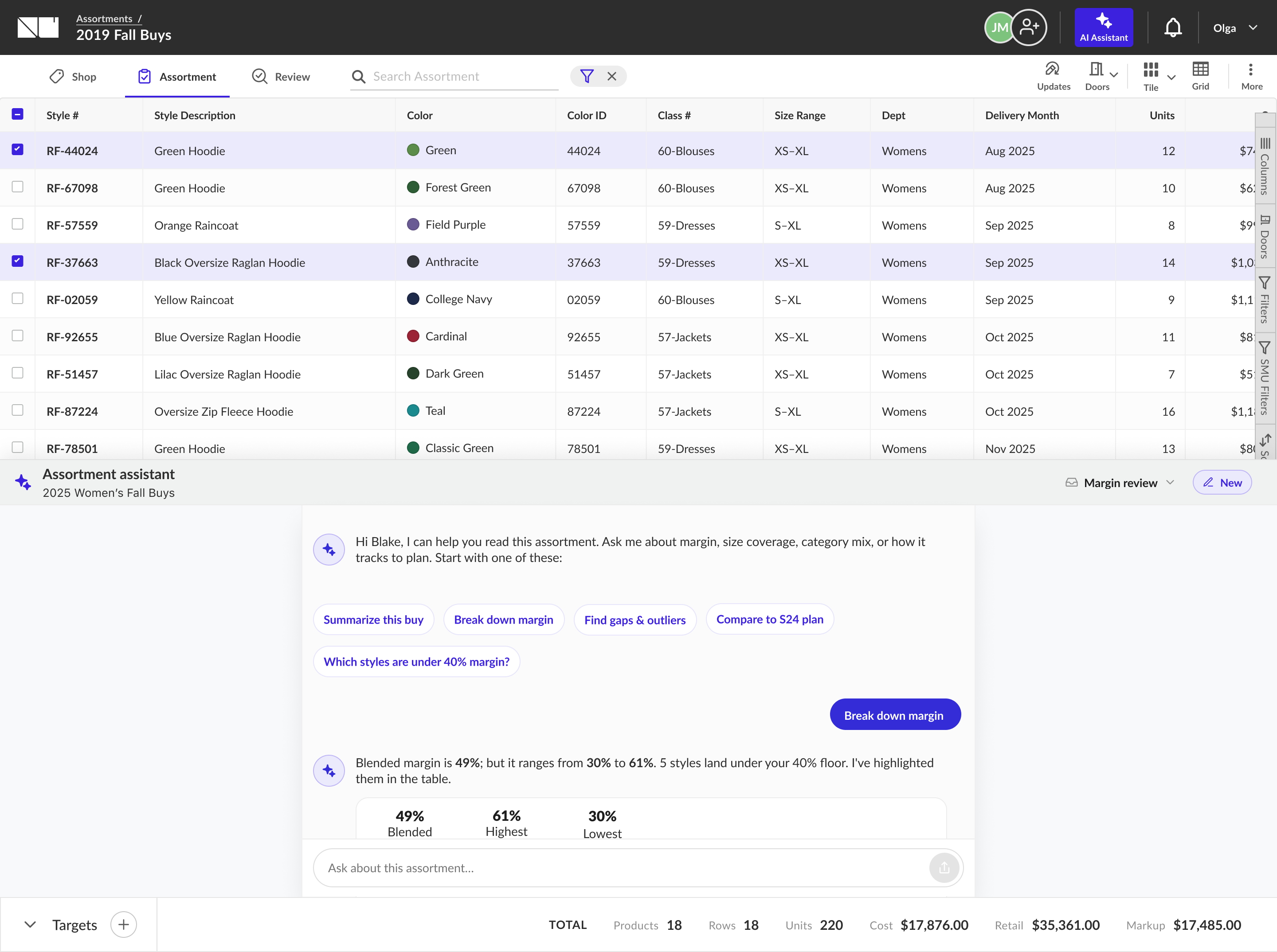
Assistant docked as a bottom sheet along the bottom edge
Bottom sheet - docked along the bottom edge.
Phase 2 · The creation wizard
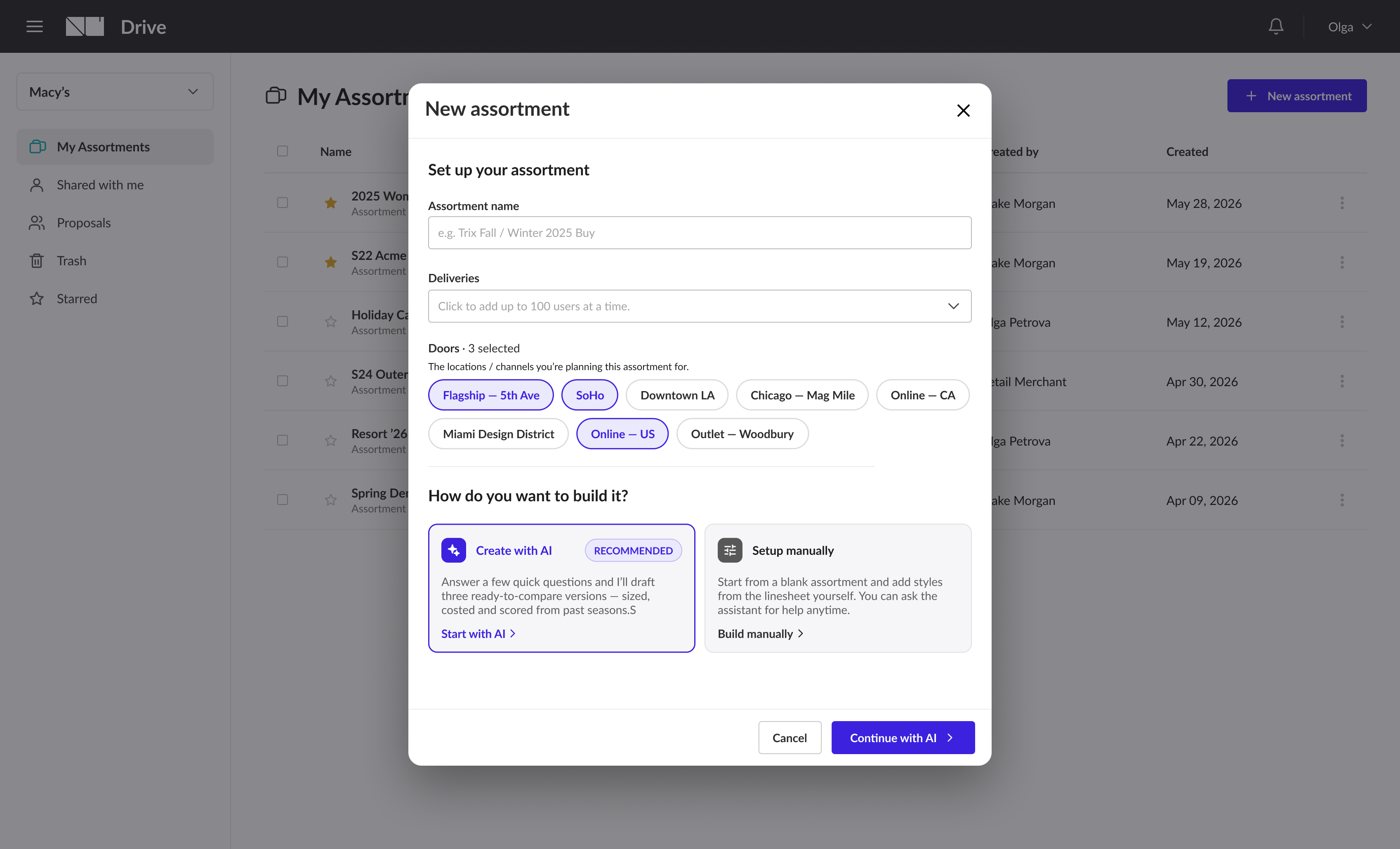
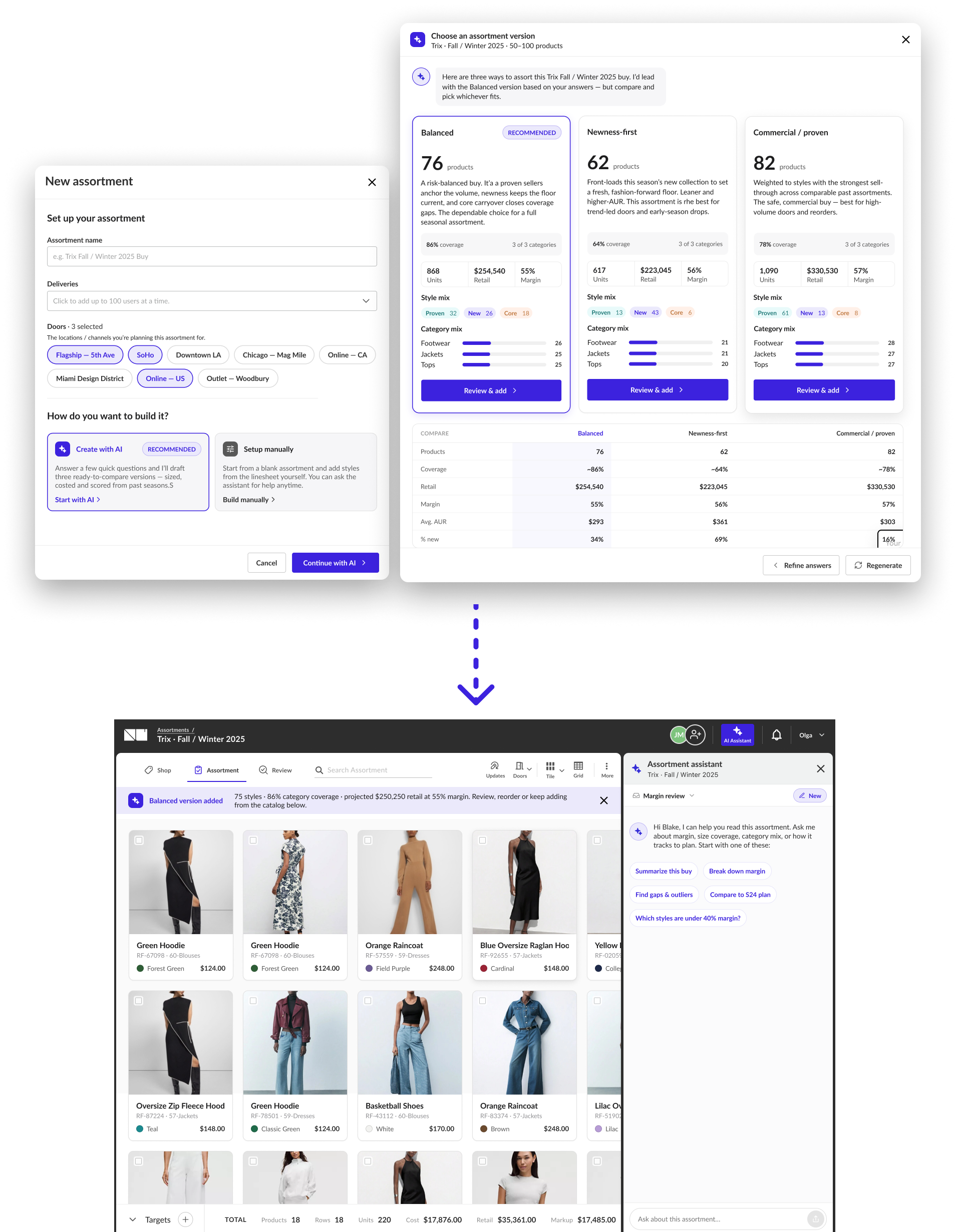
New assortment modal with name, deliveries, doors, and Create with AI or Setup manually paths
Entry point - Create with AI, positioned as the faster route, not the only one.
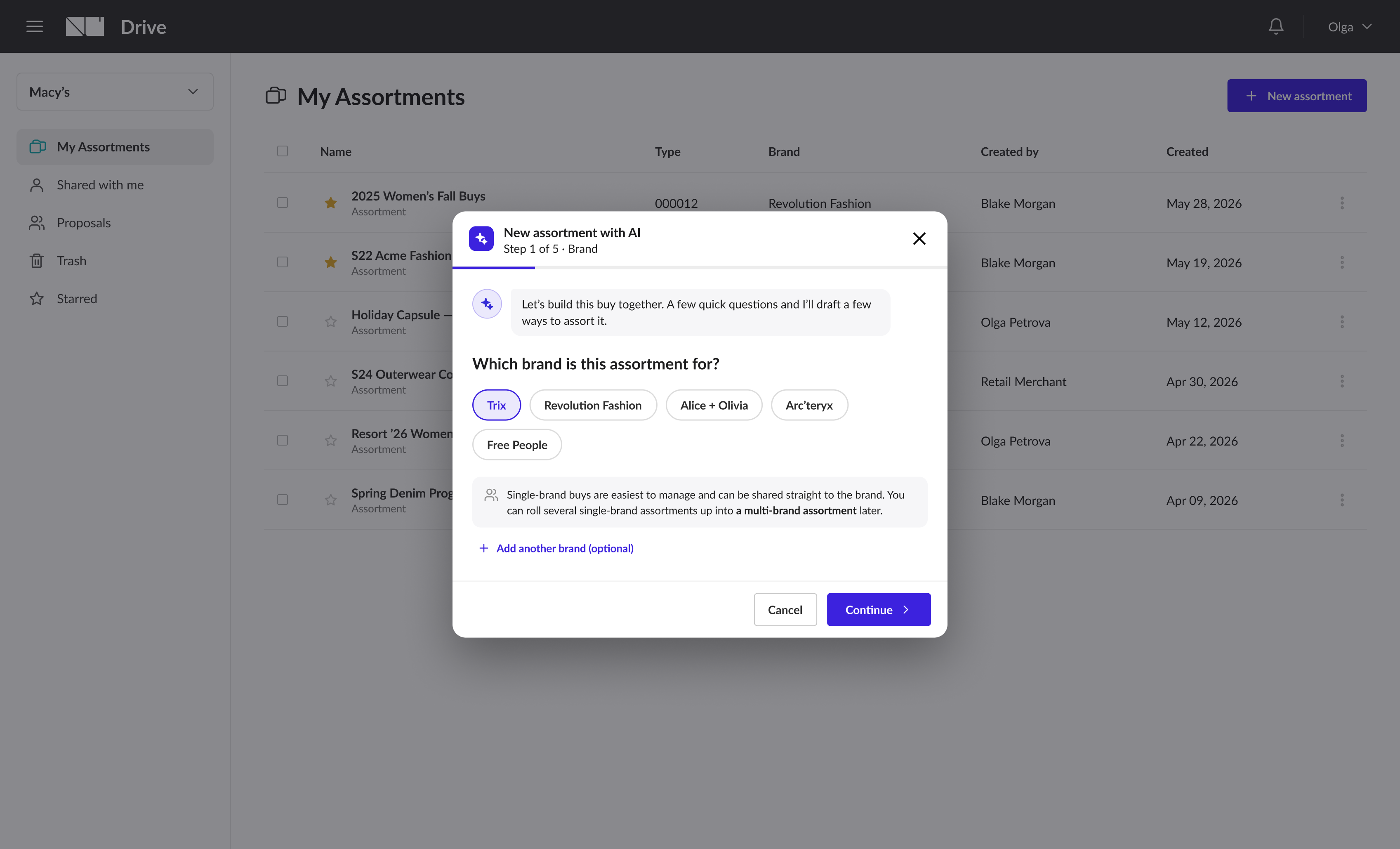
Wizard step 1, Brand: choose which brand the assortment is for
1 · Brand - who the buy is for.
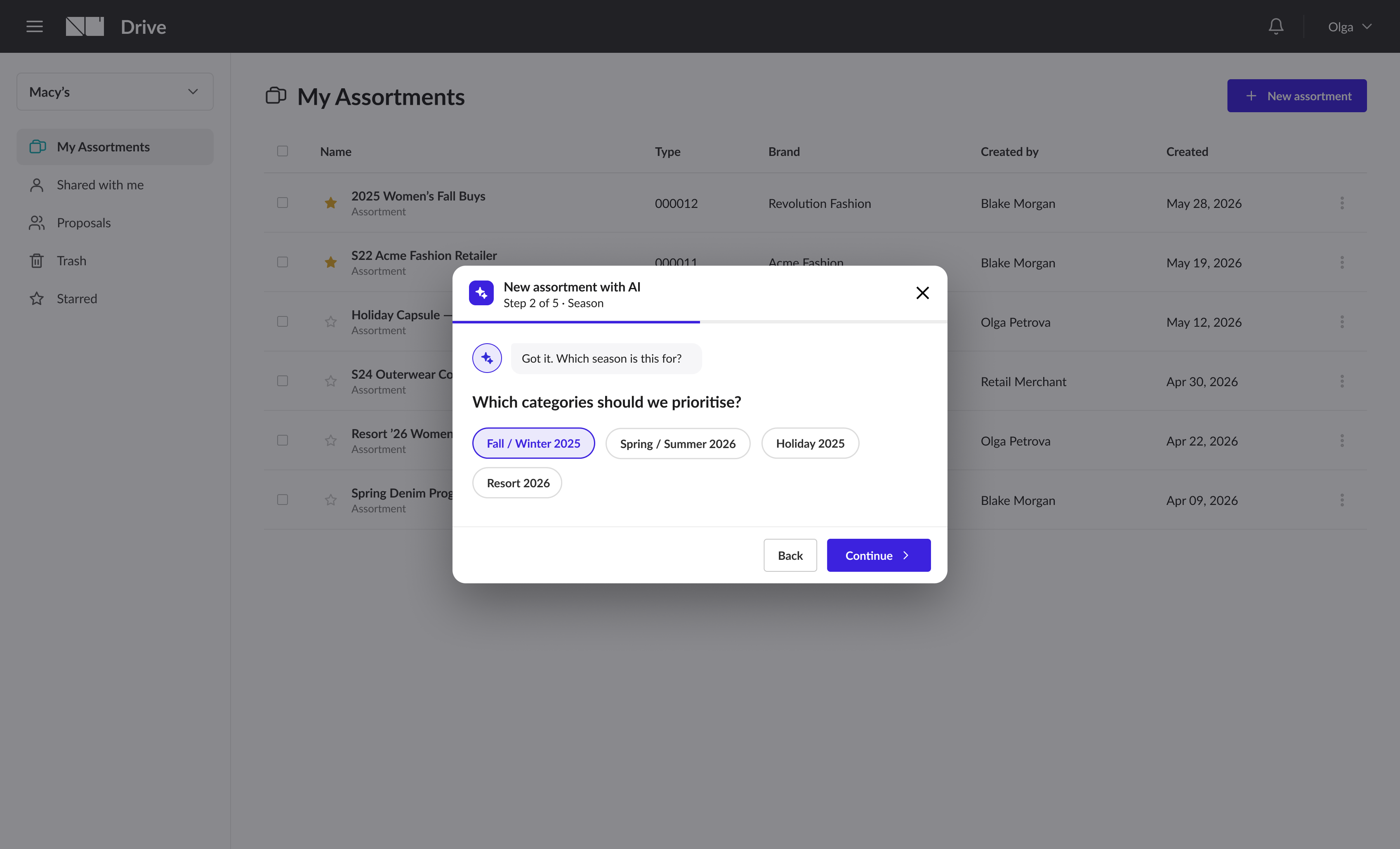
Wizard step 2, Season: Fall/Winter, Spring/Summer, Holiday, Resort
2 · Season - the window.
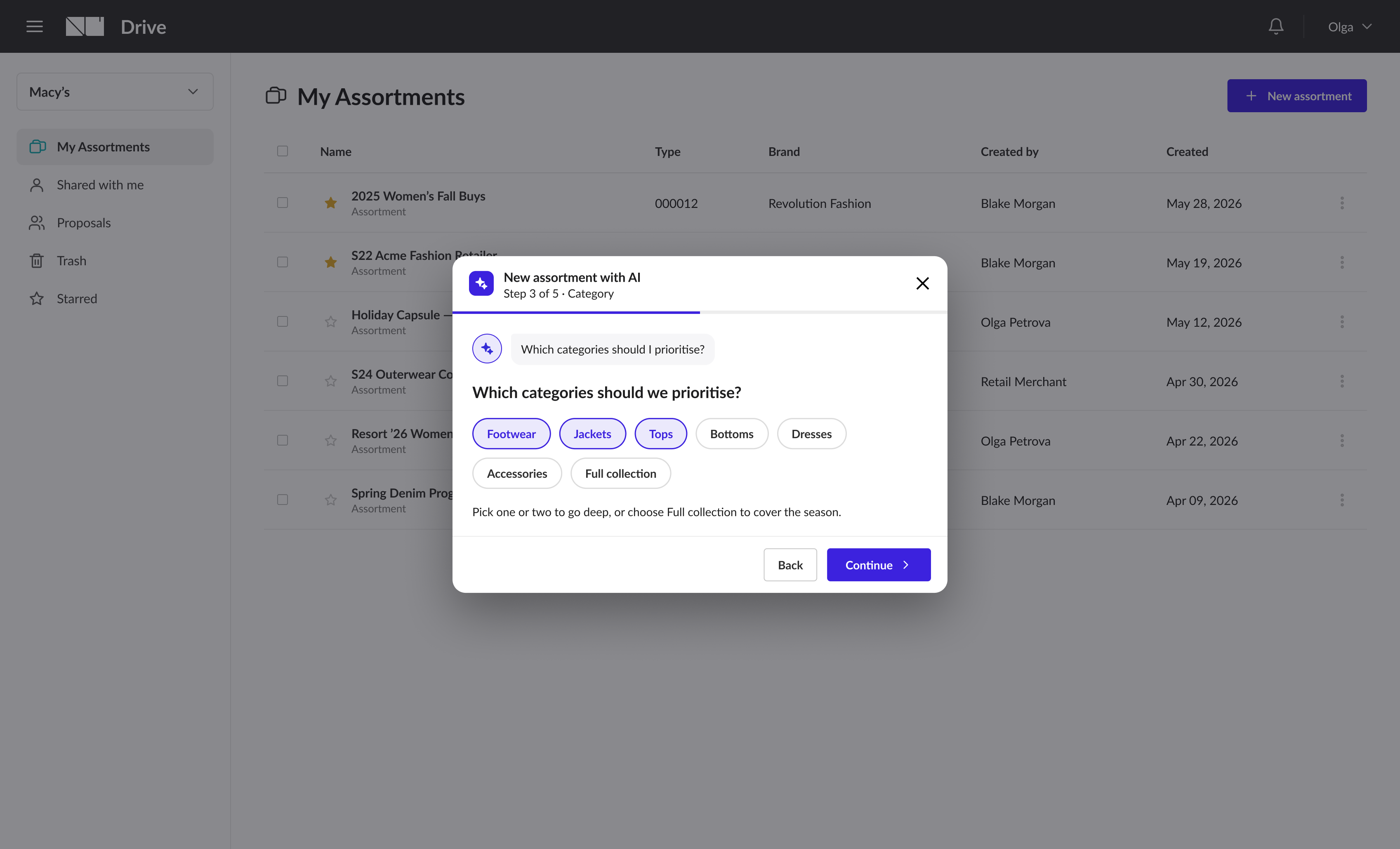
Wizard step 3, Category: multi-select chips or Full collection
3 · Categories - how deep.
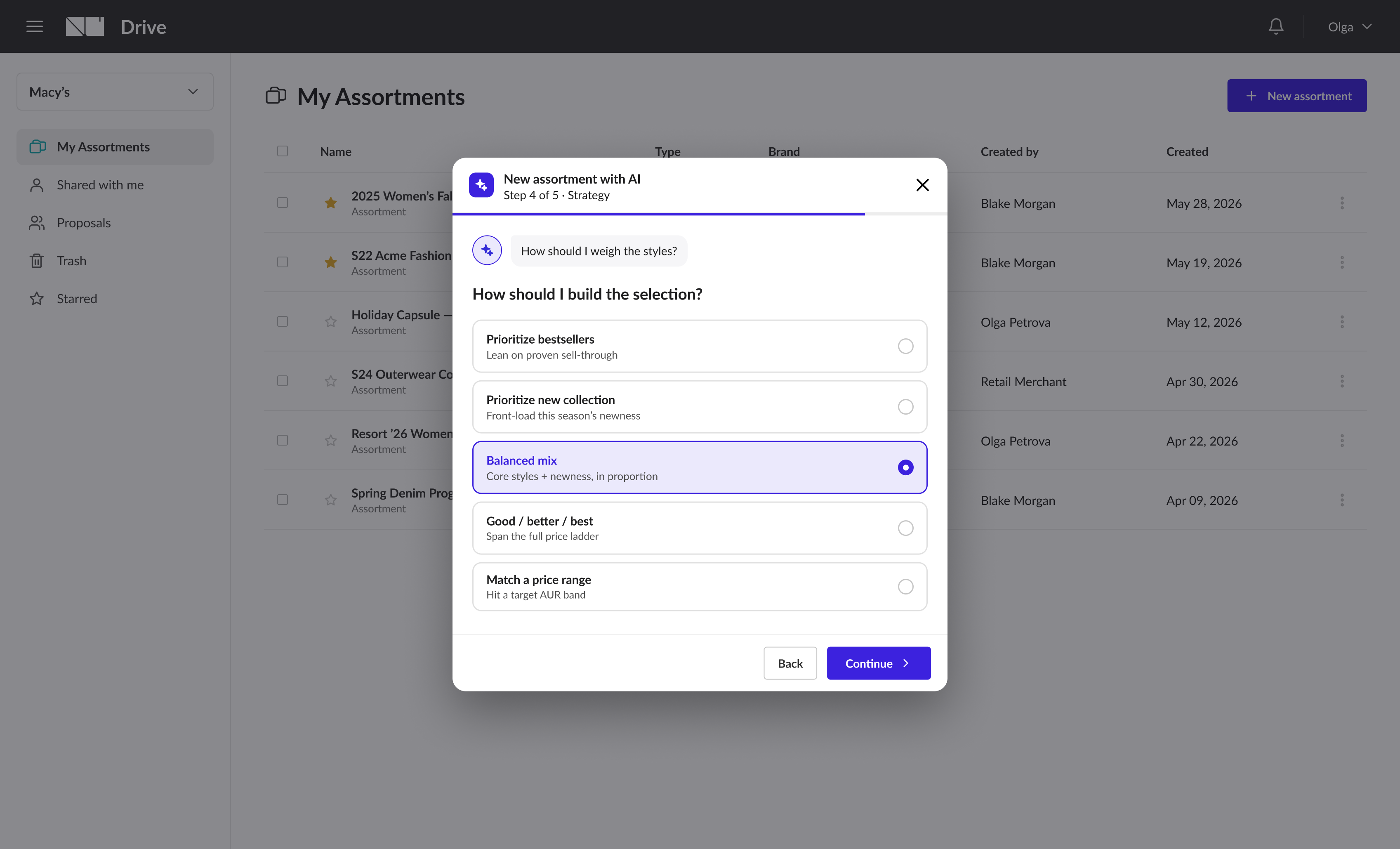
Wizard step 4, Strategy options including balanced and good/better/best
4 · Direction - how to build it.
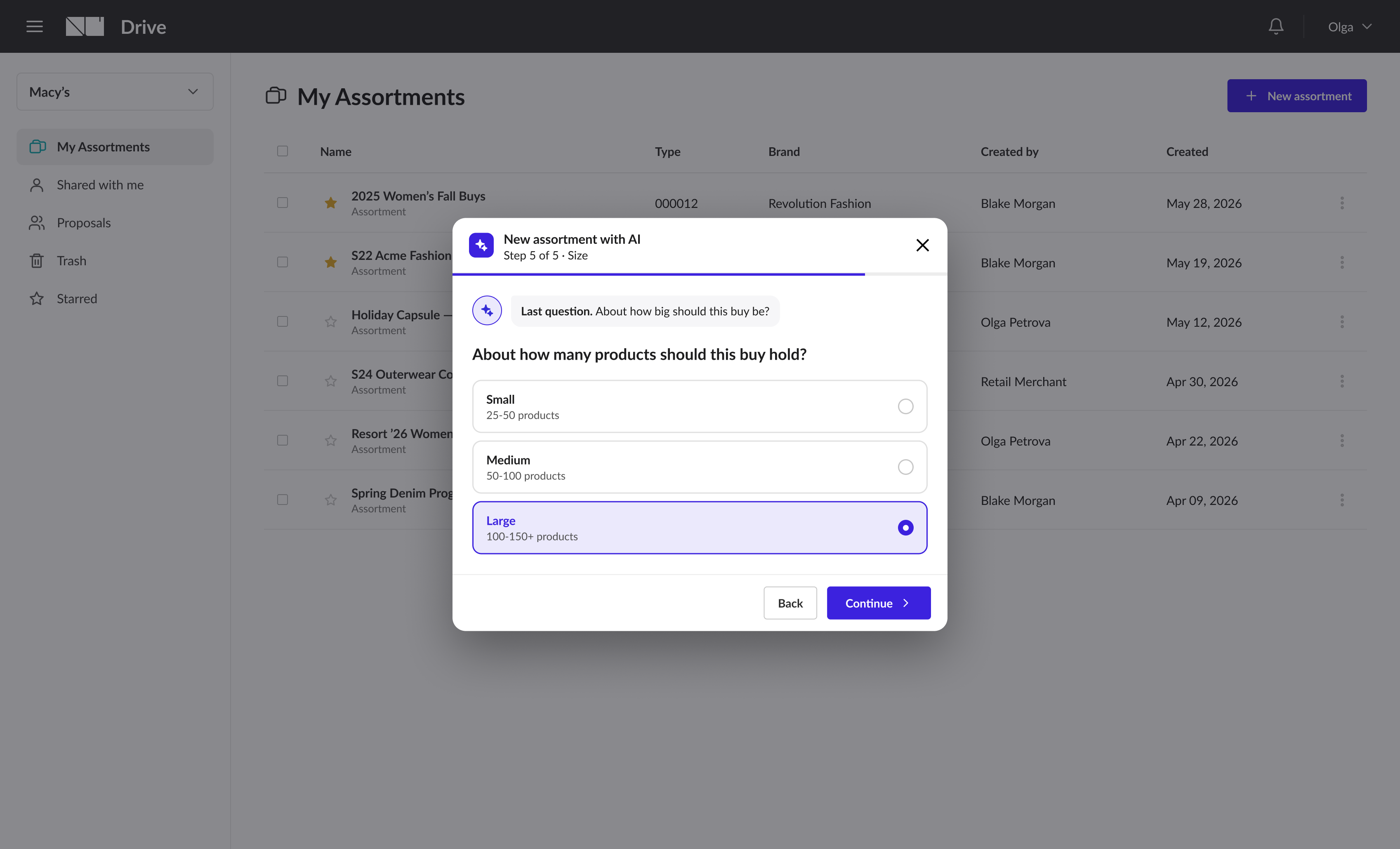
Wizard step 5, Size: Small, Medium, Large
5 · Size - how big.
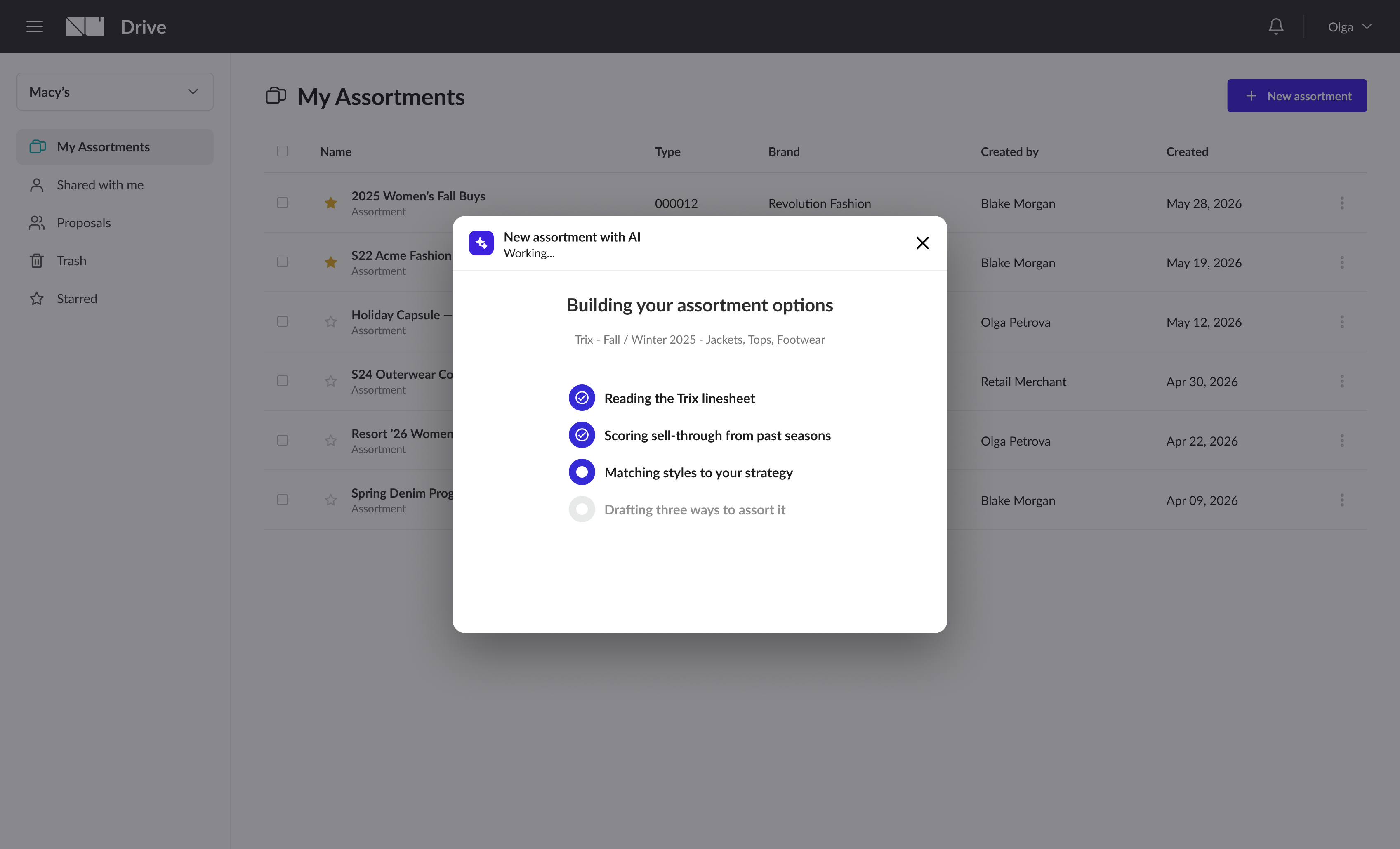
Generation step: a Building your assortment options screen with a progress checklist
Generation - showing the work.
Choosing & refining
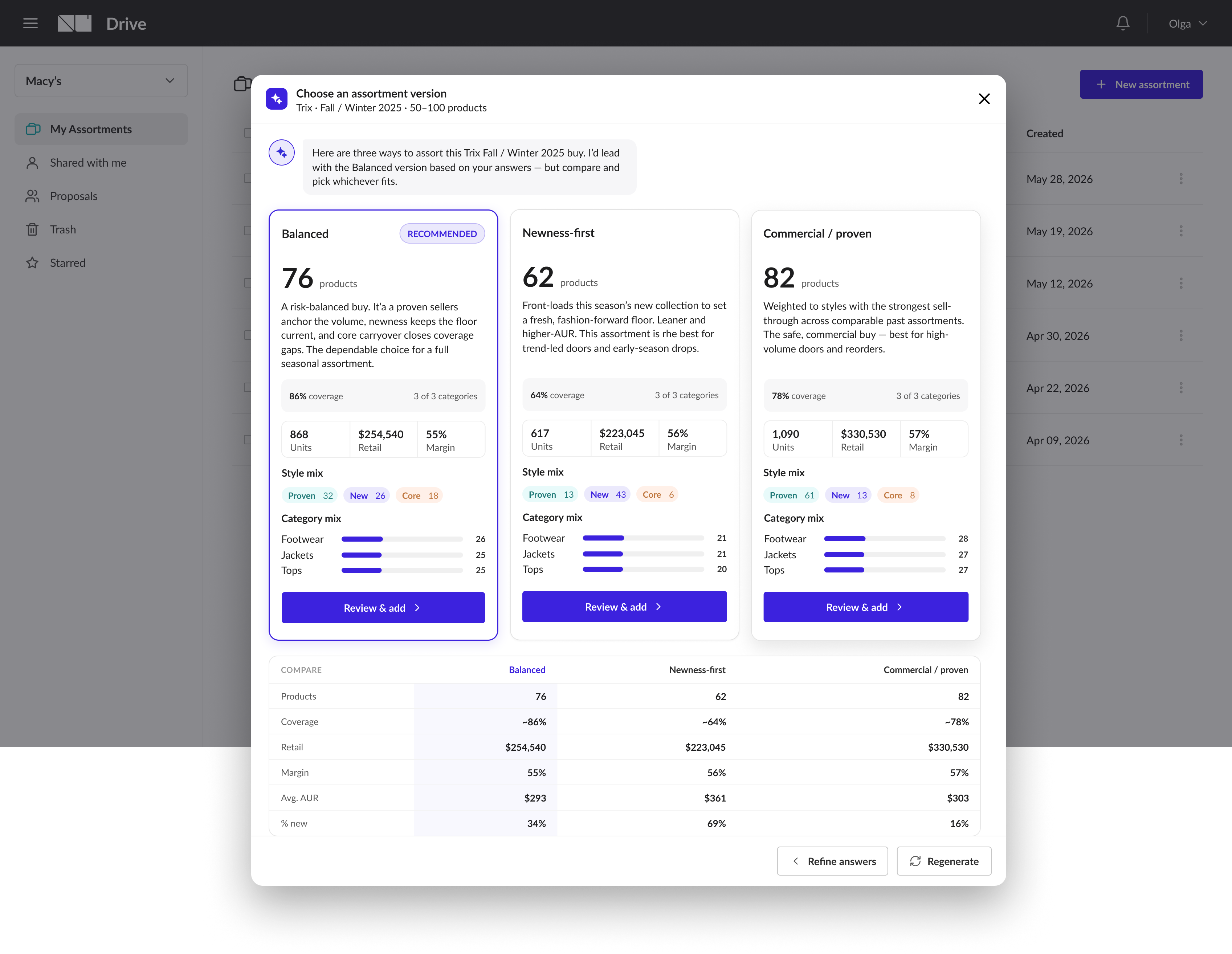
Choose an assortment version: three cards with coverage, units, retail and margin, plus a compare table
Three versions - Balanced, Newness-first, Commercial. The assistant proposes; the buyer decides.
Refine review screen: a list of styles with checkboxes, Proven/New/Core badges and a reason on each row
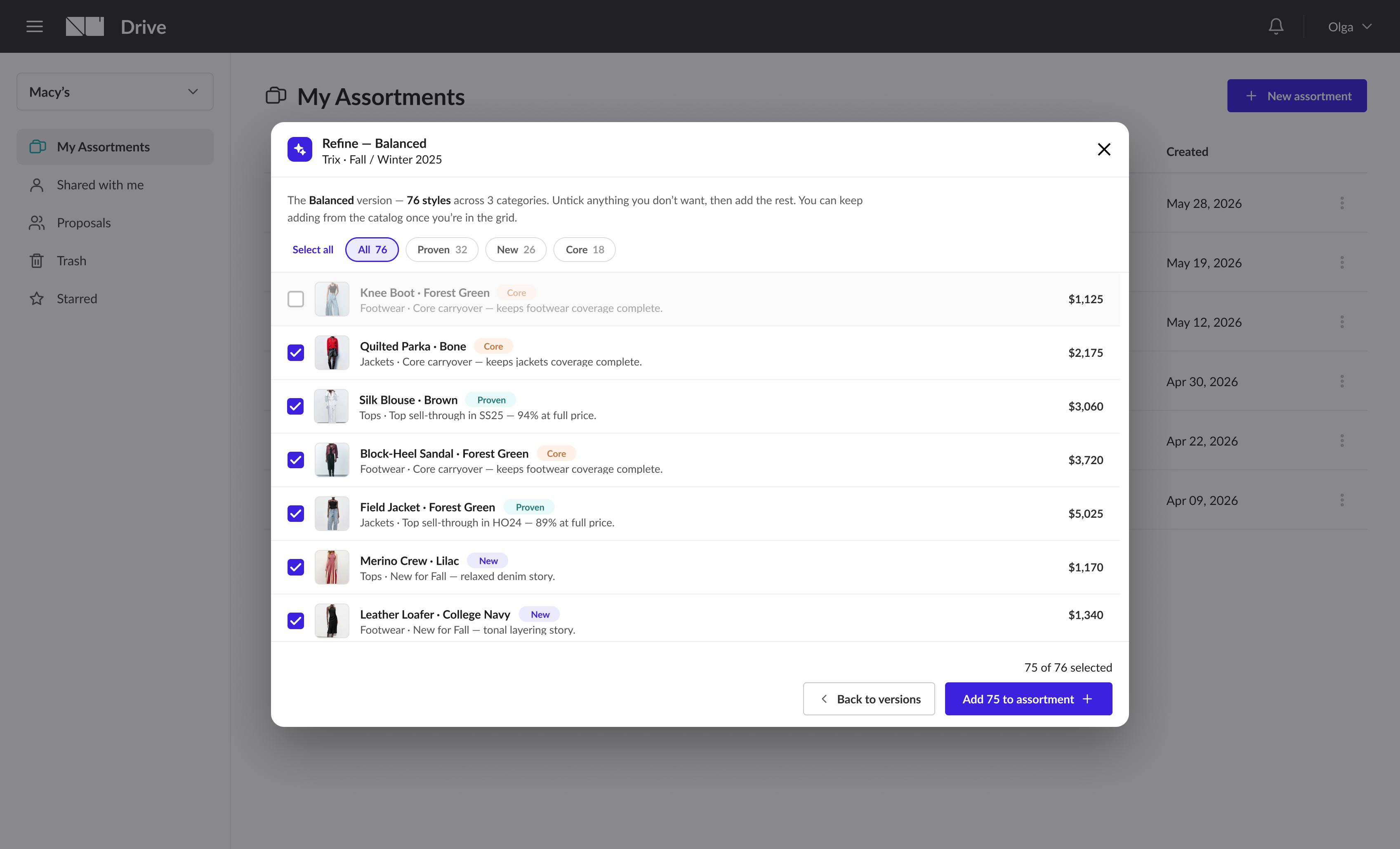
Review & refine - a reason on every row; untick anything before it’s added.
The hand-off
The assortment grid after generation with a version-added banner and the assistant open beside it
The hand-off - landed in the grid, the assistant open beside the new buy.
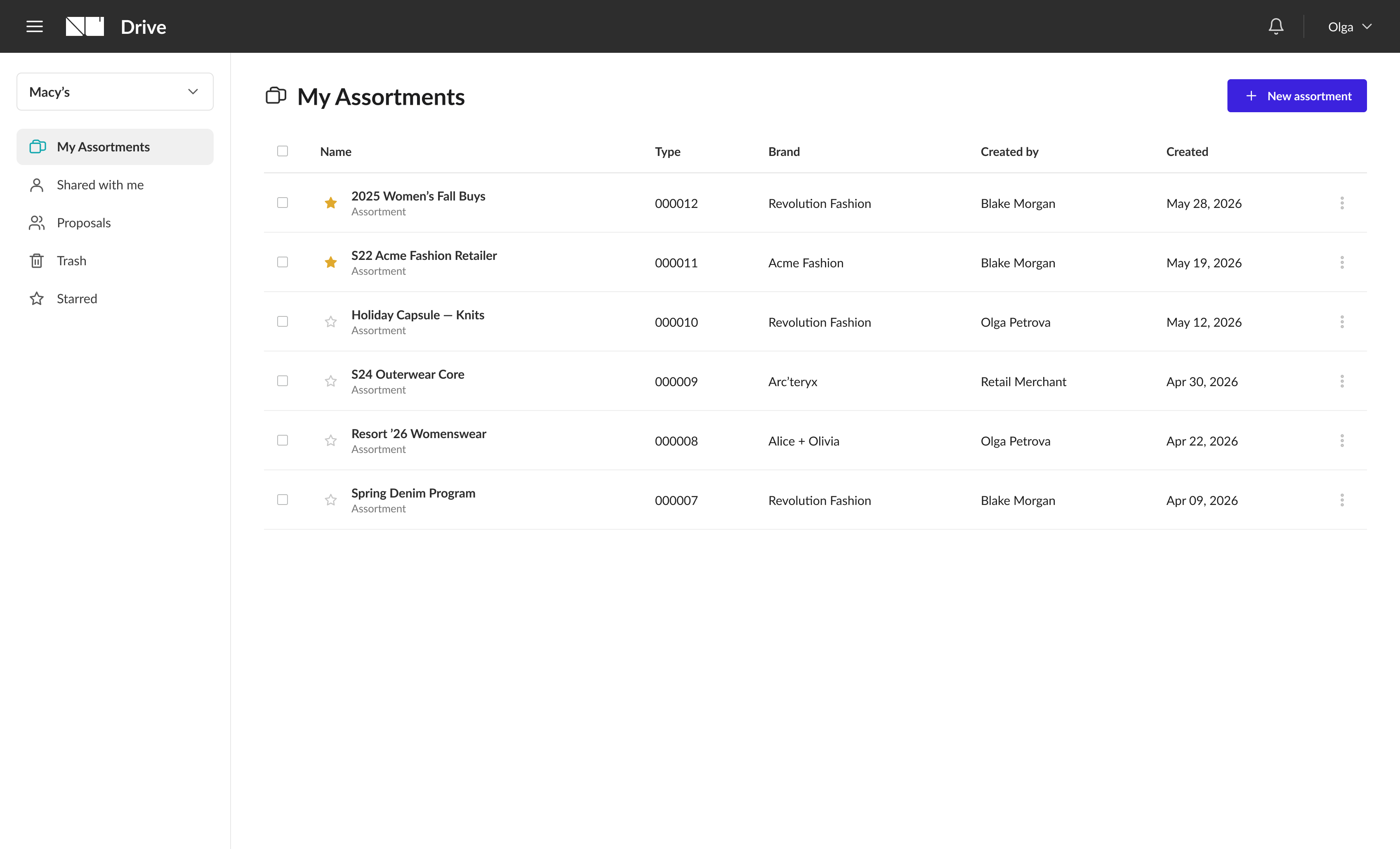
My Assortments list in NuORDER Drive
My Assortments - where every buy begins.
06Lightspeed × Google

Local Inventory Ads and Merchant Center setup

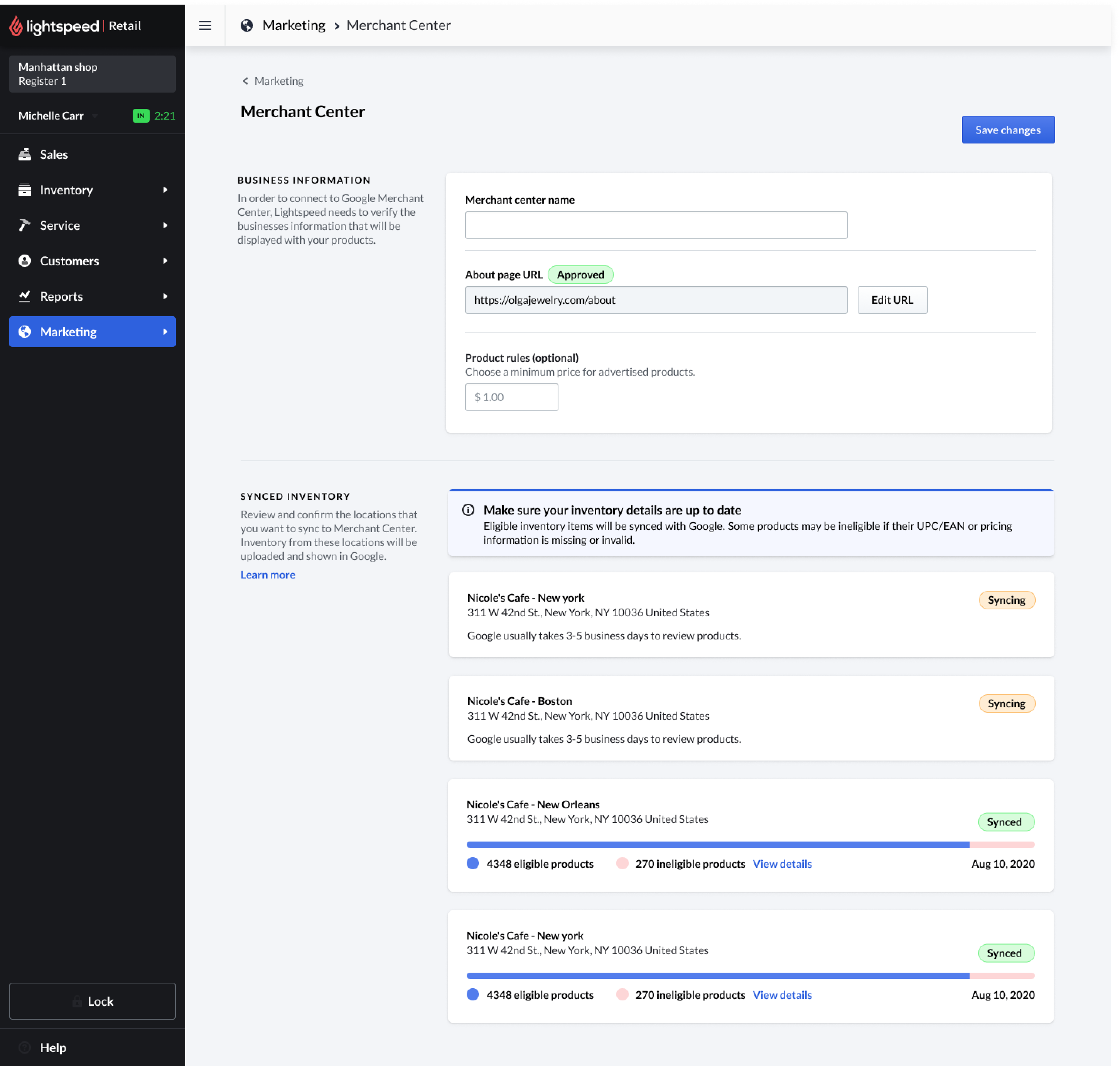
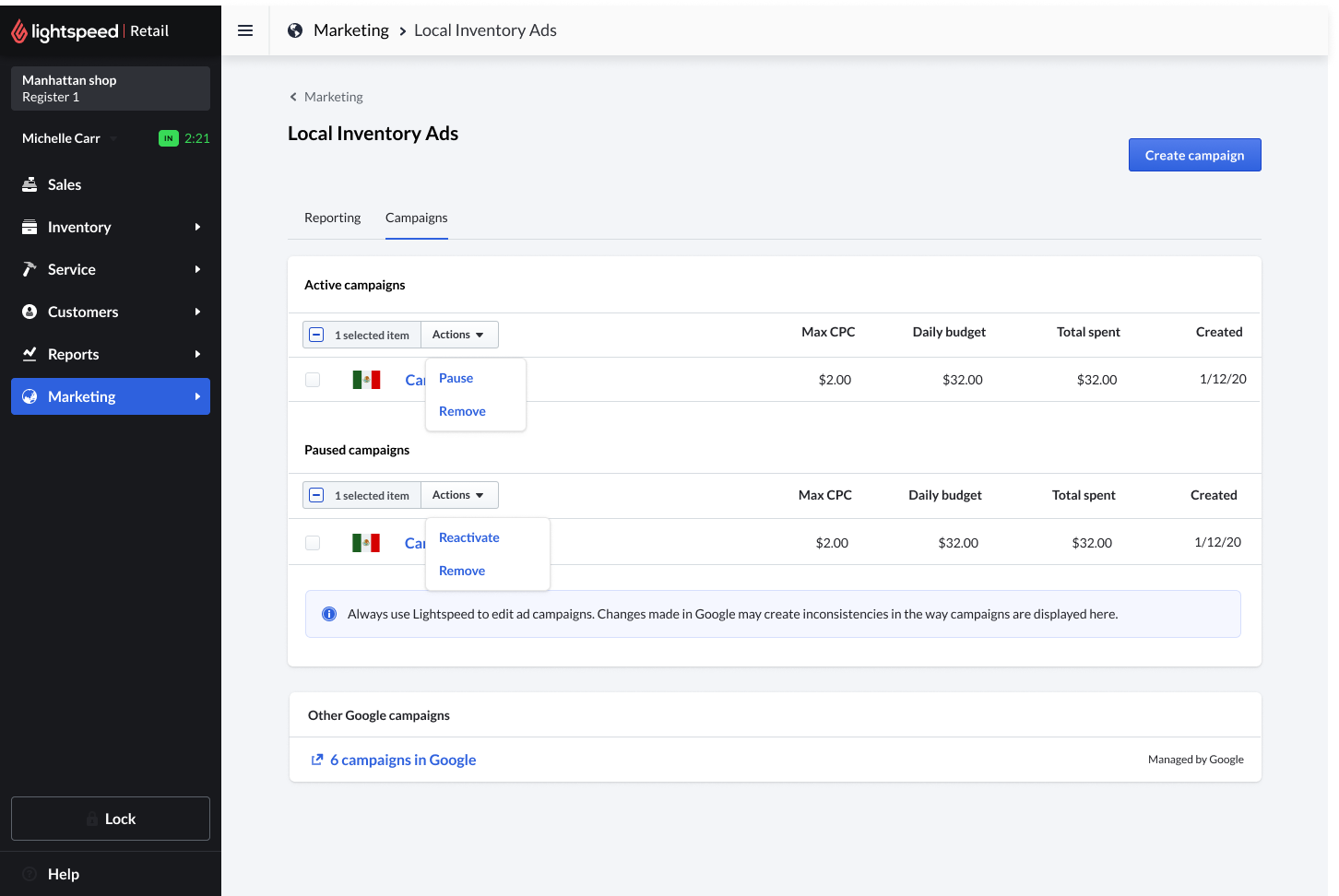
Designing onboarding, verification, billing, campaign setup, inventory sync, error recovery, and reporting for Local Inventory Ads.
A · Onboarding & setup
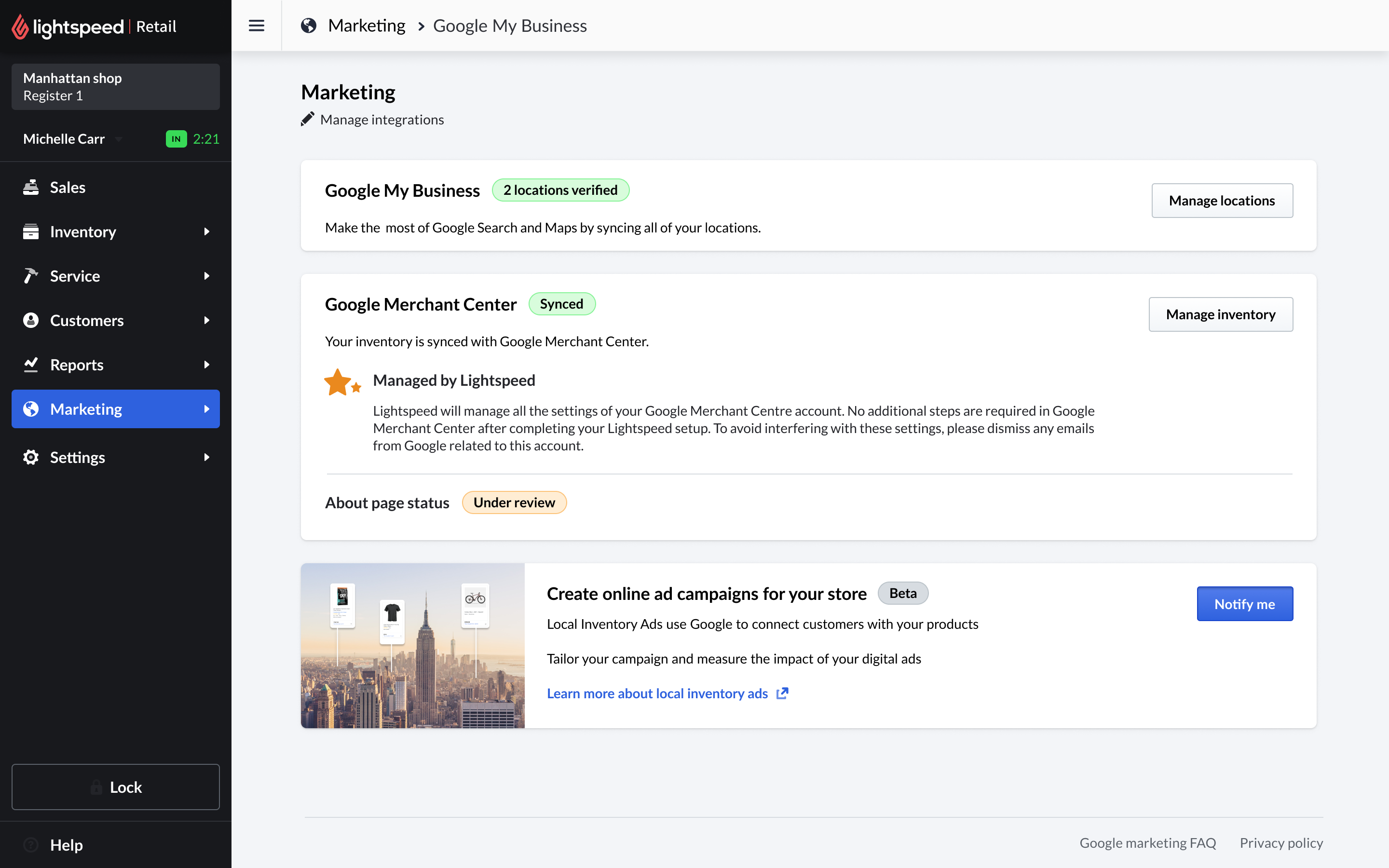
Merchant Center connection
Merchant Center connection.
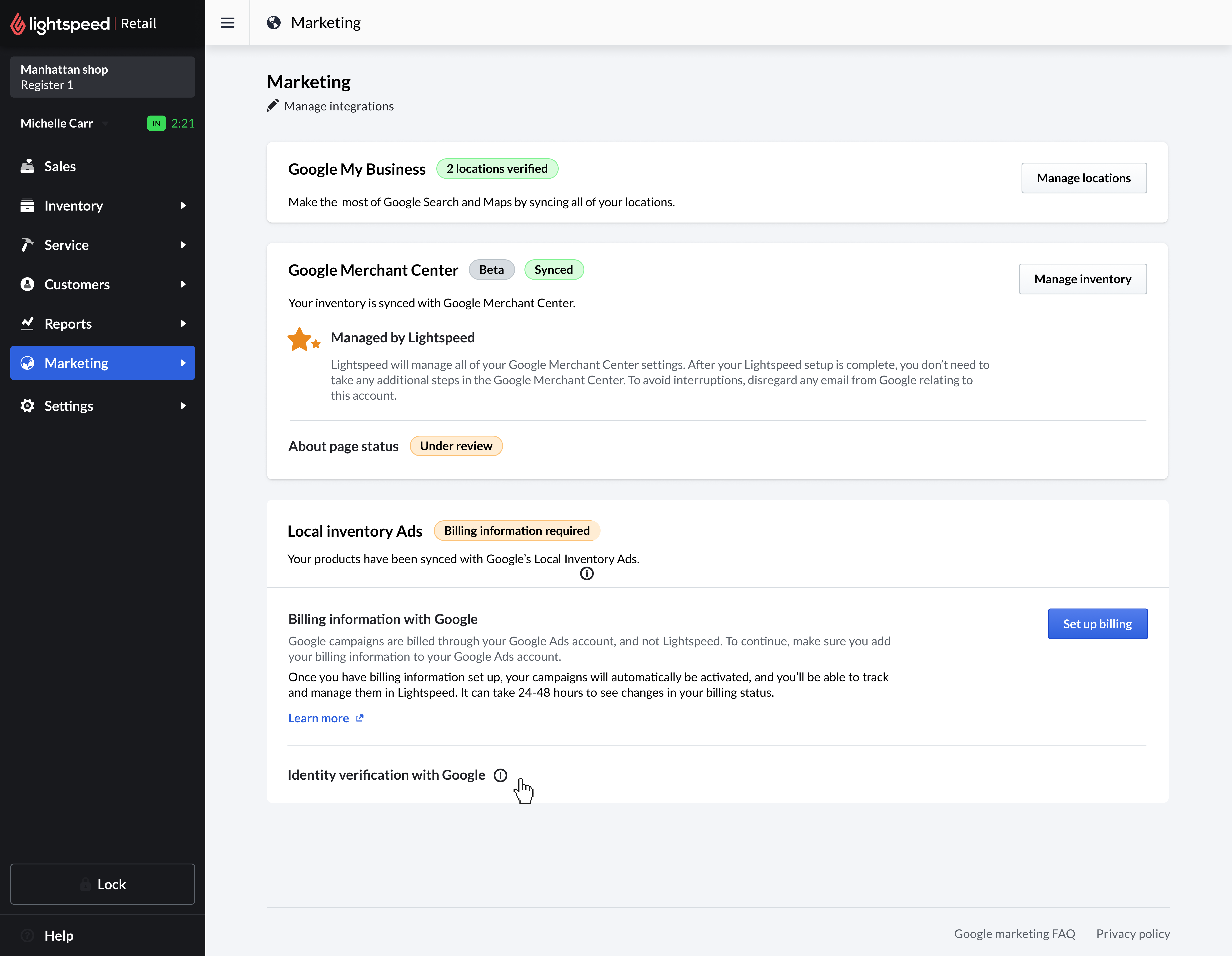
Billing required state
Billing required state.
Setup complete state
Setup complete state.
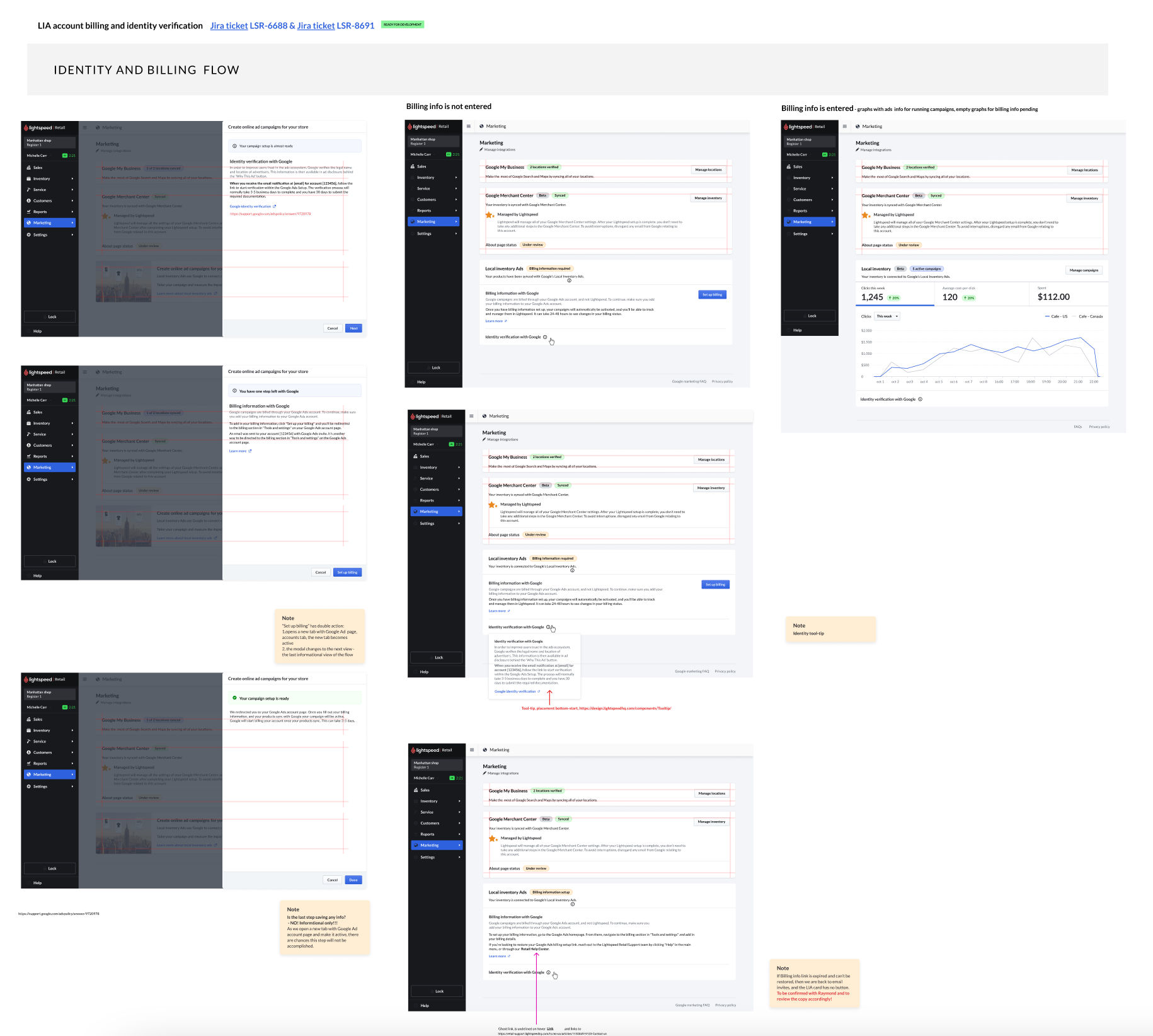
Verification flow map
Verification flow - the full account & phone verification map.
Billing setup flow map
Billing setup flow - identity and billing states, end to end.
B · Campaign creation & reach
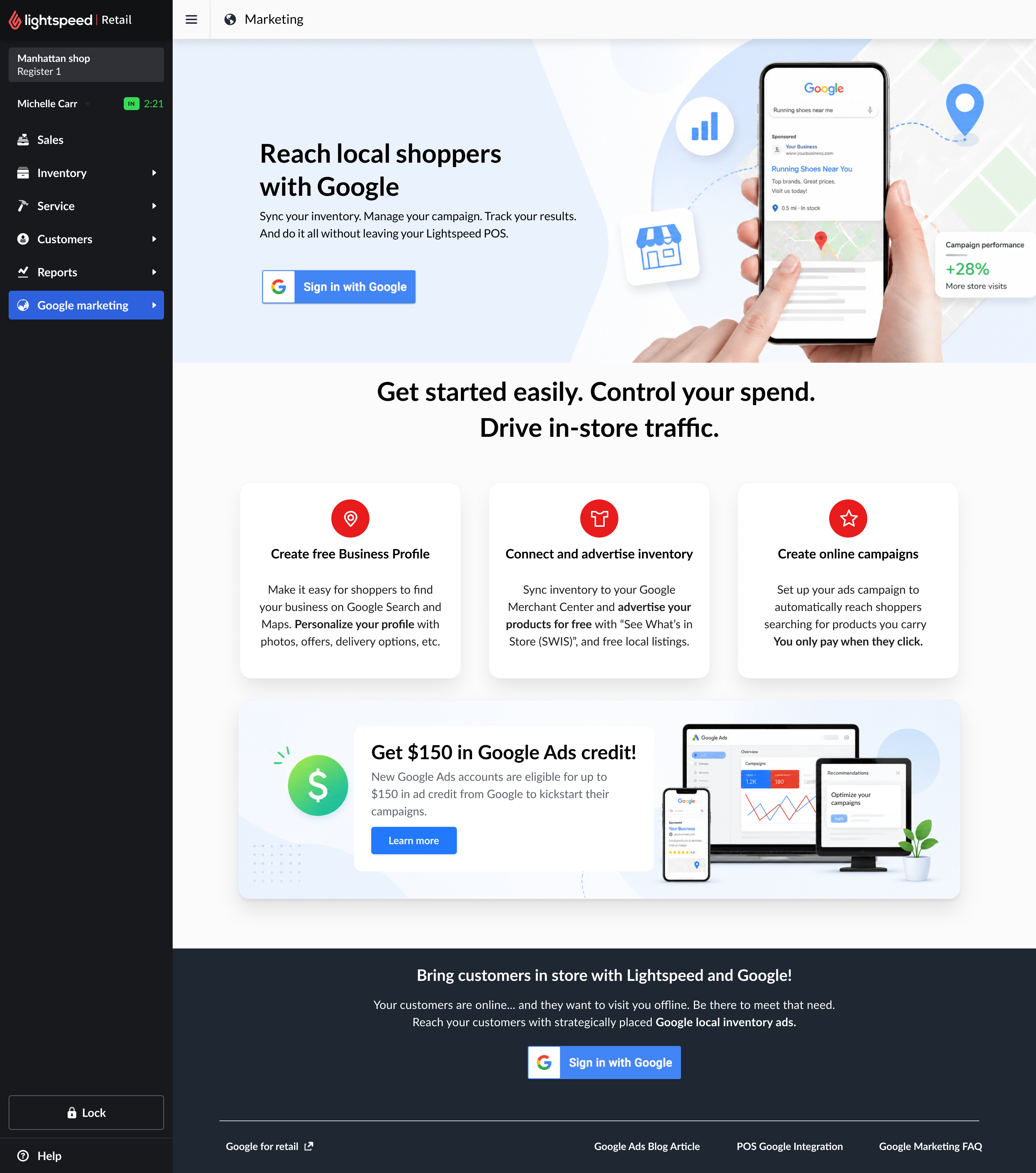
Reach shoppers experience
Reach shoppers experience - sign in with Google, then a simple three-step path to local ads.
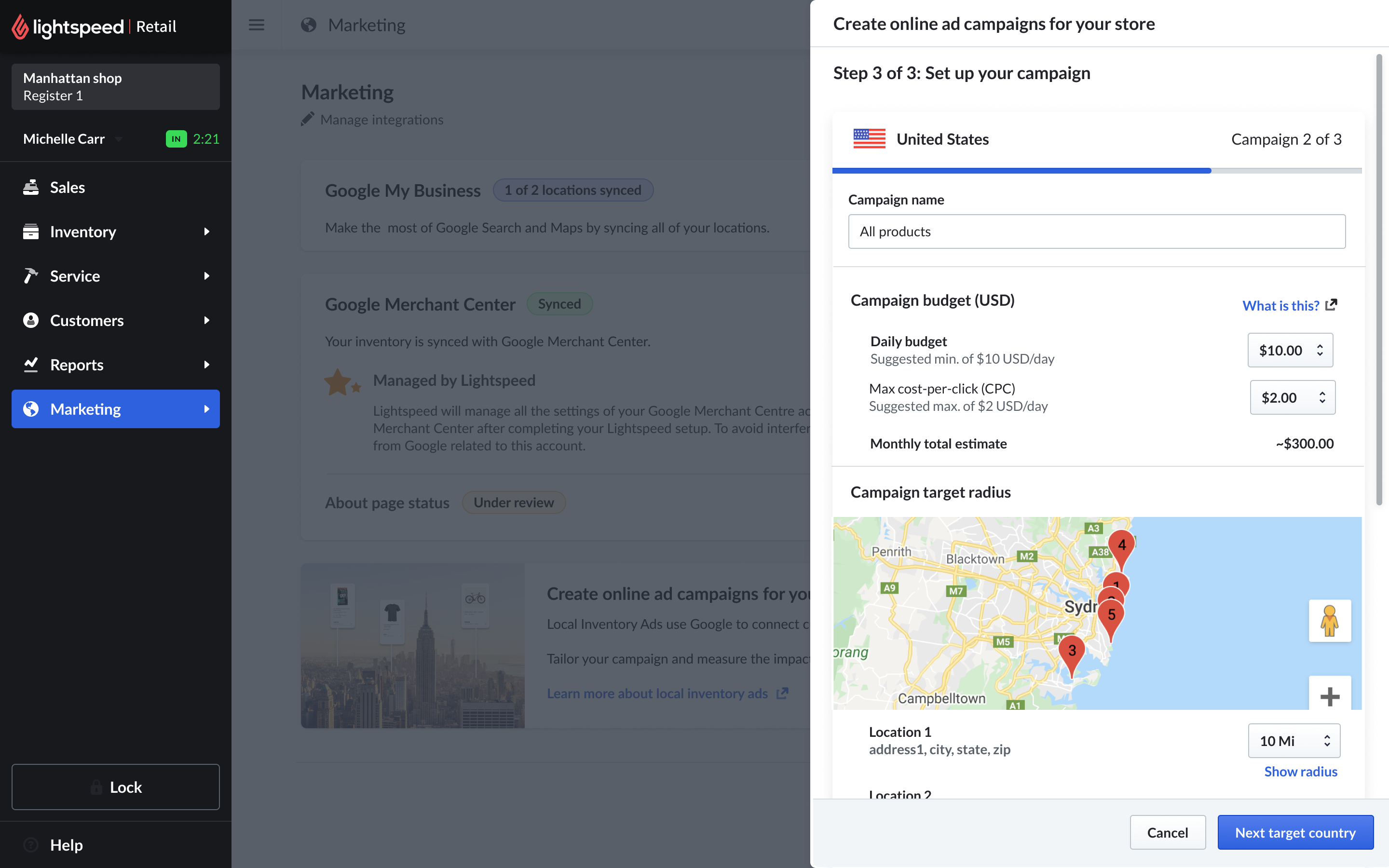
Campaign setup
Campaign setup.
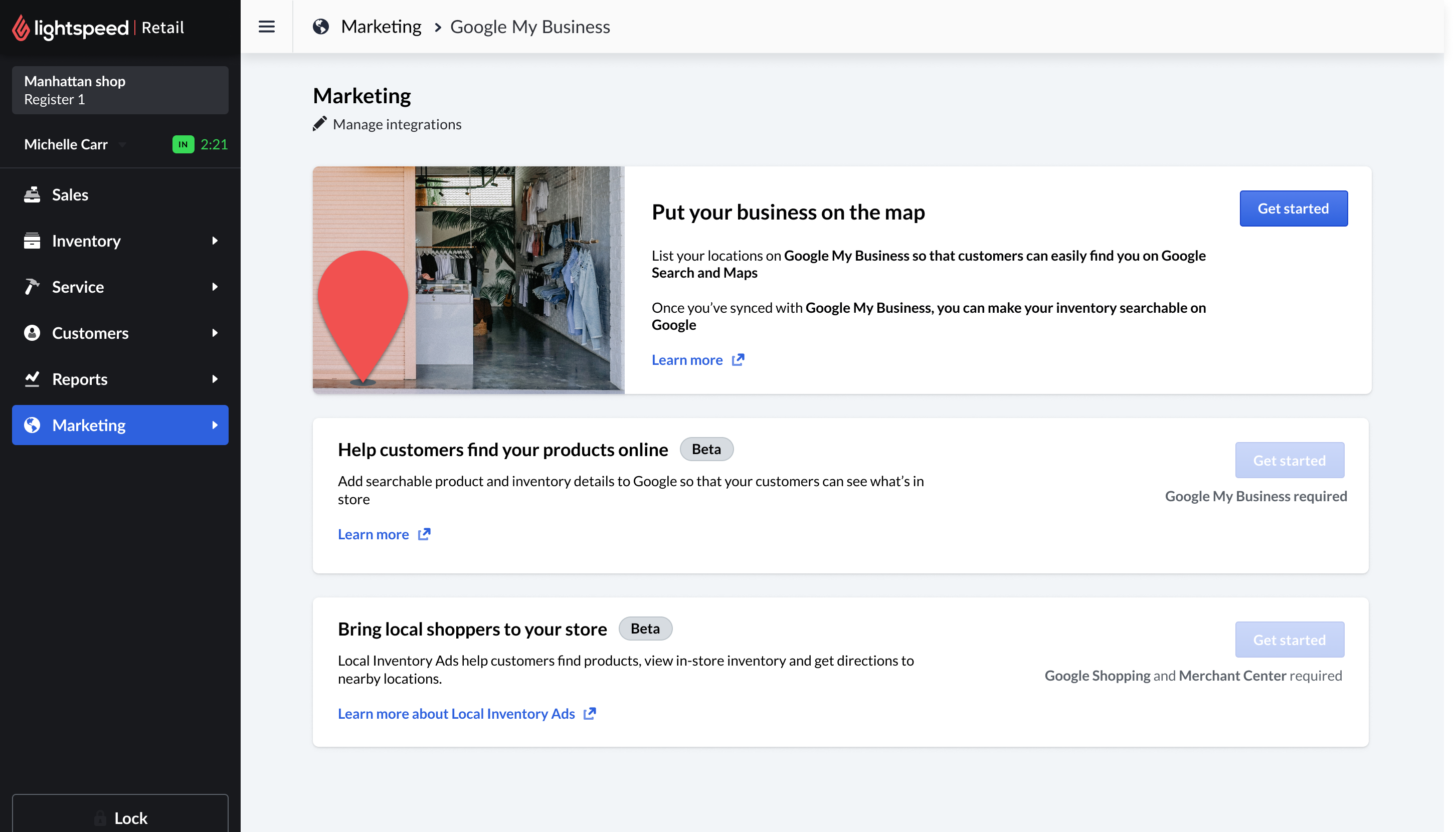
Helping retailers appear on the map
Helping retailers appear on the map.
C · Inventory, reporting & error handling
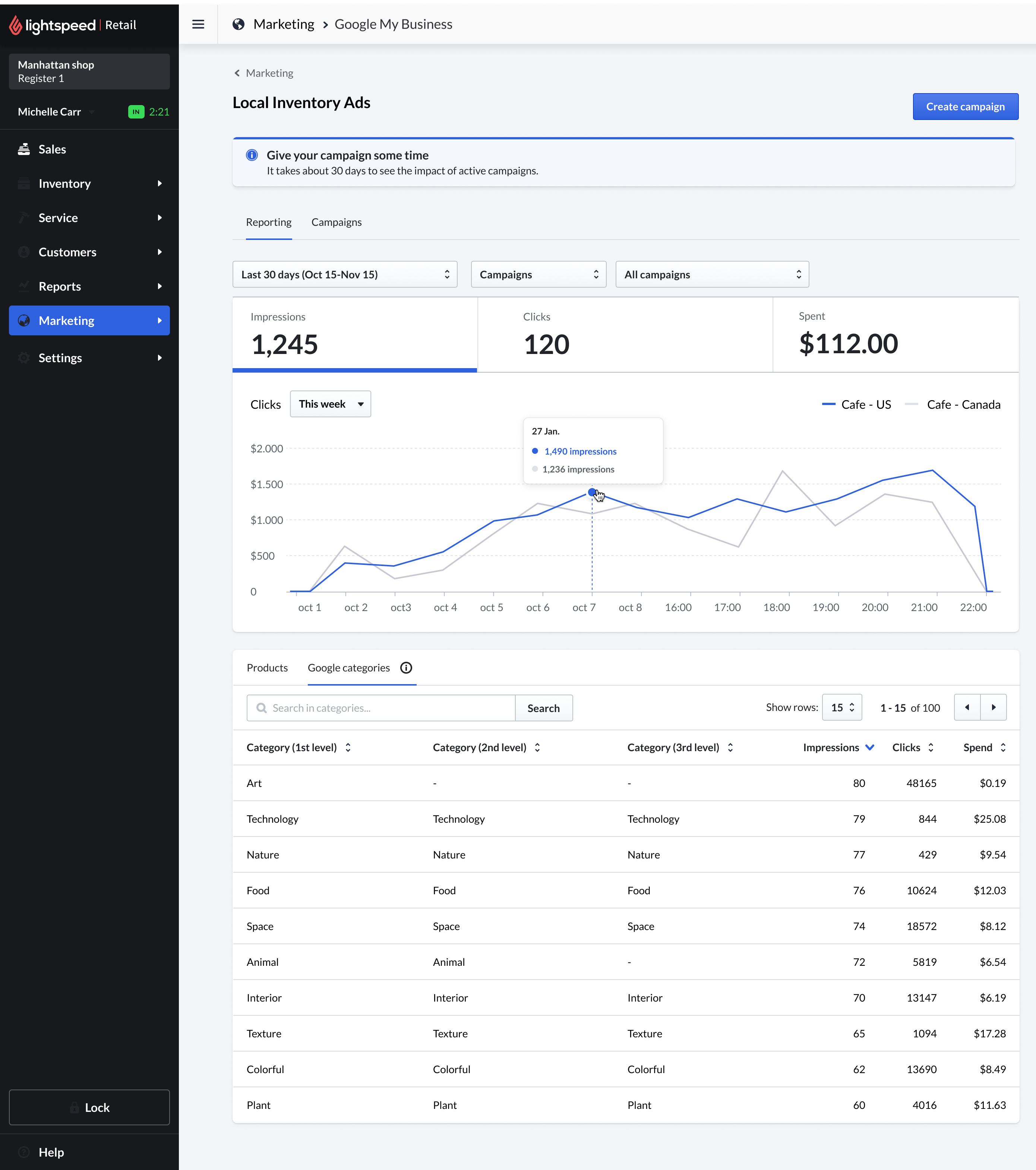
Performance reporting
Performance reporting - impressions, clicks, and spend, back inside the POS.
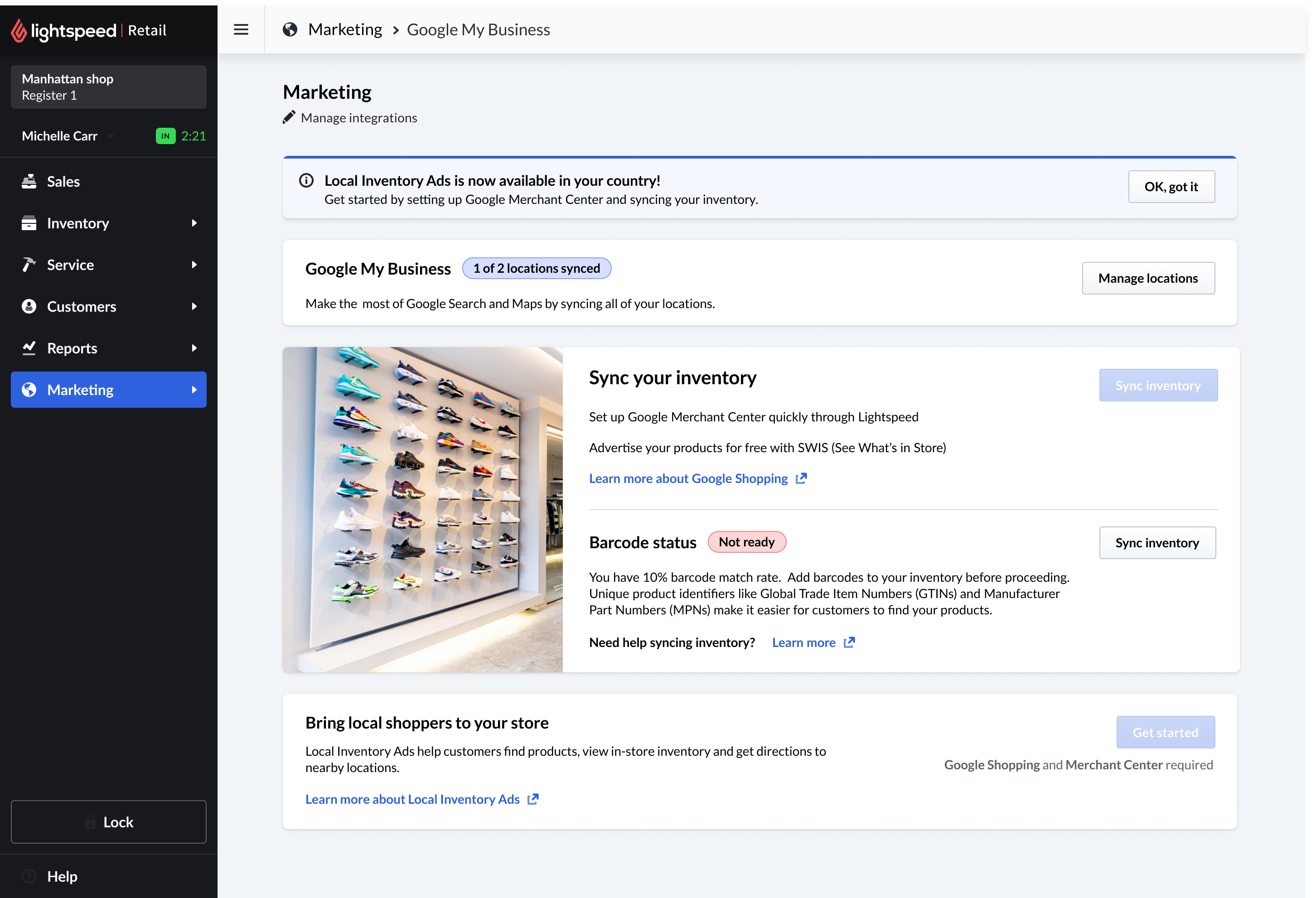
Inventory sync
Inventory sync & readiness.
Login and connection error handling
Login & connection error handling.
07belairdirect (Intact)

Quoting multi-car, multi-driver & home insurance

Extending belairdirect's high-converting online quote to several drivers, two vehicles, and a car + home bundle - mobile-first, without denting completion.

2019 · Shipped · Read the full case study →
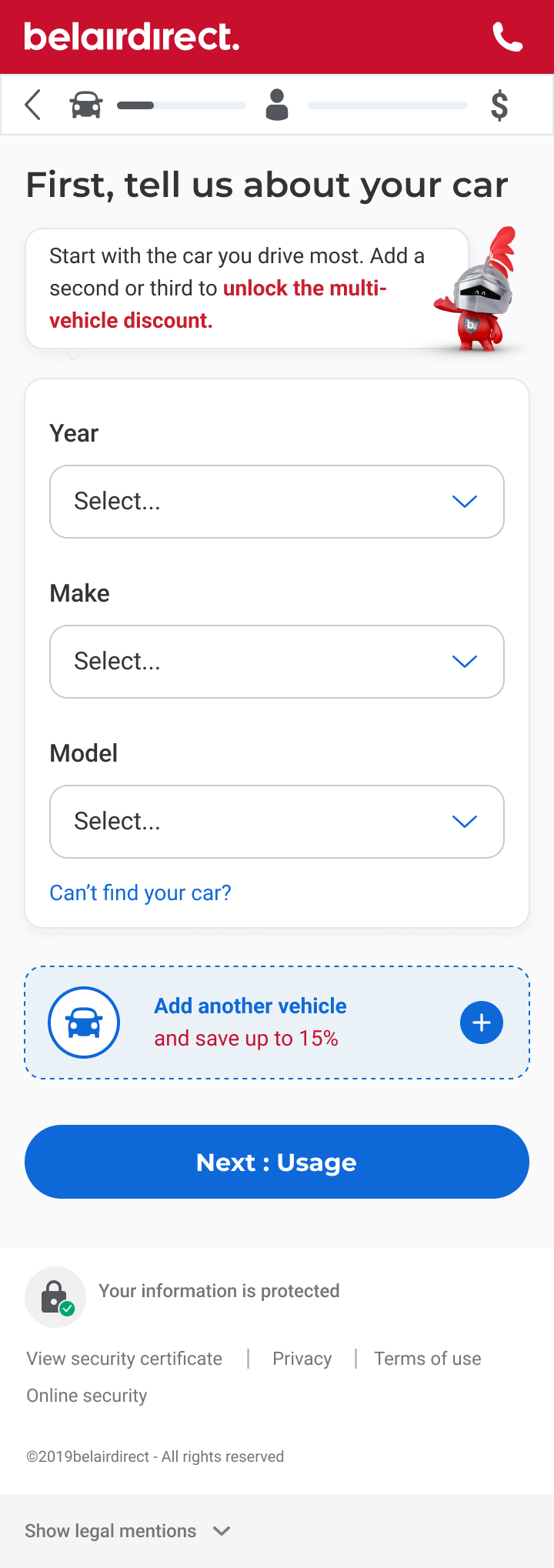

The mobile quote, step by step
belairdirect mobile screen: tell us about your car
1Add a car - year, make & model.
belairdirect mobile screen: car usage and kilometres
2Car usage - built around annual km.
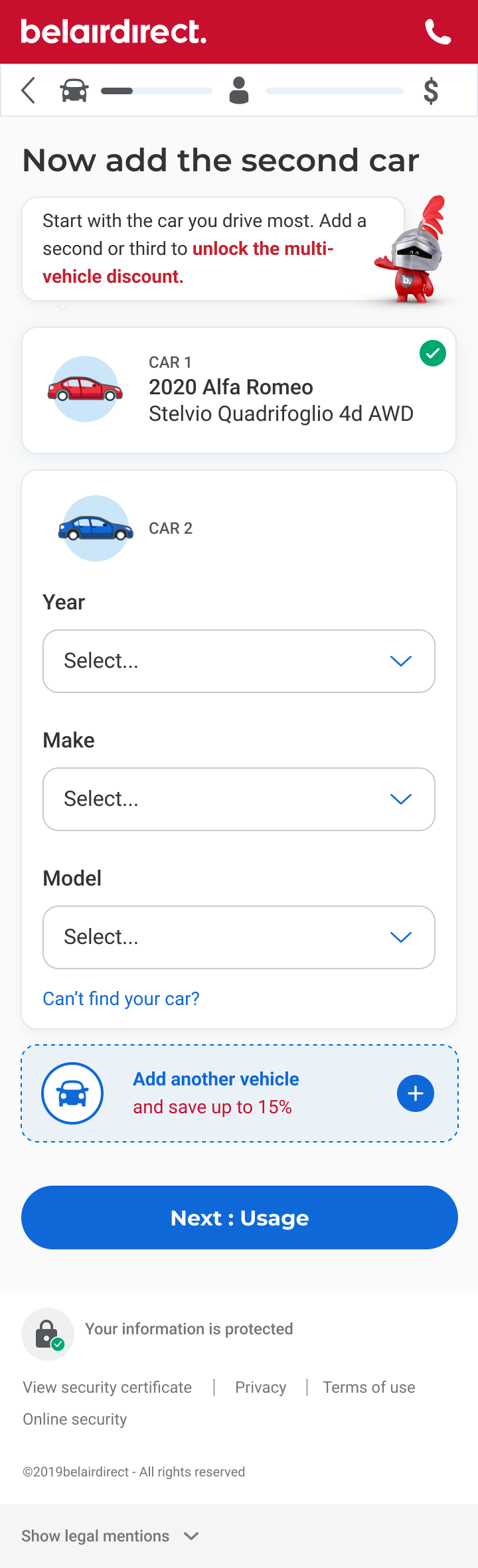
belairdirect mobile screen: one car added, now add another
3Add another car - the multi-car branch.
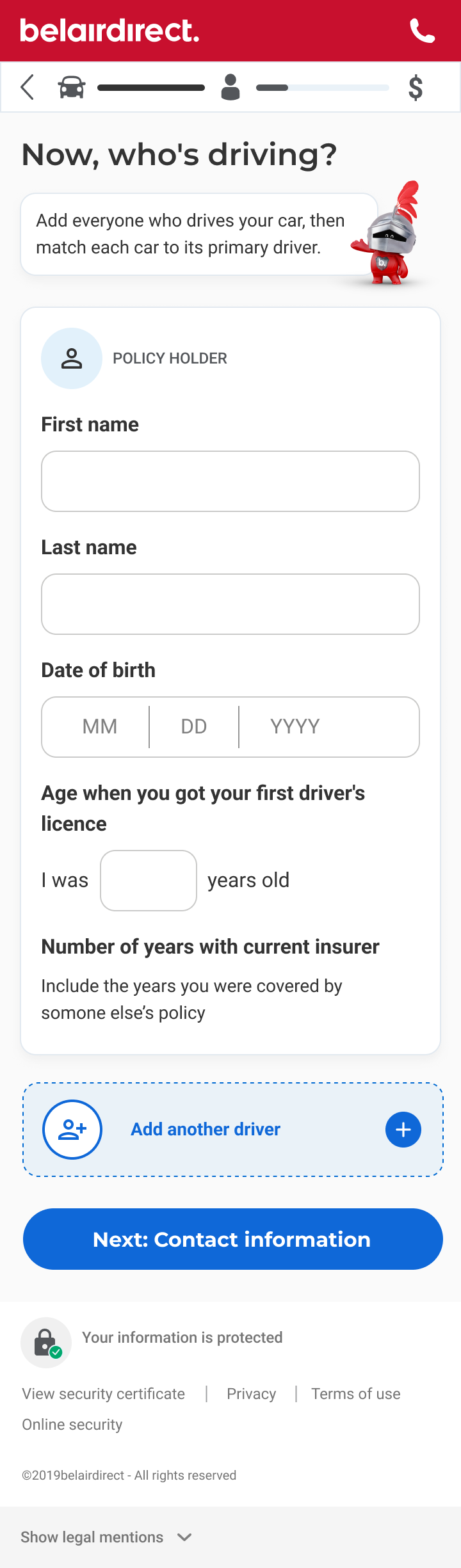
belairdirect mobile screen: drivers
4Drivers - add & assign each one.
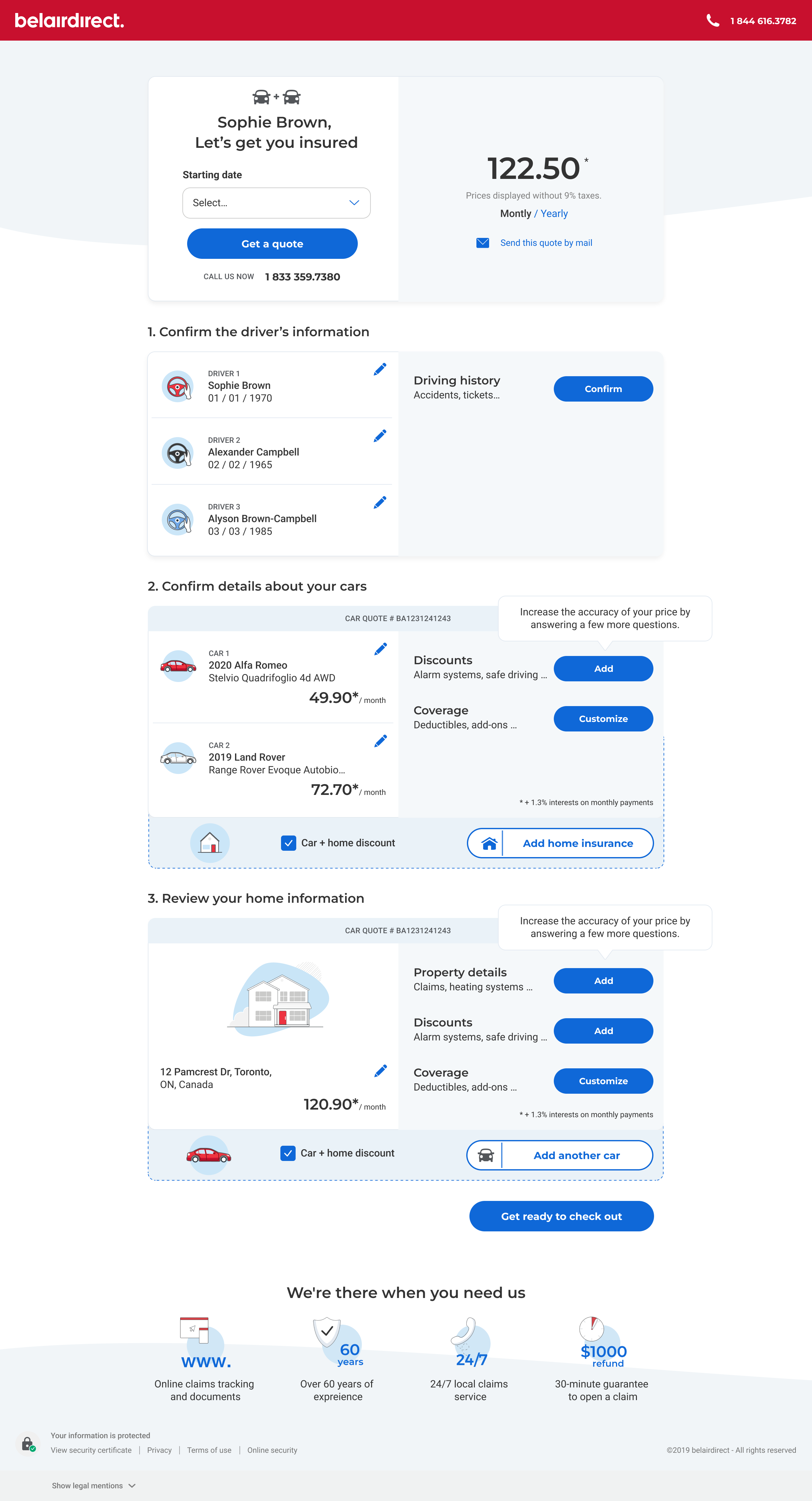
The offer page · simplified & bundled
belairdirect desktop offer page with quote summary, driver confirmation, and car plus home review
Offer page · desktop - the most-complained-about screen, turned into a clear summary.
belairdirect mobile offer page showing quote, driver confirmation, car and home review
Offer page · mobile - same content, phone-first.
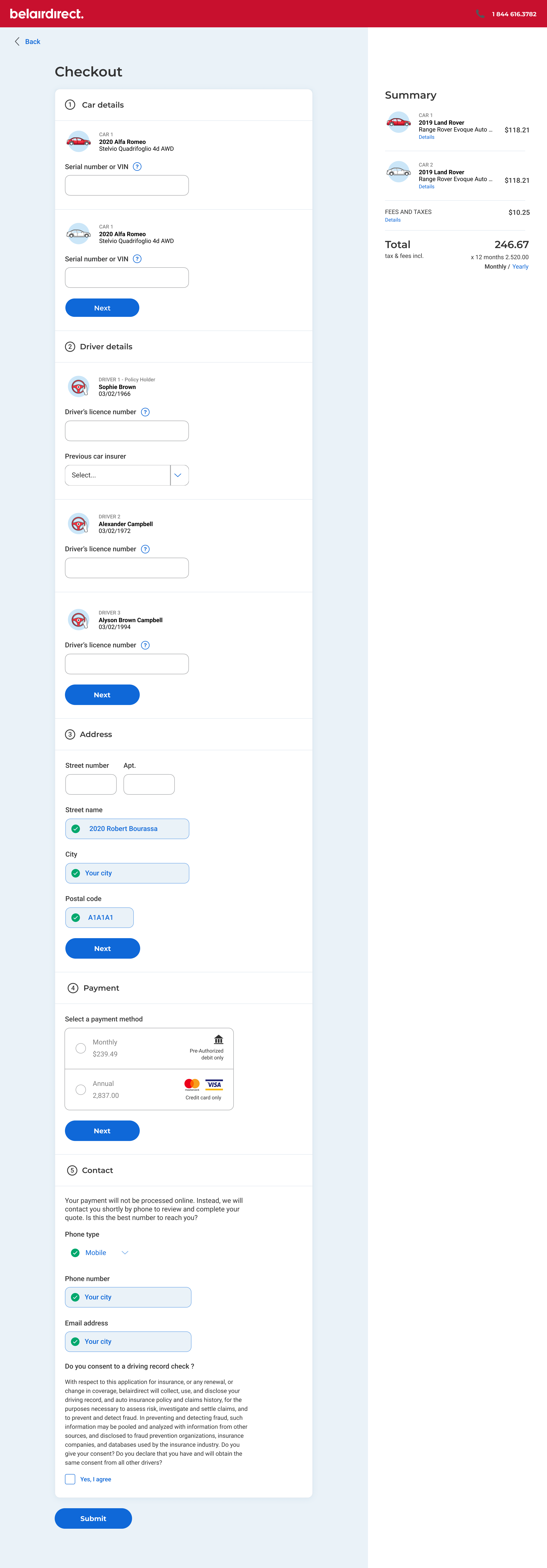
Checkout · the flow after the offer page
belairdirect desktop checkout with car details, driver details, address, payment, and contact steps and a summary sidebar
Checkout · desktop - five steps with a live summary alongside.
belairdirect mobile checkout with car details, driver details, address, payment, and contact steps stacked vertically
Checkout · mobile - the same steps, phone-first.
Research, benchmarks & synthesis
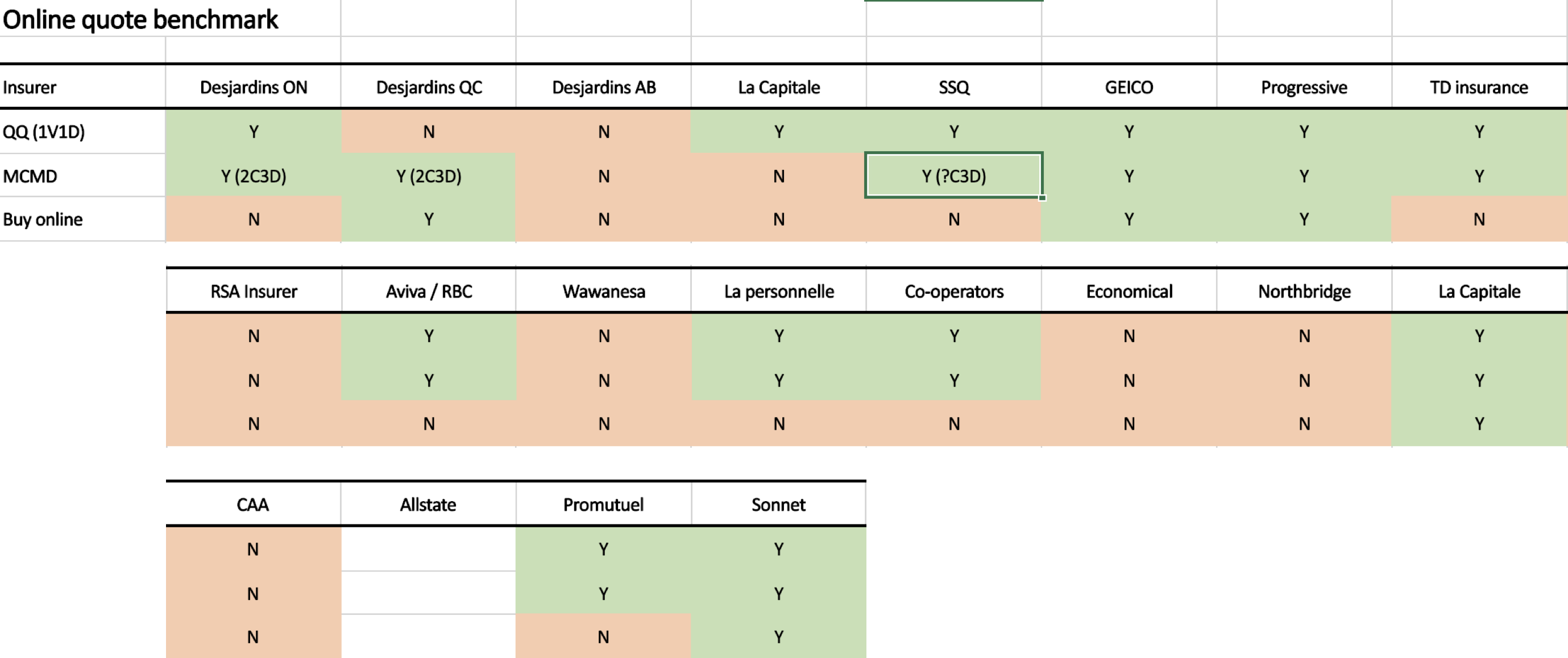
Online quote benchmark table comparing quick quote, multi-car multi-driver, and buy-online support across many insurers
Competitive benchmark - few rivals did all three well; that gap framed the opportunity.
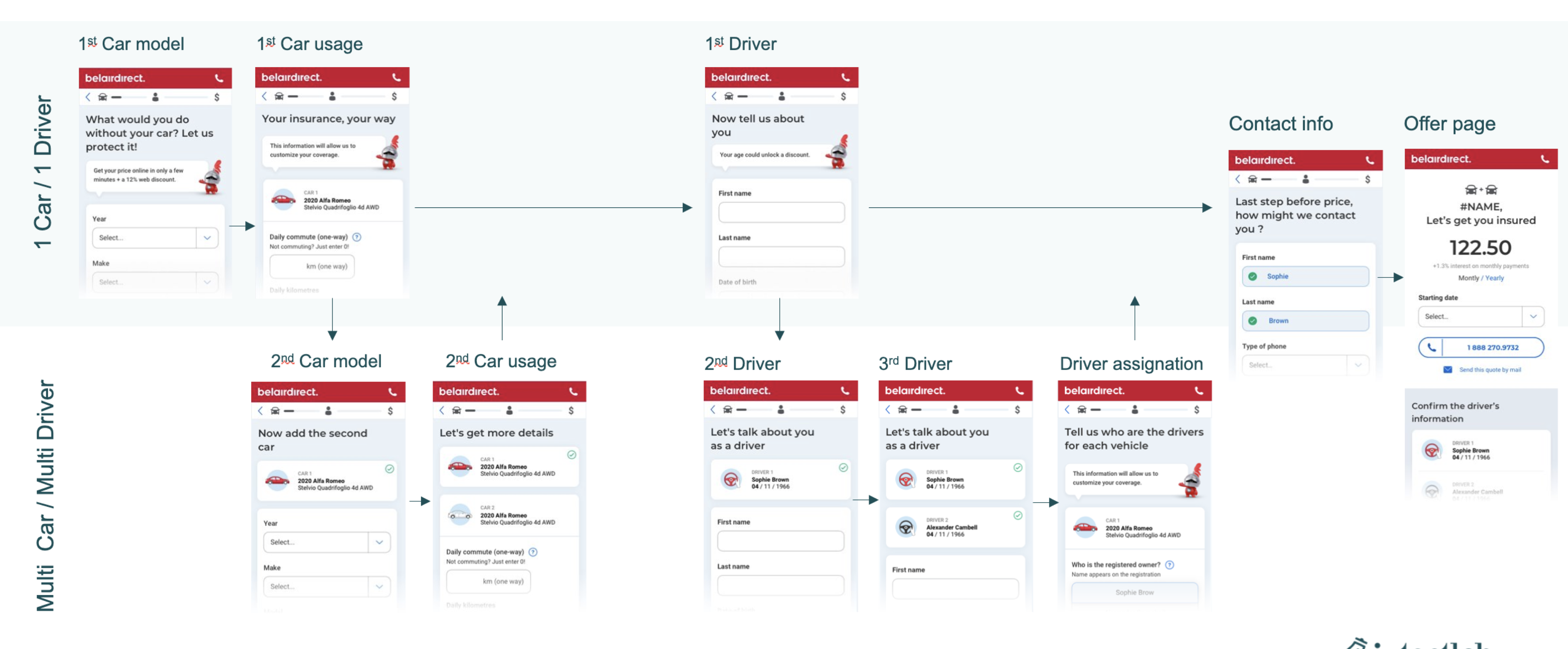
Flow map showing the single-car path and the multi-car multi-driver path converging on the offer page
Flow map - single & multi paths, one offer page.
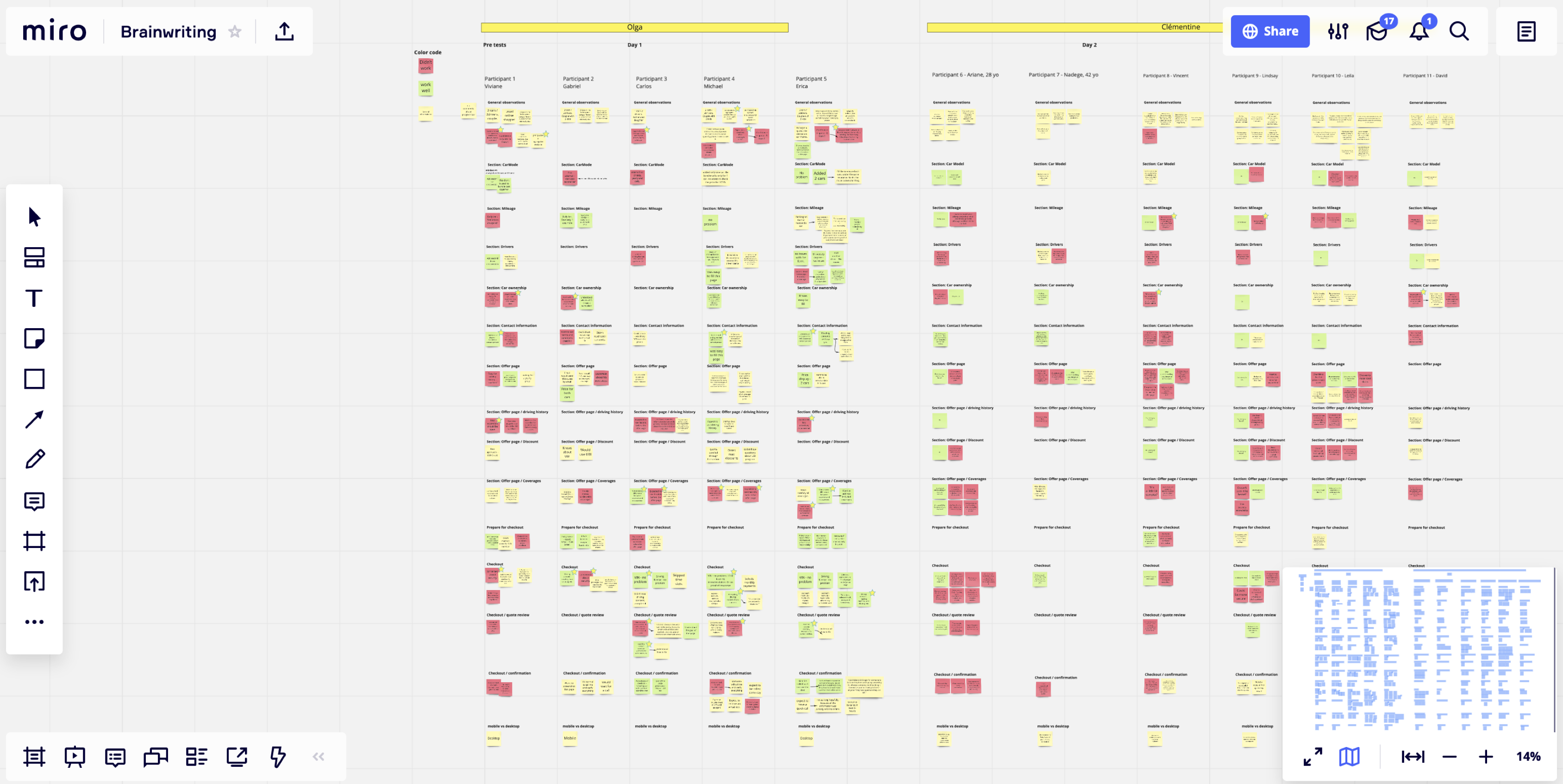
A large synthesis board with colour-coded sticky notes for 11 test participants across each quote section
Synthesis - 11 participants, section by section.
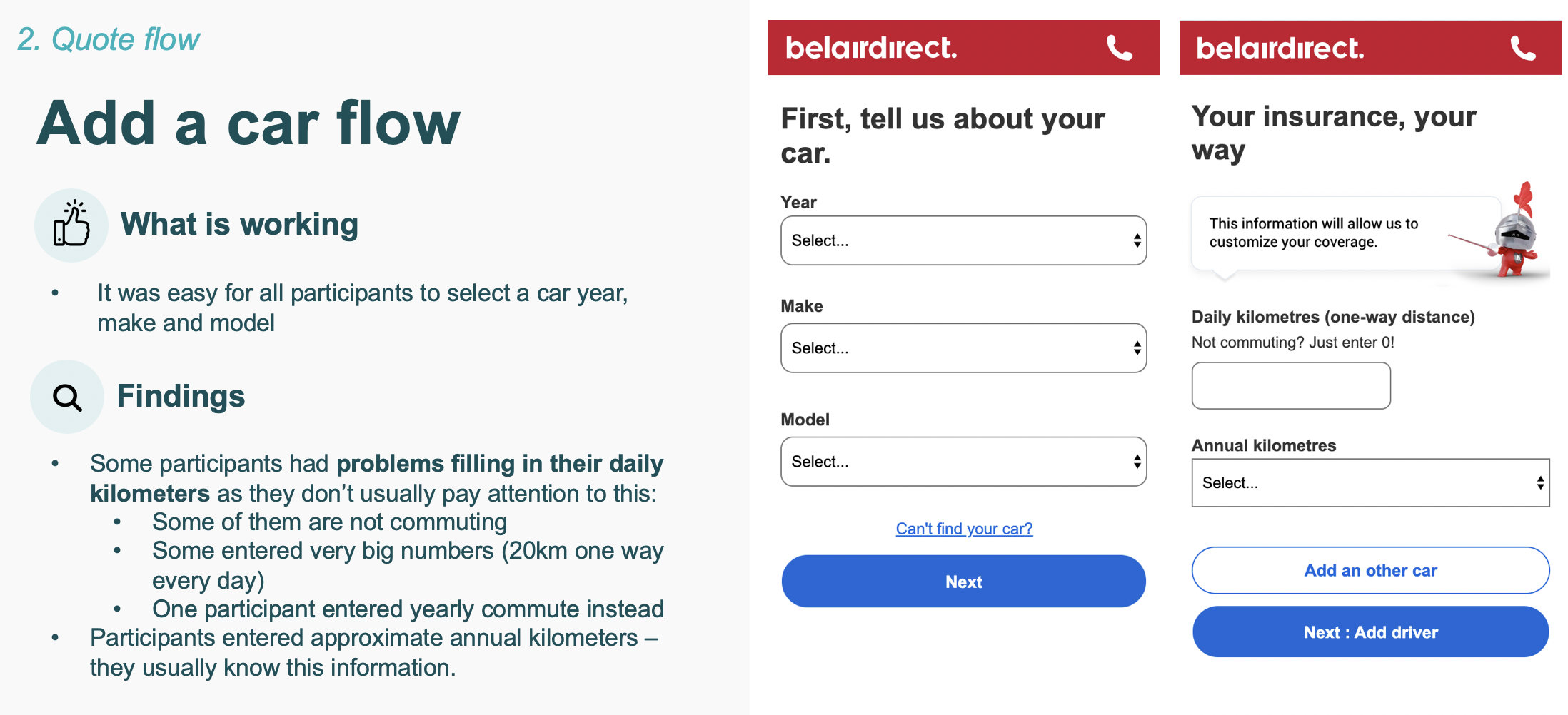
Findings slide for the add-a-car flow next to two belairdirect mobile screens
Findings - what worked, what hurt.
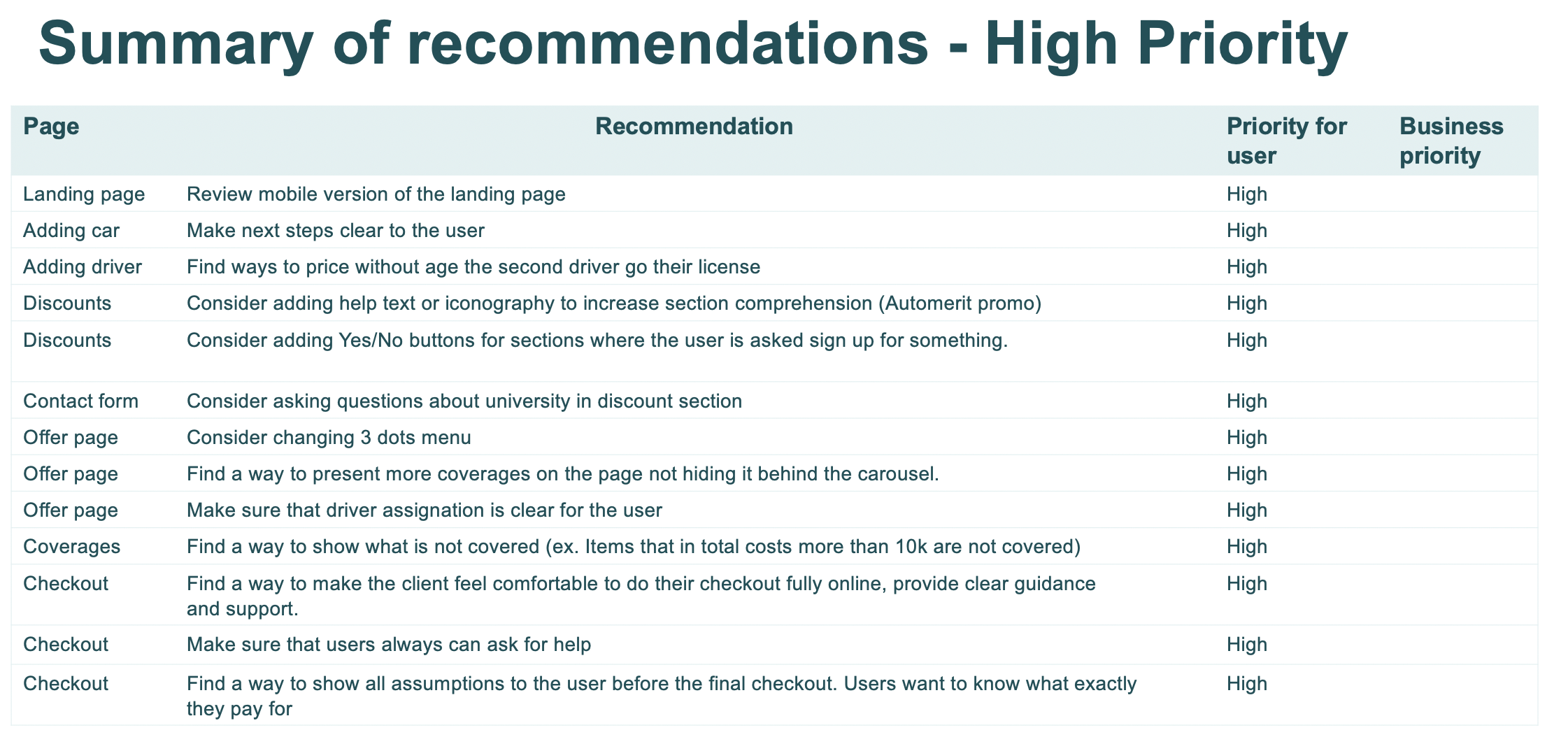
A summary table of high-priority recommendations across landing, adding car, adding driver, discounts, offer page, coverages and checkout
Recommendations - scored by user & business impact.
08Beyond the screen

Turning launches into something you can hold.

I designed custom swag tied to our engineering squad names - Shrimps and Otters - and pitched it to leadership as a way to mark feature launches with something tangible.

Mugs, stickers, hoodies. Small things, but they gave the team a shared identity during a period when we were all working in different cities and time zones. Building remote team and culture is design work too.
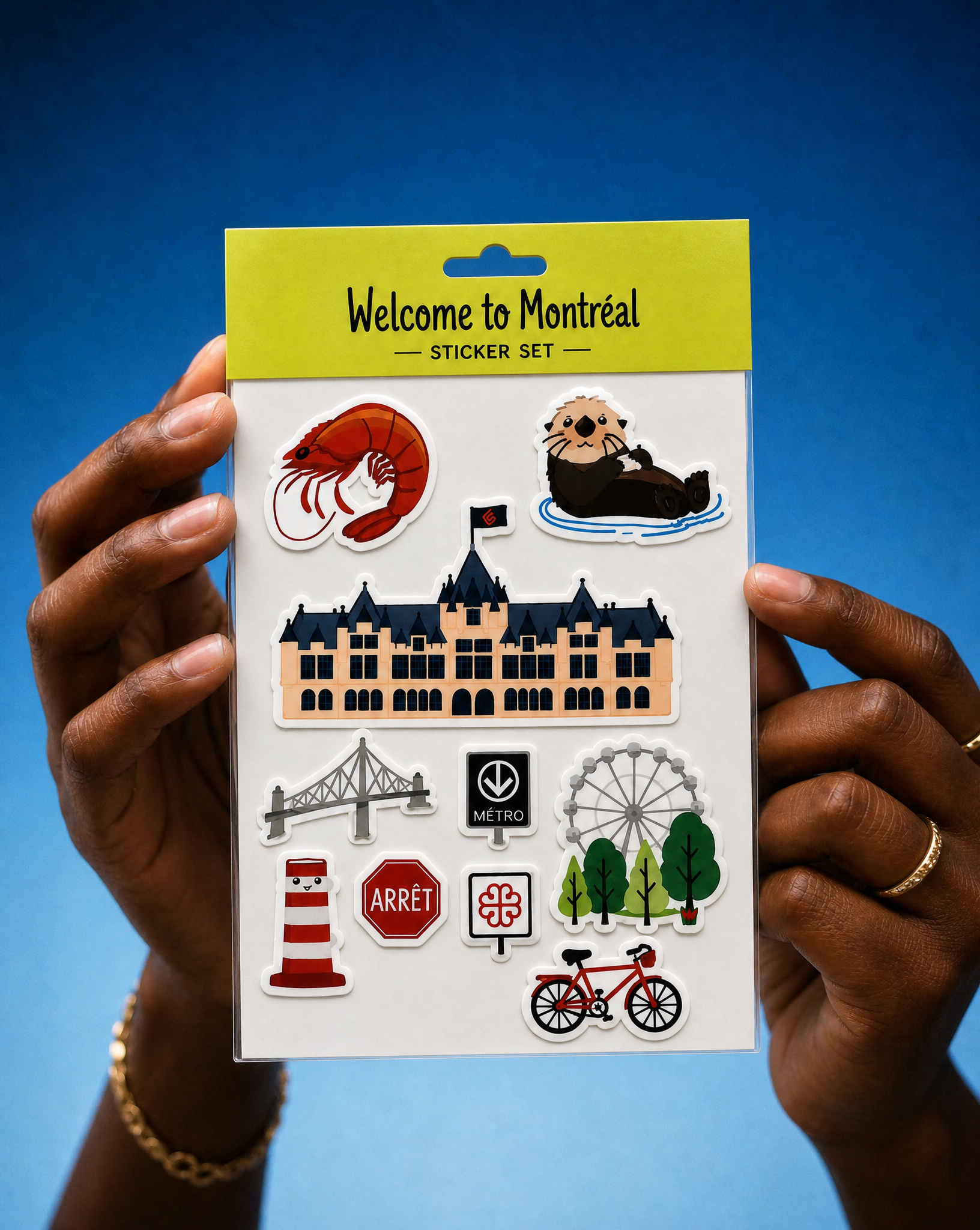

Hands holding the Welcome to Montréal sticker set with the squad shrimp and otter mascots
Sticker set - squad mascots & Montréal landmarks.
Wearing the white B2B × Lightspeed embroidered hoodie in a café
The B2B hoodie - embroidered squad branding.
Hands holding the Welcome to Montréal otter mug
Welcome to Montréal mug - featuring squad mascots and team's Montreal visit.
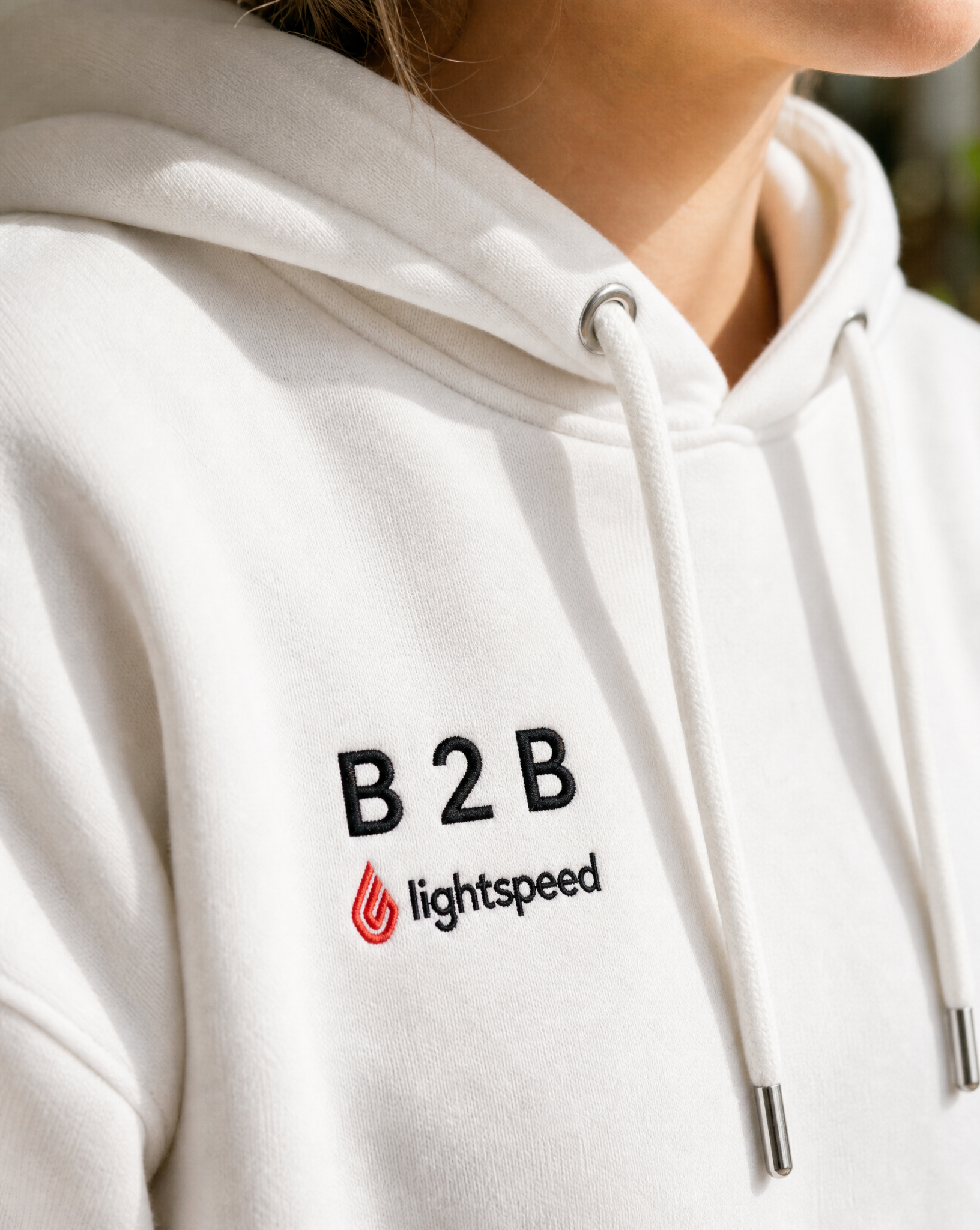
Close-up of the embroidered B2B × Lightspeed logo on the white hoodie
B2B hoodie - featuring the name of the project our squads were working on.